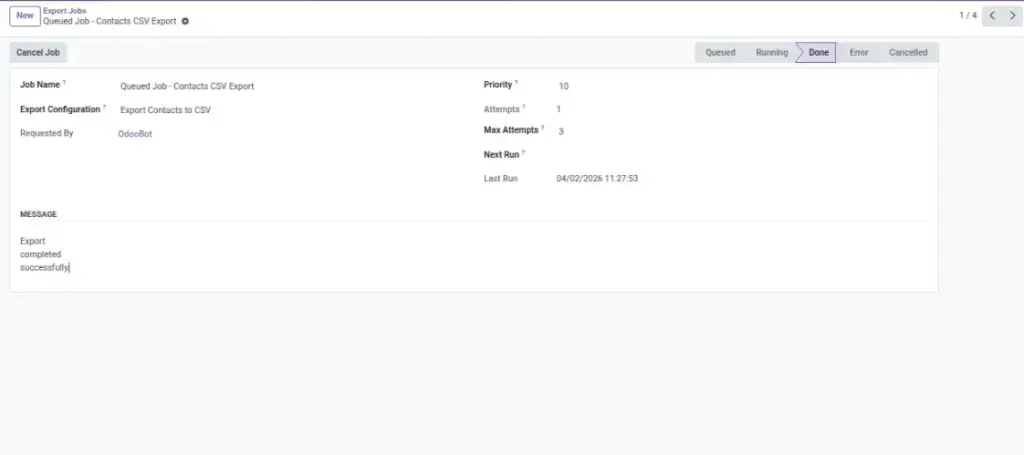
When exports run in the background, you can track them here without waiting on-screen.
Overview
Export Jobs are a “background queue” for exports. When an export is large (or when your company prefers background processing), Odoo can prepare the file without keeping you waiting on the screen.
In Export Jobs, you can see whether a job is queued, running, completed, or failed. If something goes wrong, the job message helps you understand what happened so you can fix it (for example: delivery credentials, permissions, or data issues).
Example: You start a big “All Customers” export and continue working in Odoo; later you check Export Jobs to confirm it finished.
How It Works
- You start an export (sometimes as a background job).
- The job appears as Queued or Running.
- When finished, it becomes Done or Error.
- If it fails, the job message helps you fix the cause.
Step-by-Step Guide
- Go to Odoo All Export → Monitoring & Logs → Export Jobs.
- Use the filters (Queued/Running/Done/Error) to find your job quickly.
- Open the job to see details like attempts and the last message.
- If a job is stuck or no longer needed, click Cancel Job.
- After it completes, go to Export History or Export Logs for the final file and full details.
Fields Table
| Field Name | Description | Example |
|---|---|---|
Job Name |
A short label for the job. |
Export Job |
Export Configuration |
Which export setup this job runs. |
Invoices – Posted – Monthly |
Status |
Current job state. |
Queued / Running / Done / Error |
Requested By |
Who started the job. |
Mitchell Admin |
Priority |
Higher runs earlier when many jobs exist. |
10 |
Attempts |
How many times it tried to run. |
2 |
Max Attempts |
Maximum retries before it stays failed. |
3 |
Next Run |
When it will try again (if queued). |
2026‑04‑01 11:30 |
Last Run |
Last time it started a run. |
2026‑04‑01 11:10 |
Message |
Latest status or error message.Attempt 2 failed: S3 access denied |
Attempt 2 failed: S3 access denied |
Field Explanations
Job Name
Helpful for searching when many exports run daily.
Export Configuration
Tells you exactly which export setup is being executed.
Status
“Queued” waits in line, “Running” is in progress, “Done” finished, “Error” needs attention.
Requested By
Useful when multiple teams share the same Odoo database.
Priority
Higher priority jobs are processed first.
Attempts
Shows retry activity; repeated failures often mean a settings or permission issue.
Max Attempts
Protects the system from retrying forever.
Next Run
When the system plans to process the job again.
Last Run
Helps confirm whether anything is happening.
Message
The most important clue for fixing failures.
Tips
- If an export is urgent, ask your admin to raise priority (if your process allows it).
- If you see frequent “Error” jobs, check delivery credentials (email/cloud/API) first.
- For large exports, use filters to reduce volume and avoid timeouts.
Common Mistakes
- Canceling a job that is almost done — wait a minute and refresh first.
- Ignoring the job message — it usually tells the exact cause.
- Assuming “Done” means “Delivered” — always verify in History/Logs if the delivery method is email/cloud/API.
Image