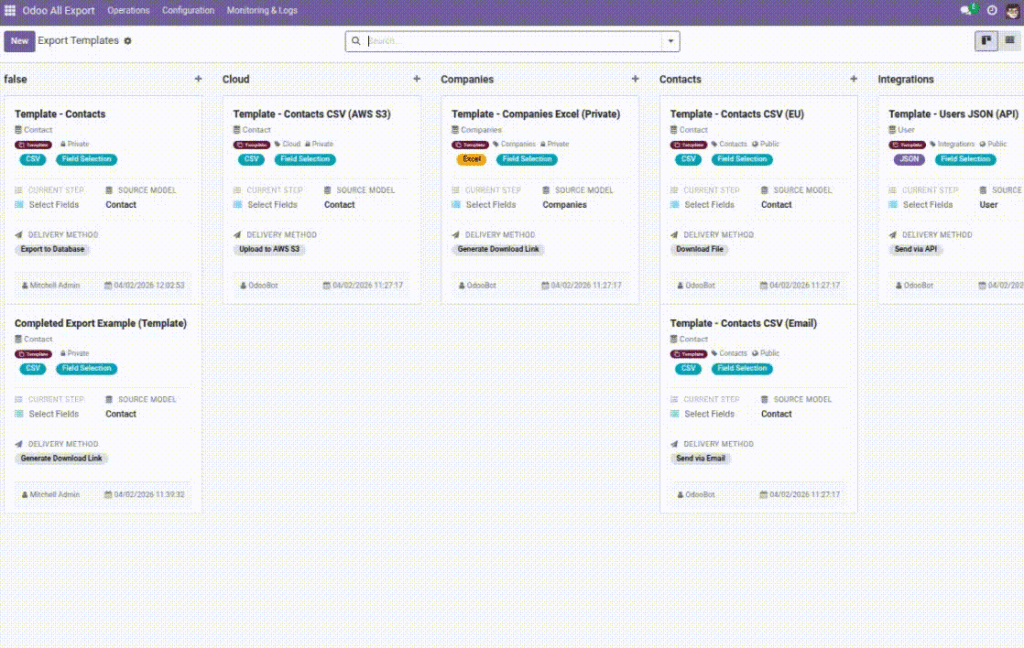
Overview
Export Templates help your team export the same type of file again and again without rebuilding the setup each time. A template remembers your choices, so exports stay consistent across weeks, months, and different users.
A template can store the data source (model), selected fields (columns), filters (which rows to include), file format, and delivery settings. This reduces mistakes and speeds up routine work.
Example: A “Monthly GST Invoices” template always exports the same columns in the same order, so accounting can compare month-to-month easily.
How It Works
- Create or open an export configuration.
- Set fields, filters, format, and delivery settings.
- Save it as a Template so you can reuse it later.
- Duplicate templates to create variations (Finance vs Sales, Region A vs Region B).
Step-by-Step Guide
- Go to Odoo All Export → Configuration → Export Templates.
- Click Create.
- Set Name (clear business name like “Invoices – Posted – Monthly”).
- Choose Source Model (example: Invoices).
- In Field Mappings, add the columns you want and set labels if needed.
- In Filters, enable filters and add conditions (optional).
- In Delivery Configuration, choose where the file should go (optional).
- Save. Use Duplicate Template to make a copy for a new purpose.
Fields Table
| Field Name | Description | Example |
|---|---|---|
Name |
Template name people can recognize. |
Sales Orders – Confirmed – Weekly |
Source Model |
Which Odoo data you export. |
Sales Order |
File Format |
Output type for the template. |
Excel (XLSX) |
Template Category |
Optional grouping for organization. |
Finance |
Public Template |
If enabled, others can use it too (depends on access). |
On |
Field Mappings |
The list of columns + order + column labels. |
Customer, Date, Total |
Use Filters |
Turn filters on/off for this template. |
On |
Filters |
Rules that decide which records appear. |
Status = Posted |
Delivery Method |
How the template sends the file (if configured). |
Field Explanations
Name
Use a name that answers: “What is this export for?”
Source Model
The business area your data comes from (Customers, Invoices, Stock Moves, etc.).
File Format
Pick what the receiver can open (Excel/CSV for people; JSON/XML for systems).
Template Category
Helps keep templates tidy (by department or use case).
Public Template
Makes the template available to other permitted users (avoid for sensitive exports).
Field Mappings
Your columns, in the exact order they appear in the file.
Use Filters
Switch on when you only want a specific slice of data.
Filters
The “rules” that decide which rows are included.
Delivery Method
Optional automation for sending the file to email/cloud/API.
Tips
- Create one template per audience (Finance, Sales Ops, External Partner).
- Rename column labels to match your reporting language.
- Duplicate templates instead of rebuilding them from scratch.
Common Mistakes
- Using unclear names like “Export 1” — hard to find later.
- Making a template public when it contains sensitive columns.
- Forgetting filters and exporting too much data.
Image