Send export data directly into a PostgreSQL database (instead of downloading a file).
Overview
Export to Database is designed for companies that use a reporting database for dashboards and analytics. Instead of creating a file that someone downloads, the export writes rows directly into a PostgreSQL table.
This is helpful when your team wants “always available” data for BI tools (Power BI, Tableau, internal dashboards) without manual file handling. It also reduces version confusion, because the database table becomes the single source for reporting.
Note: You will usually need help from your IT/admin team for connection details and permissions (host, port, username, and table rules).
Example: A daily “Sales Orders” export updates a reporting table so dashboards refresh automatically every morning.
How It Works
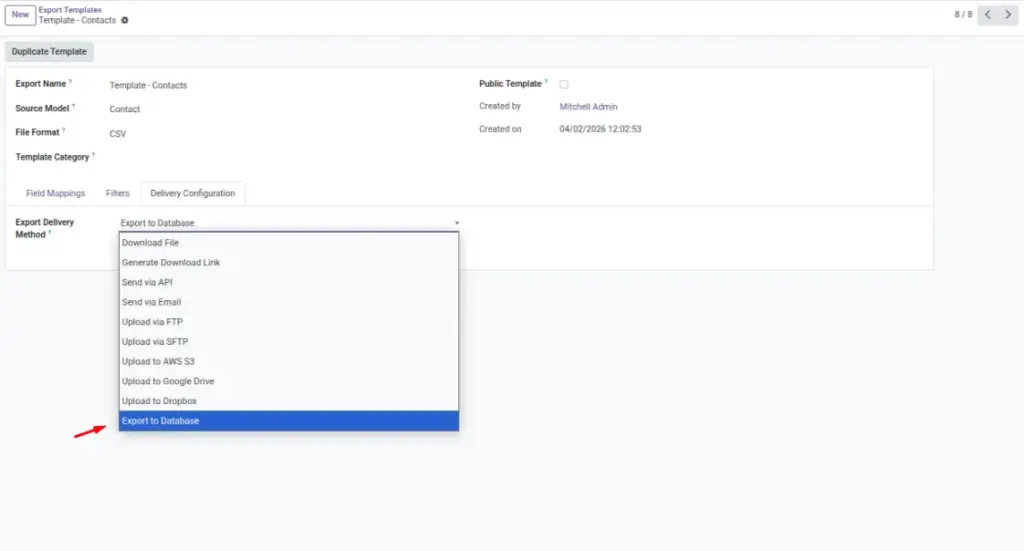
- Select Delivery Method = Export to Database.
- Enter database connection details (host, port, database name, user).
- Choose the target table name and update mode.
- Run the export and check History/Logs for success.
Step-by-Step Guide
- Open your export configuration.
- Set Delivery Method to Export to Database.
- Fill Database Host, Port, Database Name, User, Password.
- Set the Table Name (ask IT for the standard naming rule).
- Run a small test export (use a filter or record limit).
- Verify in History & Logs that it completed successfully.
Fields Table
| Field Name | Description | Example |
|---|---|---|
Delivery Method |
How the export is delivered. |
Export to Database |
Database Host |
Server address of the database. |
reports.company.local |
Database Port |
Database network port. |
5432 |
Database Name |
Which database to write into. |
reporting_db |
Database User |
Username with permission to write. |
export_writer |
Database Password |
Password for the database user. |
(hidden) |
Table Name |
Target table where rows will be stored. |
odoo_invoices_posted |
Field Explanations
Delivery Method
Choose this when you don’t want files and your reporting tool reads from a database.
Database Host
The database server address provided by IT.
Database Port
Usually 5432 for PostgreSQL unless your company uses a custom port.
Database Name
The specific database to store exports.
Database User
Must have permission to create/insert/update (as required).
Database Password
Keep this confidential; don’t paste into chats or tickets.
Table Name
Use a stable name so dashboards don’t break when you change exports.
Tips
- Start with a small export first (few records) to confirm the connection works.
- Keep field lists stable; changing columns can break dashboards.
- Use Validation Rules to prevent bad rows reaching reporting.
Common Mistakes
- Wrong host/port (common when copying from old notes).
- Using a database user without write permissions.
- Changing table/column structure after dashboards are built.
Image