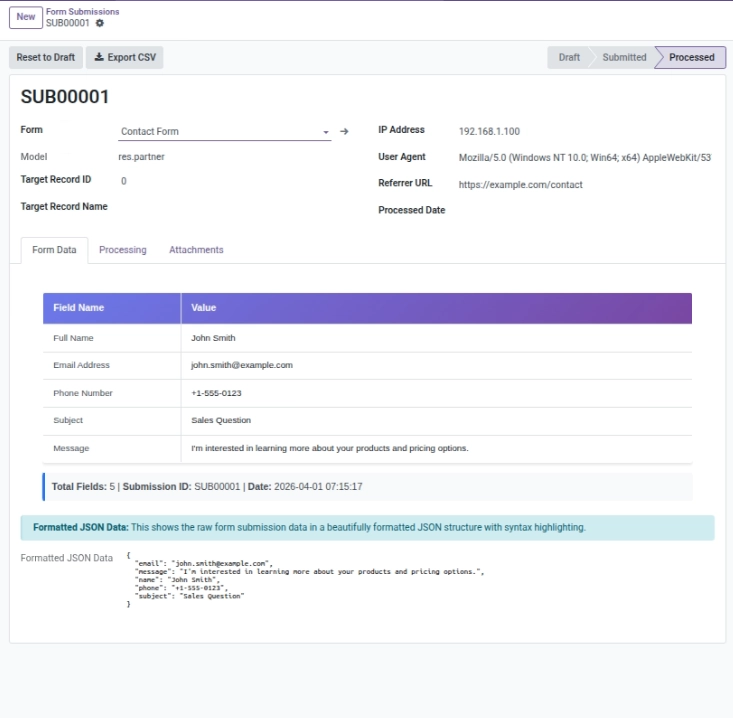
Understand the difference between “saving a submission” and “creating an Odoo record”.
Overview
This chapter explains what your team can expect after a user clicks “Submit”. Understanding this avoids confusion like “Why do I see a submission but no lead?” or “Where did the uploaded file go?”
In this module, every entry is saved as a Submission first. Then, depending on your setup, Odoo can also create or update a record in your chosen model (for example, a new Lead).
Key idea: Submissions always save. Creating an Odoo record depends on whether you configured active field mappings. This gives you control and prevents wrong data from going into your business records.
How It Works
When someone submits your form:
- The module saves the answers as a submission record.
- If you set up active field mappings, the module can create/update a target record in the target model.
- If there are no active mappings, the submission is still stored, but no target record is created.
This is helpful when you want to collect data first, and decide mapping later.
Step-by-Step Guid
- Submit the form once using the public URL.
- Open Odoo → Dynamic Forms → Submissions and find the new entry.
- Check the State and any Processing Error.
- If you want it to create an Odoo record, configure Field Mappings and then process the submission again.
- Use View Target Record when available to open the created record.
Fields Table
| Label | Description | Example |
|---|---|---|
Submitted answers |
Raw answers saved in the submission. |
Name: John, Email: john@… |
Submission status |
Where the submission is in the process. |
Submitted / Processed |
Linked Odoo area |
Which Odoo area this form is connected to (e.g. Leads). |
Leads |
Linked Odoo record |
The created or updated record in Odoo (if any). |
Lead #124 |
Processing error message |
Reason it failed (if status is error). |
Field type mismatch |
Fields explanation
Submitted answers
The saved answers from the user
Submission status
Current status of the submission (submitted/processed/error)
Linked Odoo area
The Odoo area this form is connected to (for example Leads)
Linked Odoo record
The created or updated Odoo record (if one was created)
Processing error message
The reason processing failed (only when status is error)
Tips
- If you’re not ready to map fields, still publish the form and start collecting submissions.
- Use “Label Field” mapping to make created records easier to identify.
- Keep mappings simple (avoid relational fields unless you know exactly how to handle them).
Common Mistakes
- Expecting an Odoo record to be created without any mappings.
- Mapping incompatible field types (text → number, etc.).
- Ignoring the processing error message when the state becomes “Error”.