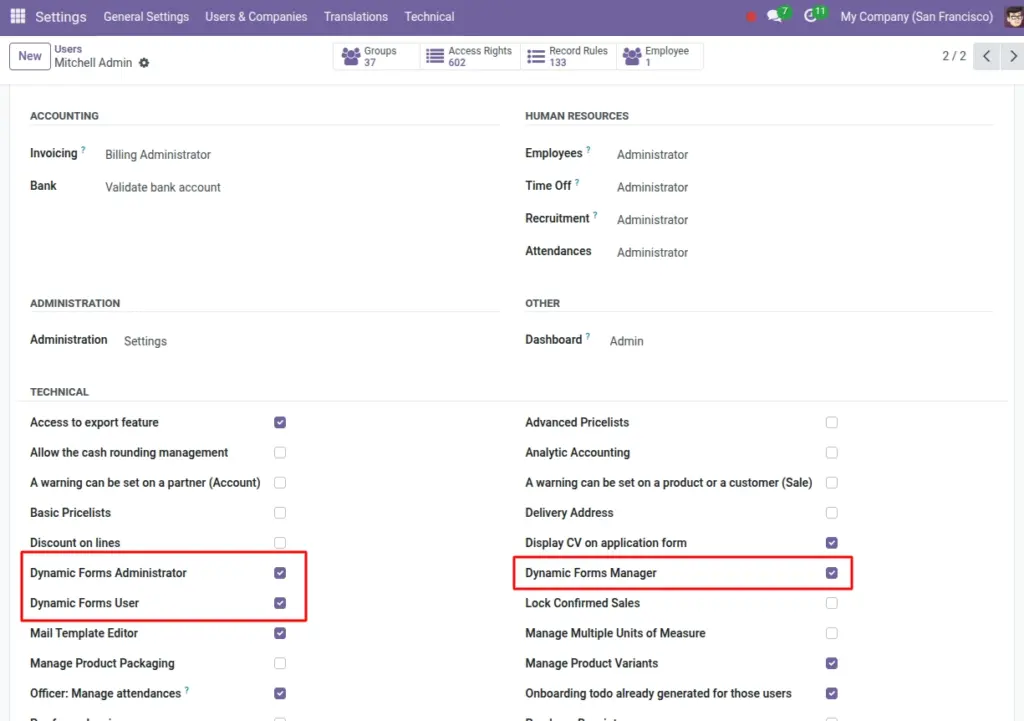
Decide who can build forms, publish them, manage submissions, and change admin settings.
Overview
Roles and permissions control what each user can do in Dynamic Forms. This keeps your forms and submissions safe and prevents accidental changes.
This module provides three main roles:
- Dynamic Forms User: Can create and edit forms, fields, mappings, submissions, and notifications (but cannot delete most items).
- Dynamic Forms Manager: Same as User, plus can delete (remove) forms and related items.
- Dynamic Forms Administrator: Full access, including the Dynamic Forms configuration/settings.
Tip: If someone only needs to review submissions, you can still give the User role, but train them not to change form design.
How It Works
Odoo checks your role when you try to open, create, edit, or delete something. If you don’t have permission, the option will be hidden or you’ll see an access message.
The key difference is deletion and admin settings:
Administrators: Can manage everything, including the system configuration page.
Users: Can read/create/edit, but usually cannot delete.
Managers: Can delete forms, fields, mappings, submissions, and notifications.
Step-by-Step Guid
- Ask: “What does this person need to do?” (build forms, publish, view submissions, manage settings)
- Assign the lowest role that still lets them complete their work.
- Test by logging in as that user and opening Forms and Submissions.
- If they cannot access Settings, assign the Administrator role (only when needed).
Fields Table
| Label | Description | Example |
|---|---|---|
Dynamic Forms User |
Create/read/edit forms, fields, mappings, submissions, and notifications. No delete for most items. |
Marketing staff building a form |
Dynamic Forms Manager |
All User permissions plus delete (remove) forms and related records. |
Team lead maintaining forms |
Dynamic Forms Administrator |
All Manager permissions plus access to Dynamic Forms configuration/settings. |
System admin / Odoo admin |
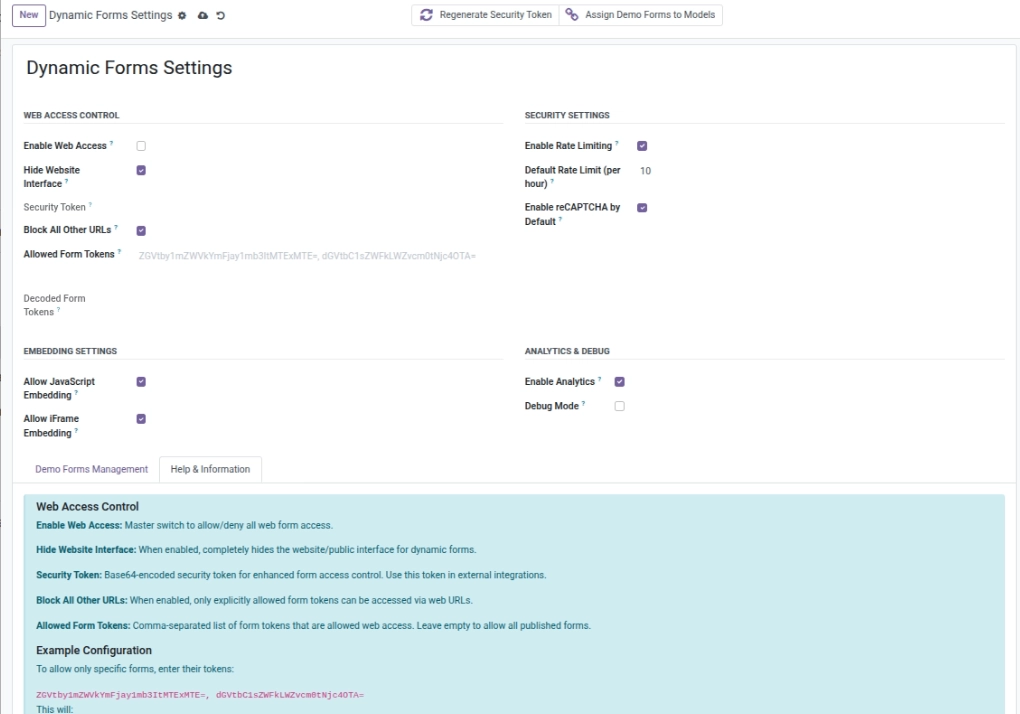
Dynamic Forms Settings (Configuration) |
Global settings like web access, embedding permissions, analytics, debug mode. |
Enable Web Access |
Fields explanation
Dynamic Forms User
Can work with forms and submissions, but cannot delete most records
Dynamic Forms Manager
Can delete forms and related items when cleanup is needed
Dynamic Forms Administrator
Can change global Dynamic Forms settings
Dynamic Forms Settings (Configuration)
The admin-only configuration screen
Tips
- Give Administrator access only to a small number of trusted users.
- Use Manager role for people responsible for cleanup and long-term maintenance.
- Train Users to “Duplicate” instead of deleting live forms.
Common Mistakes
- Giving Admin role to everyone (risk of accidental global changes).
- Assuming publishing is blocked by roles — publishing is a form action, so control access by giving the module only to the right users.
- Not testing permissions with a real user account.