Copy a small snippet and paste it into your website or CMS.
Overview
Once your form is ready, you can place it on your website so people can fill it without logging into Odoo. This chapter shows you the simplest “copy and paste” ways to do that.
You have two embedding options:
- JavaScript Widget — best when your website allows scripts and you want a smoother, more flexible embed
- iFrame — best when your website or CMS blocks scripts (it still works almost everywhere)
Example: You can embed a “Request a Demo” form on a landing page, or place a “Support Request” form inside your Help page so users can submit issues anytime.
How It Works
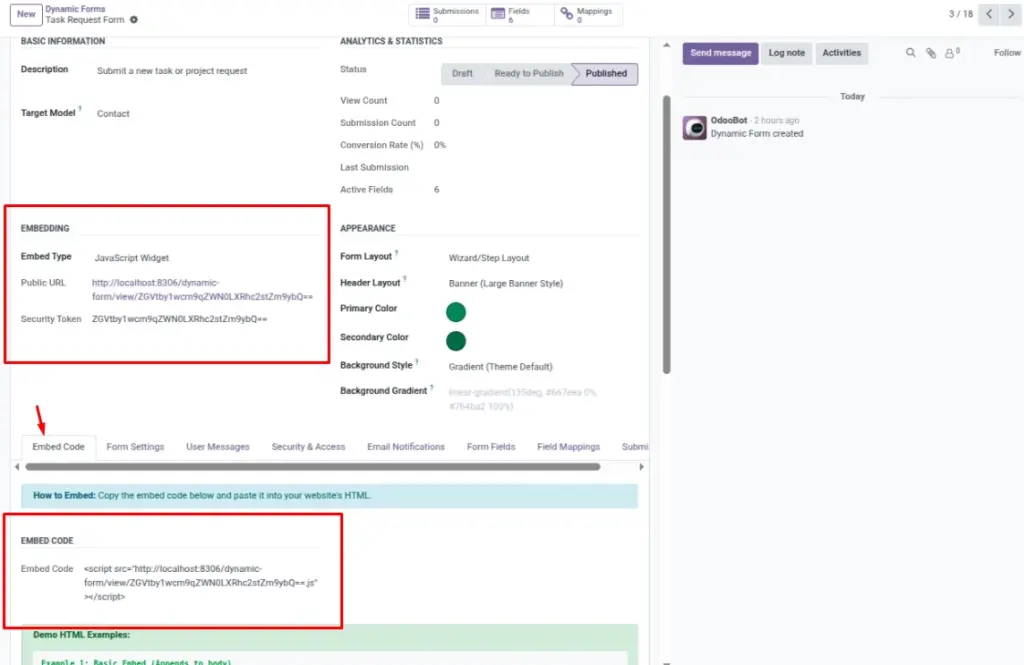
Choose “JavaScript” or “iFrame” in the form. The system generates the correct embed code and a public URL. Paste it where you want the form to appear.
Step-by-Step Guid
- Open your form and set Embed Type to JavaScript or iFrame.
- Copy the Embed Code or Public URL.
- Paste the code into your site’s HTML or CMS embed block.
- Publish your website changes and test the form.
Fields Table
| Label | Description | Example |
|---|---|---|
Embed as |
How the form is embedded: JavaScript or iFrame. |
JavaScript widget |
Embed code |
Copy-paste code snippet for your website. |
<script src=”…/view/TOKEN.js”></script> |
Public form link |
Direct link to the form page. |
https://yourdomain/dynamic-form/view/TOKEN |
Fields explanation
Embed as
Choose whether you will embed using JavaScript or an iFrame
Embed code
The copy‑paste snippet you put into your website
Public form link
The direct link you can share or open to test the form
Tips
- Use iFrame when your CMS blocks external scripts.
- Prefer JavaScript for better styling inheritance.
- Keep the width at 100% for mobile responsiveness.
Common Mistakes
- Embedding a draft form — publish first.
- Pasting the code in a “rich text” area instead of HTML block.