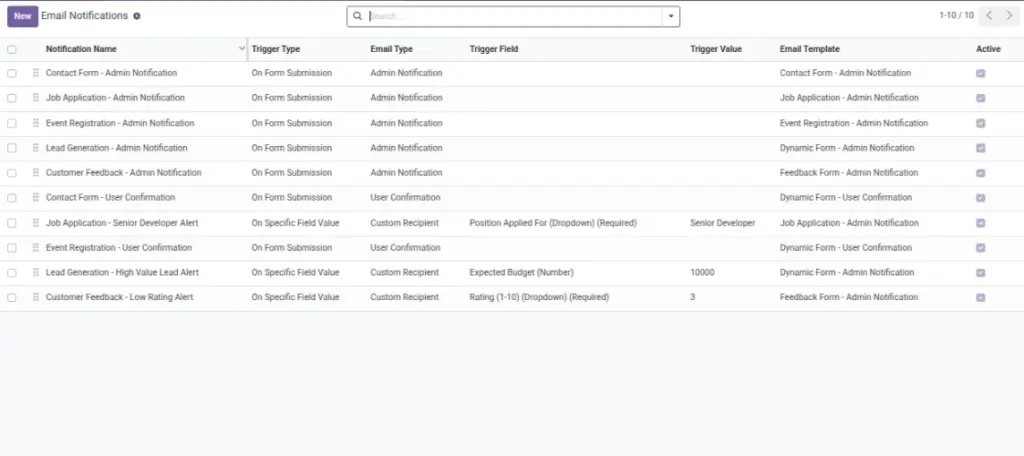
Alert your team and send confirmations to users automatically.
Overview
Email notifications help you respond faster and give users confidence that their message was received. Instead of checking Odoo manually, you can automatically send emails when a form is submitted.
You can use notifications for:
- Admin alerts (send to your team mailbox)
- User confirmations (send “we received your request” to the person who submitted)
- Custom recipients (route emails based on a selected email field)
Example: If the user selects “Sales” in a dropdown, you can notify the Sales team. If they select “Support”, notify the Support team — all from the same form.
How It Works
Create one or more notification rules on a form: choose the trigger (on submission, on field value, or custom condition), then select the email template and recipient.
Step-by-Step Guid
- Open your form and go to Email Notifications.
- Create a notification and set a Trigger.
- Pick Email Type: Admin, User, or Custom Recipient.
- Choose the Email Template.
- Save and test by submitting the form.
Fields Table
| Label | Description | Example |
|---|---|---|
When to send |
When to send: on submission, specific field value, or condition. |
When the form is submitted |
Who receives it |
Who to send: admin, user (from email field), or custom. |
Notify administrators |
Custom email address |
Email address if using custom recipient. |
|
Send to the visitor’s email |
Use a form email field as recipient. |
User Email |
Email template |
Select the message template to use. |
Submission Confirmation |
Fields explanation
When to send
When the email should be sent (always on submit, or only for certain answers)
Who receives it
Who receives the email (admin, visitor, or custom recipient)
Custom email address
Fixed email address (used for custom recipient type)
Send to the visitor’s email
Uses an email field from the submission as the recipient
Email template
The message template used for the email
Tips
- Use “on field value” to route inquiries by topic (e.g., Sales vs Support).
- Include the formatted submission table in templates for readability.
Common Mistakes
- Leaving the recipient blank for custom notifications.
- Using a non-email field as the user recipient.