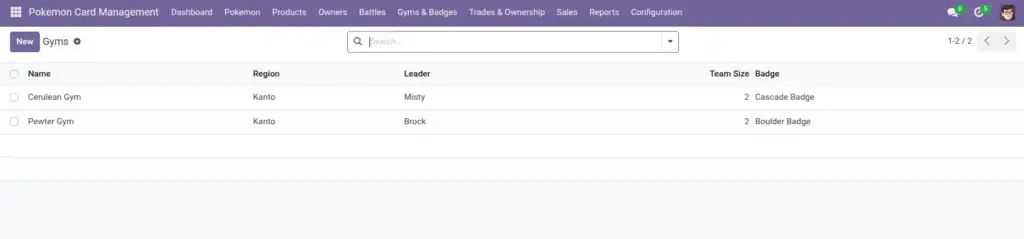
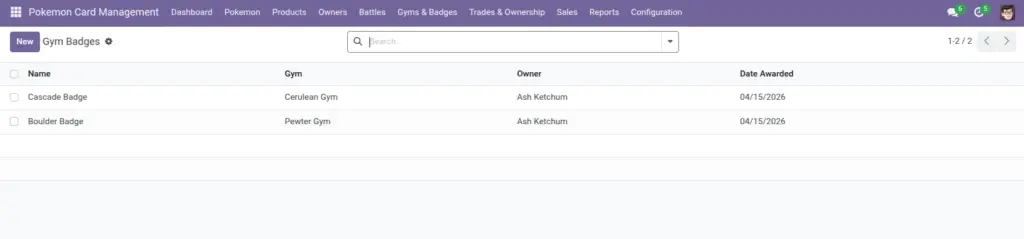
Create gyms, assign a leader and team, and award badges to owners. Badges appear on owner profiles and help build rankings.
1) Overview
Go to Gyms & Badges → Gyms to manage gym records. Go to Gyms & Badges → Gym Badges to award badges.
- Gym Leader
- Team Size
- Badges Awarded
2) How it works
Gym teams
A gym can have a team of Pokemon. The system shows the Team Size automatically, based on the team list.
Why it matters: Team Size helps you keep gyms consistent (for example, always 6 Pokemon).
Badges
A badge links an Owner to a Gym, with a date awarded. Owners automatically show their badge count.
Tip: award badges right after a gym victory
3) Step-by-step guide
Create a gym
- Open Gyms & Badges → Gyms and click Create.
- Enter Gym Name and Region.
- Select the Leader (an Owner).
- Optional: select the Badge (if you pre‑create badge records), or leave it empty.
- Add the Pokemon Team (use tags selection).
- Save.
Award a badge
- Open Gyms & Badges → Gym Badges and click Create.
- Enter Badge Name (often matches the gym theme).
- Select the Gym.
- Select the Owner receiving the badge.
- Confirm the Date Awarded and save.
Tip: If your team uses badges for rankings, award them as part of the same process as recording the battle.
4) Fields table
Gym
| Field Name | Description | Example |
|---|---|---|
Gym Name |
Name of the gym. |
Pewter Gym |
Region |
Where the gym is located. |
Kanto |
Leader |
The owner who leads the gym. |
Brock |
Pokemon Team |
Pokemon assigned to the gym team. |
Onix, Geodude |
Team Size |
Automatic count of team Pokemon. |
2 |
Badge |
Optional reference to a badge. |
Boulder Badge |
Gym Badge
| Field Name | Description | Example |
|---|---|---|
Badge Name |
Name of the badge. |
Boulder Badge |
Gym |
The gym that issues the badge. |
Pewter Gym |
Owner |
The owner receiving the badge. |
Ash |
Date Awarded |
Date the badge was earned. |
2026‑04‑06 |
5) Field name explanation
Gym Name
The gym’s display name used in lists and when awarding badges.
Example: “Pewter Gym”.
Region
Helps distinguish gyms and supports simple grouping (especially when you have many gyms).
Example: “Kanto”.
Leader
The gym leader is an Owner. This helps you connect gyms to trainers and keep the world consistent.
Example: In the gym list, you can see which leader runs which gym.
Pokemon Team
A list of Pokemon used by the gym. Choose Pokemon that are currently active and correctly owned.
Example: Add 6 Pokemon for a full gym lineup.
Team Size
Automatically counts how many Pokemon are in the gym team.
Example: Team Size = 6.
Badge (on Gym)
Optional link to a badge record. Helps keep gym/badge naming consistent.
Example: “Boulder Badge”.
Badge Name
The badge label shown on the badge record and owner profile.
Example: “Cascade Badge”.
Gym (on Badge)
Which gym issued the badge.
Example: Pewter Gym.
Owner (on Badge)
The owner who earned the badge.
Example: “Ash”.
Date Awarded
Keeps badge history accurate and makes it easier to audit “who earned what when”.
Example: Back‑date if you are migrating older results.
Badge Count (on Owner)
This count updates automatically when you create badge records.
Example: Award a badge and the owner’s Badge Count increases.
6) Tips
- Keep a naming style: decide once (e.g., “Boulder Badge”, “Cascade Badge”) and reuse it consistently.
- Use Region to avoid confusion when multiple gyms share similar names.
- Keep teams current: update the gym team when Pokemon ownership changes through trades/sales.
7) Common mistakes
- Awarding the wrong badge: always double‑check Gym + Owner before saving.
- Leaving old teams: if a Pokemon gets traded or sold, gyms can become outdated unless you update them.
- Using badges without dates: dates matter for audits and history (use the default if unsure).
8) Image