1) Overview
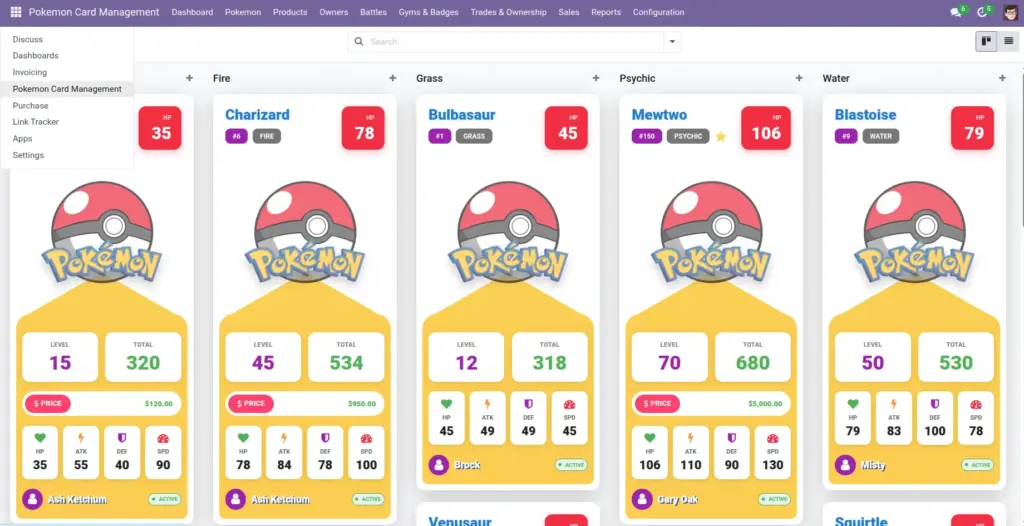
Pokemon Card Management adds a new app menu called Pokemon Card Management. Inside it, you will find:
- Pokemon
- Owners
- Battles
- Gyms & Badges
- Trades & Ownership
- Products
- Sales / Purchases / Invoices
- Configuration
Good to know: The module can connect your Pokemon to Odoo customers and sales documents, so ownership can change automatically when a sale is confirmed.
2) How it works
The main building blocks
- Pokemon: Each Pokemon you track (stats, type, level, price, moves, image).
- Owner (Trainer): The person who owns Pokemon. Can be linked to an Odoo Customer/Supplier.
- Trade: A swap between two customers that also swaps the owners of the Pokemon.
- Battle: A record of a fight between two owners. If you set a winner and experience, the winner’s Pokemon can level up.
- Gym & Badge: A gym has a leader and a team. A badge is awarded to an owner and linked to a gym.
- Pokemon Product: A normal Odoo product marked as “Is Pokemon Product”, optionally linked to a specific Pokemon.
Where to find things in the menu
- Pokemon → All Pokemon: the full collection view (kanban, list, form).
- Pokemon → My Pokemon: only Pokemon linked to your user via the owner.
- Owners → Rankings: quick view for rankings by badges and wins.
- Reports: grouped views like “Pokemon by Type/Owner” and “Battle Statistics”.
- Configuration: types, moves, abilities, evolution rules, locations, item categories.
3) Step-by-step guide
- Create your “Owners” first so Pokemon can be assigned to the right trainer.
- Create Pokemon and set their type(s), level, stats, and owner.
- Set a price when you want a Pokemon to appear in “Pokemon for Sale”. Price changes are tracked automatically.
- Record battles and award experience when you want progress (level‑ups) to be reflected.
- Use Trades when two customers swap Pokemon; ownership updates and history is created for you.
- Use Products + Sales Orders when selling Pokemon through normal Odoo sales flows.
Best practice: Keep your “Configuration” (Types, Moves, Abilities, Locations) tidy early—your team will fill forms faster later.
4) Fields table
This page explains common fields you’ll see across the app.
| Field Name | Description | Example |
|---|---|---|
Owner (Trainer) |
The person who owns a Pokemon or is linked to a sale/trade. |
“Ash Ketchum” |
Customer |
The Odoo customer contact that can be linked to an owner. |
“Ash Ketchum (Contact)” |
Status |
Where the Pokemon is in its life cycle (active, in deck, fainted, in gym, released). |
“Active” |
Price |
Current selling price. When it changes, the system records the change in Price History. |
$25.00 |
Archive / Unarchive |
Hide old records without deleting them. |
Archive an old Pokemon you no longer track |
5) Field name explanation
Owner (Trainer)
This decides who “owns” a Pokemon in the system. Many screens use it to filter what you can pick.
Example: If you set Owner to “Misty”, Misty’s name will show on the Pokemon card and in searches.
Customer
This connects your Pokemon workflow to Odoo contacts and documents (sales orders, purchases, invoices).
Example: In a Trade, you choose two customers; the system finds their linked owners.
Status
Use status to quickly understand what’s happening with a Pokemon without reading notes.
Example: If HP drops to 0, status can become “Fainted”.
Price
Price controls whether a Pokemon appears in “Pokemon for Sale” and records changes over time.
Example: Change $10 → $12 and the Price History tab will add a new line.
Archive / Unarchive
Archiving keeps your lists clean while keeping history for reporting.
Example: Archive duplicates instead of deleting, so old battles still make sense.
6) Tips
- Start with a small “setup pack”: create Types, a few Moves, and a few Locations before adding lots of Pokemon.
- Link Owners to Customers when you plan to use Trades or Sales—this avoids confusion later.
- Use “My Pokemon” if multiple people share the database; it keeps your day‑to‑day view focused.
- Archive instead of delete for older or retired items—reports and history stay consistent.
7) Common mistakes
- Creating Pokemon before Owners: you end up with “Owner” empty and later selection filters won’t work as expected.
- Using the wrong Customer in a Trade: if a customer has no linked owner, the “Owner From/To” fields may stay empty.
- Deleting records to “clean up”: it can break the meaning of battles, trades, and history. Archive instead.
8) Image