
Getting Started: Install & Enable Documents (DMS)
This page is for first-time users and admins who are enabling the Documents (DMS) module in Odoo. It explains the full “from download to visible menu” process in simple steps.

This app helps you store, find, and share your company documents inside Odoo — like a tidy filing cabinet with fast search, clear folders, labels (tags), safe sharing links, and optional cloud backup/sync.

By Akash Soni March 26, 2026
This page is for first-time users and admins who are enabling the Documents (DMS) module in Odoo. It explains the full “from download to visible menu” process in simple steps.
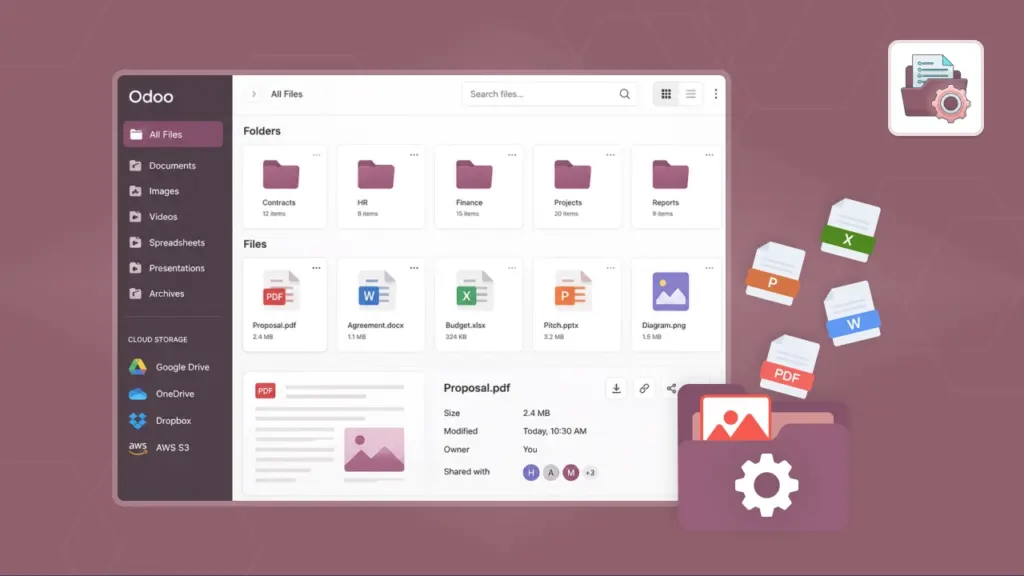
Operate within Odoo Documents to manage workspaces, files, and tags aligned with Cloud Sync.
Folders help your team keep documents in the right place. You can create subfolders, track how many files are inside, and (if you’re a manager) control who can access a folder.
Files are the documents you store in the system: PDFs, images, Excel sheets, Word files, and more. You can upload, download, move, duplicate, add tags, and keep track of versions.
Tags are reusable labels that help you find documents quickly. A file can have many tags, and the same tag can be used on many files.
Search helps you find a file quickly by typing. Filters help you narrow down results (by date, type, size, owner, tag, or folder). Saved Filters and Quick Filters help you reuse the same “search rules” without setting them up again every time.
Sharing lets you send a secure link to a file or folder. You can control what people can do (view, download, or edit), and you can add safety rules like an expiry date, password, or maximum downloads.
File locks are a simple teamwork feature: when a file is locked, it signals “someone is working on this”. Locks reduce accidental overwrites and confusion.
Comments help your team discuss a document in one place. The Activity Log keeps a reliable history of key actions like uploads, renames, moves, downloads, and lock/unlock events.
Cloud Sync connects an Odoo folder to a cloud storage provider (Google Drive, Dropbox, OneDrive, Box, or AWS S3). You can sync one way (upload or download) or both ways, and you can run it manually or automatically.
Model Document Settings let you decide where documents should be stored for business records. Example: each Sales Order or Project can automatically get its own folder under a selected root folder.

Create folders and subfolders, then move files around just like you would on a computer.

Upload files, preview common formats, and keep versions when a file is updated.

Add labels like Invoice, Contract, or HR to find documents in seconds.

Share a file or folder link, optionally with password, expiry date, and download limits.

Lock a file while you edit or review it so others don’t overwrite your changes.

Backup or sync a folder with Google Drive, Dropbox, OneDrive, Box, or AWS S3.