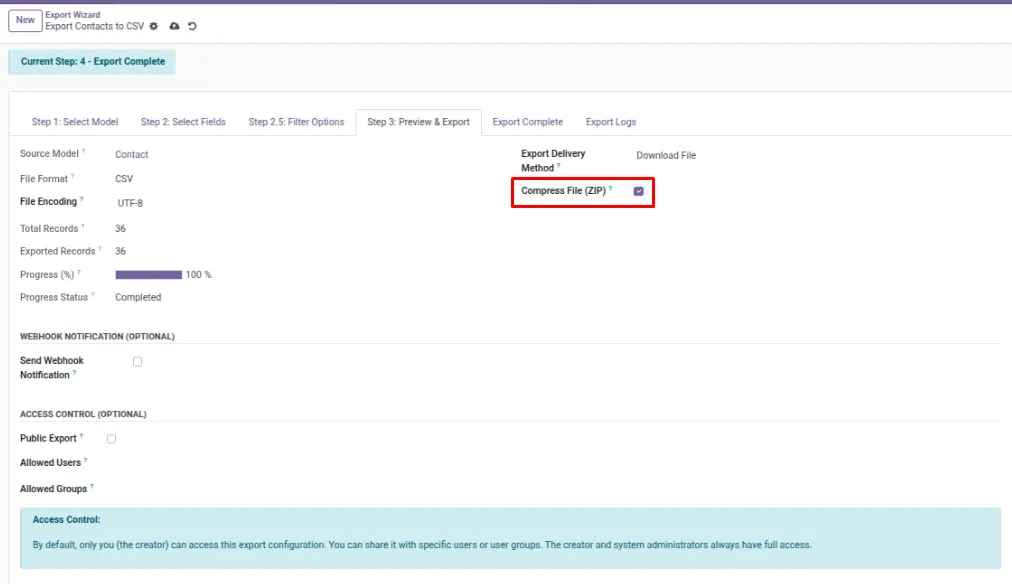
Compress exports into a ZIP to reduce file size and make delivery easier.
Overview
ZIP Compression turns your export into a smaller file (a .zip). This makes it easier to store, share, and upload — especially when your export contains many rows.
ZIP is commonly used when you deliver files by email, FTP/SFTP, or cloud storage, because smaller files transfer faster and fail less often. The ZIP contains your original export inside (for example, a CSV or XLSX file).
Example: A large “All Stock Moves” export is zipped so it can be uploaded to Drive without timing out.
How It Works
- Turn on ZIP compression in your export configuration.
- Run the export normally.
- The system produces a .zip file containing your export.
Step-by-Step Guide
- Open your export configuration.
- Enable Compress File (ZIP) (wording may vary).
- Optionally set a ZIP File Name if available.
- Export and download (or deliver) the ZIP file.
- On your computer, open the ZIP and extract the file inside.
Fields Table
| Field Name | Description | Example |
|---|---|---|
Compress File (ZIP) |
Turns ZIP compression on/off. |
On |
ZIP File Name |
Name of the ZIP file you receive. |
monthly_exports.zip |
Compression Ratio |
How much smaller the ZIP is (if shown). |
65% |
Field Explanations
Compress File (ZIP)
Enable this for large exports to reduce size.
ZIP File Name
Use a clear name so recipients know what the ZIP contains.
Compression Ratio
A quick indicator of size savings; higher means more reduction.
Tips
- ZIP works well with CSV and JSON exports, which compress a lot.
- If you send exports by email, ZIP can help stay under attachment limits.
- For batch exports, ZIP is also useful (see Batch Exports).
Common Mistakes
- Forgetting to extract the ZIP before uploading to another system.
- Using ZIP for recipients who can’t open ZIP files (rare, but possible).
Image