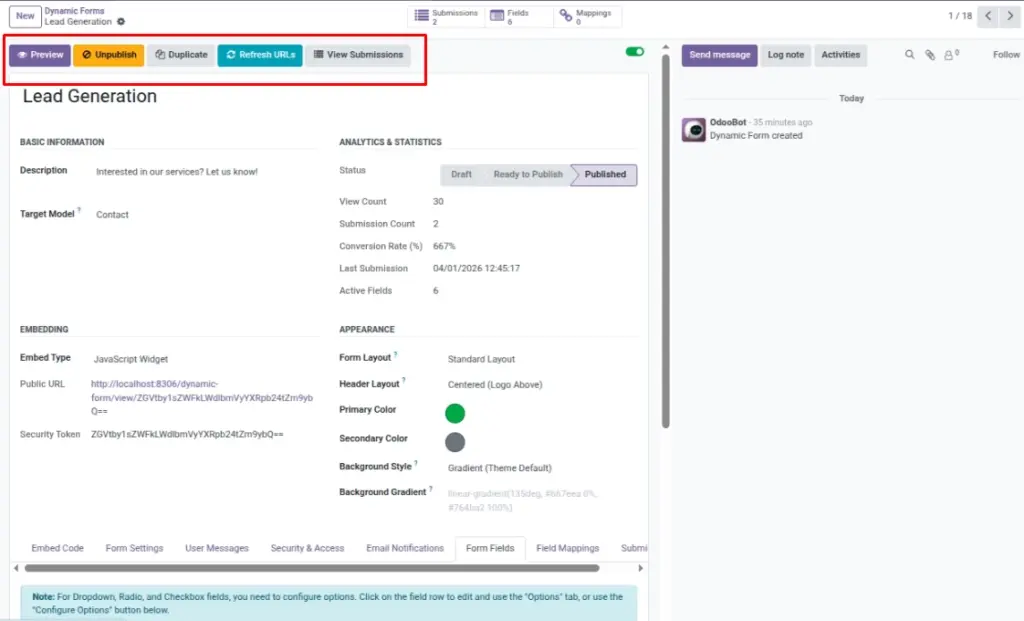
Make your form live, test it safely, and create copies for new campaigns.
Overview
This chapter is about making your form “real” in the outside world. Before you share a form link with customers, you usually want to test it, confirm the design looks good, and make sure the questions are correct.
You can:
- Preview the form to see what website visitors will see
- Publish when it’s ready (so the public URL and embed code work)
- Unpublish if you need to pause entries (for example, your event is full)
- Duplicate a form to reuse the same structure for a new campaign (new name and new link)
Example: You can duplicate your “Job Application Form” for a new department, or duplicate your “Lead Capture Form” for a new marketing landing page without rebuilding everything.
How It Works
When you publish a form, it becomes available through a public URL and can be embedded using generated code. Unpublishing turns the form off. Duplicating creates a new form copy with a new security token, so the new form gets its own link.
Step-by-Step Guide
- Open your form in Odoo.
- Click Preview to open the public form view in a new tab.
- When ready, click Publish.
- Copy the Public URL or Embed Code and test on your website.
- If you need a similar form, click Duplicate and rename it.
- If you want to stop receiving new entries, click Unpublish.
Fields Table
| Label | Description | Example |
|---|---|---|
Form Name |
Shows if the form is Draft, Ready to Publish, or Published. |
Published |
Published (live) |
When enabled, the public URL works and the form is live. |
On |
Public form link |
Public page link for the form. |
…/dynamic-form/view/your-form |
Embed code |
Copy/paste snippet for JavaScript or iFrame embed. |
<script src=”…”></script> |
Private link key |
Unique part of the link used for sharing and embed (keep it private). |
Short random code (unique) |
Fields explanation
Form status
Shows if the form is still being prepared or already published
Published (live)
When ON, the form is live and can accept submissions
Public form link
The link you can open/share to access the form
Embed code
The snippet you paste into your website to show the form
Private link key
The unique part inside the public link/embed (treat like a password)
Tips
- Preview with real devices (mobile + desktop) before publishing.
- Duplicate forms for seasonal campaigns so old links continue to work separately.
- Use clear success/error messages so users know what happened after submit.
Common Mistakes
- Sharing the embed code before publishing (the link may not work).
- Changing a live form without re-testing the public URL.
- Duplicating and forgetting to update email notifications on the new copy.