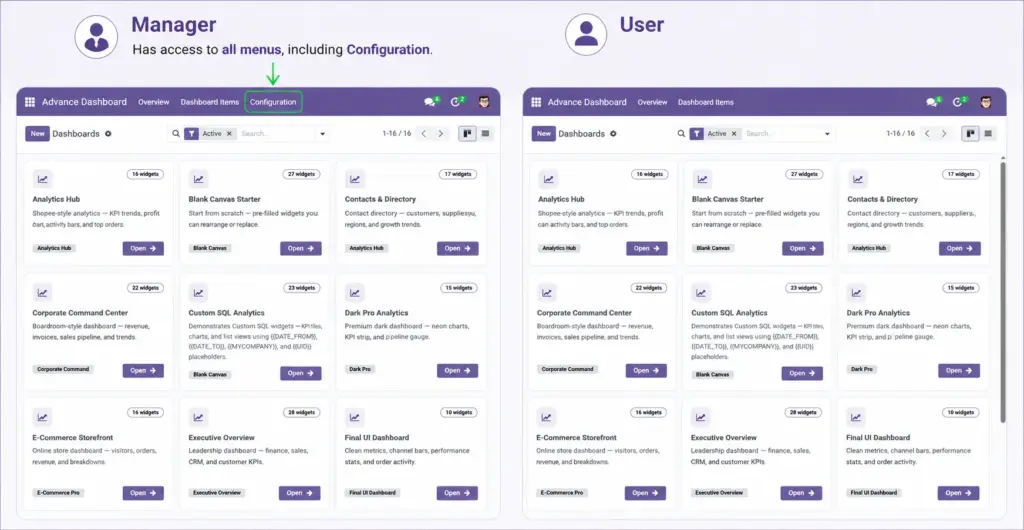
Control who can view, edit, and manage each dashboard in your organisation.
Overview
Not everyone in your company needs to see every dashboard. Advance Dashboard lets you control access at two levels: app permissions (who can use Advance Dashboard at all) and dashboard access (who can see each specific dashboard).
How It Works
There are two security roles: User (can view dashboards) and Manager (can create, edit, and manage). On top of that, each dashboard has optional Allowed Groups and Allowed Users fields. If both are left empty, every internal user can see the dashboard. If you add groups or users, only those people can open it.
Step-by-Step Guide
Assign App-Level Permissions
- Go to Users – Settings → Users & Companies → Users.
- Open a User – Click the person’s name.
- Access Rights Tab – Find the Advance Dashboard section.
- Choose Role – User (view only) or Manager (full control).
- Save – Click Save. The user must refresh their browser.
Restrict a Specific Dashboard
- Open the Dashboard Form – Go to Overview and click the dashboard.
- Find Access Rights Section – Scroll to “Access Rights” (Managers only).
- Add Allowed Groups – Select Odoo user groups (e.g., “Sales / Manager”). Everyone in those groups can see the dashboard.
- Or Add Allowed Users – Pick specific people by name.
- Save – Only the selected groups and users can now open this dashboard.
Permission Levels
| Role / Setting | Description | Example |
|---|---|---|
Advance Dashboard – User |
View dashboards, change date filters, PDF, TV mode |
Sales team members |
Advance Dashboard – Manager |
Create, edit widgets, SQL, import/export, manage access |
Team leads, analysts, admins |
Allowed Groups |
Odoo groups that can see this specific dashboard |
Sales / Manager, HR / Officer |
Allowed Users |
Specific individuals who can see this dashboard |
John Smith, Jane Doe |
Empty Access (both blank) |
Dashboard is visible to all internal users |
Company-wide KPI dashboard |
Field Explanations
Advance Dashboard – User
Standard role for employees who need to view dashboards. They can open dashboards shared with them, switch date periods, print PDFs, and use TV mode. They cannot create or edit dashboards.
Advance Dashboard – Manager
Full control role. Managers can create dashboards, add and configure widgets, write SQL queries, import/export, and set access restrictions. Automatically granted to Odoo administrators.
Allowed Groups
Restricts the dashboard to members of specific Odoo groups. Example: only the “Sales / Manager” group sees the executive sales dashboard. Combine with Allowed Users for flexible access.
Allowed Users
Grants access to specific individuals regardless of their group. Useful when one person outside a team needs to see a restricted dashboard.
Empty Access (both blank)
When neither Allowed Groups nor Allowed Users is set, the dashboard is open to every internal Odoo user. This is the default for new dashboards.
Tips
- Leave access empty for company-wide dashboards (e.g., “Today’s Orders”). Restrict only sensitive dashboards (e.g., “Executive Revenue”).
- Use Allowed Groups rather than individual users – it scales better as people join and leave teams.
- Managers always see all dashboards regardless of access restrictions.
- After changing permissions, tell affected users to refresh their browser (F5).
Common Mistakes
- Restricting a dashboard but forgetting to add yourself to Allowed Users – managers can still see it, but test with a regular user account.
- Giving everyone Manager access – most people only need User. Reserve Manager for people who build dashboards.
- Setting Allowed Groups AND Allowed Users thinking both are required – they work as OR (either group members OR listed users can access).
Image