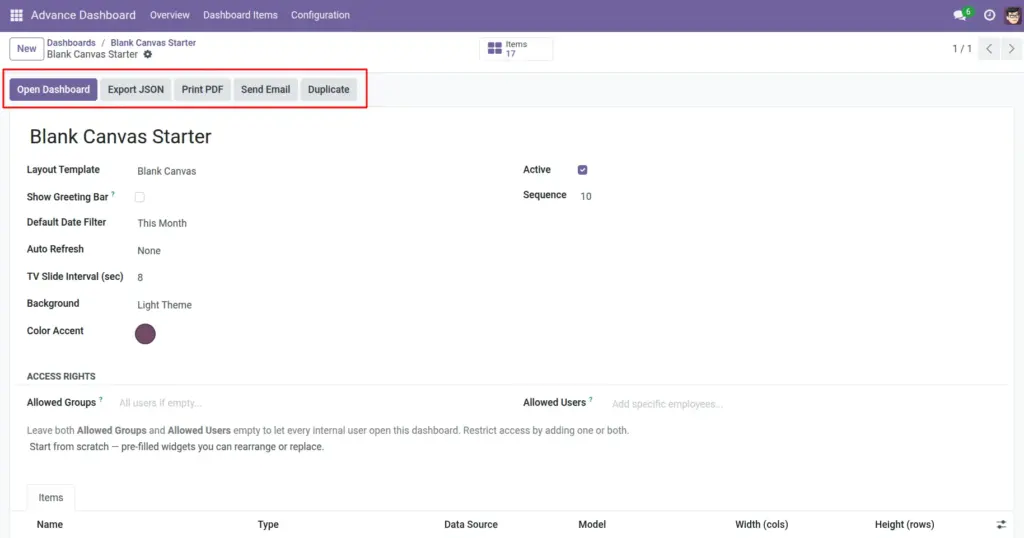
Share dashboards as PDF reports, email them to colleagues, or move layouts between Odoo databases.
Overview Duplicate
Advance Dashboard gives you three ways to share your work: Print PDF for human-readable reports, Send Email to deliver PDFs directly from Odoo, and Export/Import JSON to copy dashboard layouts between databases or back them up.
How It Works
PDF export captures a snapshot of the dashboard as it looks on screen – charts, numbers, and layout included. Email attaches that PDF and sends it through Odoo’s mail system. JSON export saves only the dashboard design (widget types, positions, settings) – not your actual business data. You can import that JSON file into another Odoo database to recreate the same dashboard layout.
Step-by-Step Guide
Print a PDF Report
- Open the Dashboard Form – Go to Overview and click the dashboard row.
- Click Print PDF – In the header buttons, click Print PDF.
- Download or Print – Your browser opens the PDF. Save it or send to your printer.
Email a Dashboard
- Click Send Email – On the dashboard form, click Send Email.
- Fill in Recipients – Enter email addresses or select Odoo contacts.
- Add a Message – Write a short note (optional).
- Send -Click Send. The PDF is attached automatically.
Export a Dashboard (JSON)
- Click Export JSON – On the dashboard form header, click Export JSON(Managers only).
- Download the File – A .json file downloads to your computer.
- Share the File – Send it to a colleague or keep it as a backup.
Import a Dashboard (JSON)
- Go to Configuration – Advance Dashboard → Configuration → Import Dashboard.
- Upload the JSON File – Click Choose File and select the .json file.
- Choose Import Mode – Create new, or replace an existing dashboard with the same name.
- Click Import – The dashboard and all its widgets are recreated in your system.
Export & Import Options
| Action | Description | Example |
|---|---|---|
Print PDF |
Save dashboard as a PDF document |
Monthly board report |
Send Email |
Email the PDF to recipients from Odoo |
Weekly sales summary to the team |
Export JSON |
Download dashboard layout as a file |
Backup before making big changes |
Import JSON |
Upload a dashboard layout from a file |
Copy HQ dashboard to a branch office |
Duplicate |
Copy dashboard within the same database |
Create “Sales EU” from “Sales Global” |
Field Explanations
Print PDF
Generates a PDF snapshot of the dashboard. Includes all visible widgets with their current data. Best for reports, meetings, and archiving.
Send Email
Opens a wizard to send the dashboard PDF via email. Recipients do not need Odoo access to view the PDF attachment.
Export JSON
Downloads the dashboard structure – layout, widget types, positions, colours, and settings. Does not include actual business data. Use for backup or sharing layouts between Odoo databases.
Import JSON
Recreates a dashboard from an exported JSON file. Widgets will show data from your local Odoo database once imported.
Duplicate
Creates an instant copy within the same database. Faster than export/import when you just need a variation of an existing dashboard.
Tips
- Export JSON before making major changes – it is your safety net for restoring the layout.
- When importing to a new database, make sure the required Odoo apps (Sales, HR, etc.) are installed so widgets have data to show.
- Use Send Email for recurring reports – pair it with your team’s weekly or monthly rhythm.
- PDF reports reflect the current date filter – set the right period before printing.
Common Mistakes
- Expecting JSON export to include business data – it only contains the dashboard design. Data comes from the local database after import.
- Importing a dashboard without the related Odoo apps installed – widgets will exist but show empty or error states.
- Printing PDF with the wrong date filter active – always check the date period before generating a report.
Image