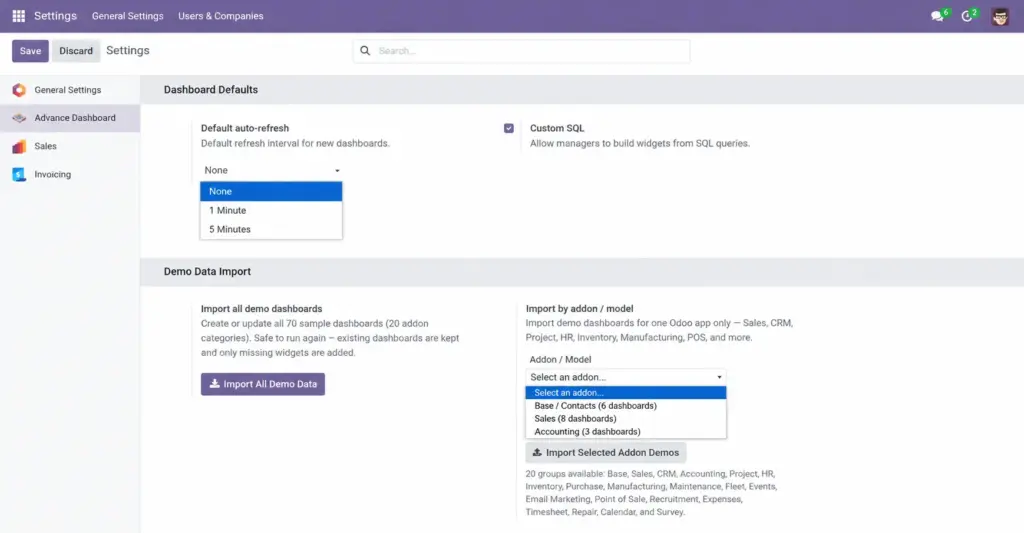
Configure global defaults and build advanced widgets with custom database queries (managers only).
Overview
The Settings screen (under Odoo Settings → Advance Dashboard) lets managers configure global defaults for new dashboards and control whether custom SQL queries are allowed. Custom SQL is an advanced feature that lets managers write database queries to pull data from multiple tables – useful when standard Odoo models cannot answer your question.
How It Works
Global settings apply to all new dashboards created after the setting is saved. Custom SQL widgets run read-only SELECT queries against your Odoo database. The system automatically replaces placeholders like {#MYCOMPANY} and {#DATE_FROM} with real values based on the dashboard’s date filter. Only SELECT queries are allowed – no data can be modified.
Step-by-Step Guide
Settings
- Go to Settings – Click the gear icon on the Odoo home screen.
- Find Advance Dashboard – Scroll to or search for the Advance Dashboard section.
- Set Default Auto-Refresh – Choose how often new dashboards should auto-refresh by default.
- Enable or Disable Custom SQL – Toggle whether managers can create SQL-based widgets.
- Save – Click Save at the top of Settings.
Custom SQL Widget
- Create or Edit a Widget – On a dashboard’s Items tab, add or open a widget.
- Set Data Source to Custom SQL– Change “Data Source” from “Odoo Model” to “Custom SQL”.
- Write Your Query – Enter a SELECT query in the SQL Query field. Use placeholders for dynamic values.
- Preview the Query – ClickPreview Queryto test the results before saving.
- Choose Widget Type – Pick how to display the results (tile, chart, or list).
- Save and Open Dashboard – Verify the widget shows correct data on the live dashboard.
Settings & SQL Fields
| Field Name | Description | Example |
|---|---|---|
Default Auto-Refresh |
Default refresh interval for newly created dashboards |
None, 1 minute, 5 minutes |
Custom SQL (toggle) |
Allow or block SQL-based widgets |
Enabled for advanced teams |
Data Source |
On widgets – choose Odoo Model or Custom SQL |
Custom SQL |
SQL Query |
The SELECT query that fetches widget data |
SELECT COUNT(*) FROM sale_order WHERE… |
{#MYCOMPANY} |
Placeholder replaced with your company ID |
Filters data to your company |
{#DATE_FROM} / {#DATE_TO} |
Placeholders replaced with the dashboard date range |
2025-06-01 to 2025-06-22 |
{#UID} |
Placeholder replaced with the current user’s ID |
Filter to current user’s records |
{#LANG} |
Placeholder for the user’s language code |
en_US for English labels |
Preview Query |
Button to test the SQL and see results |
Click to validate before saving |
Field Explanations
Default Auto-Refresh
Sets the starting auto-refresh value for every new dashboard. Existing dashboards are not affected – change them individually.
Custom SQL (toggle)
When disabled, no one can create or edit SQL widgets. Enable only if you have team members who understand database queries. Regular Odoo Model widgets are unaffected.
Data Source
On each widget, choose “Odoo Model” for standard widgets or “Custom SQL” for advanced database queries. Only managers can use Custom SQL.
SQL Query
A read-only SELECT statement. Must start with SELECT. Cannot contain INSERT, UPDATE, DELETE, or other modifying commands. The system blocks dangerous statements automatically.
{#MYCOMPANY}
Automatically replaced with your current company’s database ID. Use it in WHERE clauses to filter data to your company: WHERE company_id = {#MYCOMPANY}
{#DATE_FROM} / {#DATE_TO}
Replaced with the start and end dates from the dashboard’s active date filter. Ensures SQL widgets respect the same time period as other widgets.
{#UID}
Replaced with the logged-in user’s ID. Useful for “my records” queries: WHERE user_id = {#UID}
{#LANG}
Replaced with the user’s language code (e.g., en_US). Use inside JSON translations: name->>'{#LANG}'
Preview Query
Runs the SQL against your database and shows the first 50 rows. Always preview before saving to catch errors early. Only managers can preview.
Tips
- Most users never need Custom SQL – Odoo Model widgets cover 95% of use cases. Enable SQL only when needed.
- Always use {#MYCOMPANY} in SQL queries for multi-company databases to avoid showing other companies’ data.
- Use Preview Query every time before saving – it catches syntax errors and shows whether data looks correct.
- Chart SQL must return at least two columns: label and value. List SQL can return any number of columns.
- Look at demo SQL widgets (e.g., “SQL – Pipeline by Stage”) for working query examples.
Common Mistakes
- Writing UPDATE or DELETE in SQL – only SELECT is allowed. The system will reject modifying statements.
- Forgetting {#MYCOMPANY} in multi-company setups – users may see data from other companies.
- Not using Preview Query – saves a broken widget that shows an error on the dashboard.
- Giving SQL access to non-technical users – keep Custom SQL restricted to managers who understand database queries.
Image