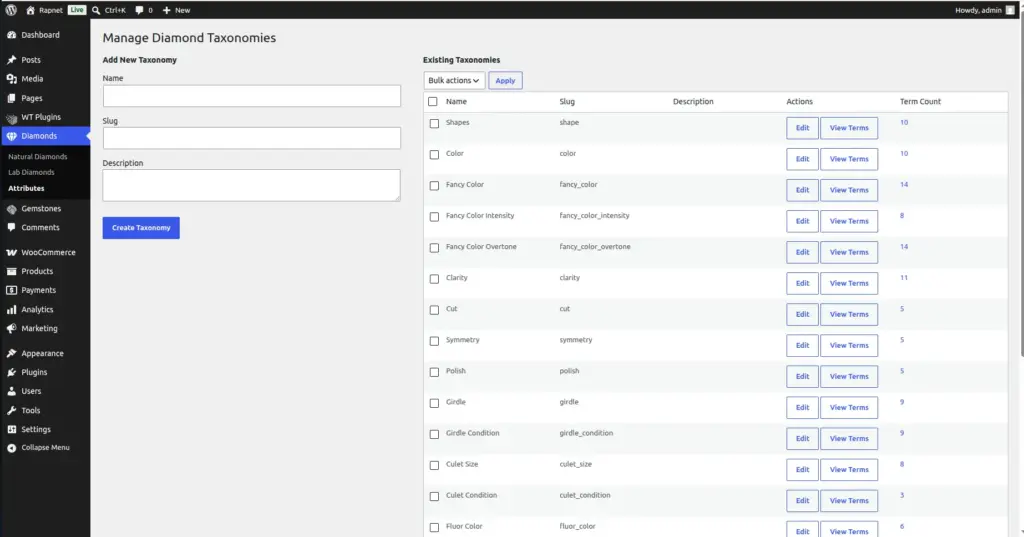
Define the exact list of Shapes, Colors, Clarity grades, and other classification options shoppers can filter by – for both diamonds and gemstones.
Overview
Before your shop’s search filters and product forms can offer choices like “Shape: Round” or “Clarity: VS1”, those choices need to exist somewhere. The Attributes screens are where you build that list of approved options for diamonds and, separately, for gemstones.
How It Works
An Attribute is a category of classification – like “Shape” or “Color” – and each Attribute contains a list of allowed Terms – like “Round”, “Princess”, “Oval” under Shape. These approved terms are what shoppers see as filter options on the search page, and they are also used to check incoming data during CSV Import (Import & Export (CSV)): any imported row using a term that isn’t on your approved list gets flagged instead of silently accepted.
Step-by-Step Guide
1. Open the Attributes screen
For diamonds, go to Diamonds → Attributes. For gemstones, go to Gemstones → Attributes. They work identically, just for different inventories.
2. Review existing attribute groups
You’ll see a starter list of groups such as Shape, Color, and Clarity already set up with common default terms.
3. Add a new attribute group (optional)
If you need a classification that doesn’t exist yet, create a new attribute group and give it a clear name.
4. Open Edit Terms for a group
Click into an attribute group (e.g. “Shape”) to reach its Edit Terms screen, listing every approved value inside that group.
5. Add or edit a term
Click Add New Term, type the value exactly as you want it to appear to shoppers (e.g. “Cushion”), and optionally upload an image to represent it.
6. Save your changes
Save each term as you add it. It becomes available immediately as a filter option and as a valid value for CSV import and manual inventory entry.
Fields Table
| Field Name | Description | Example |
|---|---|---|
Attribute Group Name |
The name of a classification category. |
Shape, Color, Clarity |
Term Name |
One approved value inside an attribute group |
Round, Princess, Emerald |
Term Image |
An optional picture representing the term, such as a shape icon. |
round-shape.png |
Field Explanations
Think of an Attribute Group as a folder, and each Term inside it as one labelled item in that folder – “Shape” is the folder, “Round” and “Princess” are items inside it.
The optional Term Image is most useful for visual attributes like Shape, where a small icon (a round outline, a princess-cut outline, etc.) helps shoppers recognize an option at a glance – see Photos & Shape Icons for uploading a matching full-size shape icon set.
Diamonds and gemstones keep entirely separate Attribute lists, so a “Color” term you add for diamonds does not automatically appear when managing gemstone color options.
Tips
- Set up your Attributes before adding diamonds or gemstones manually, so the correct choices are available on the Add New form from the start.
- Keep term spelling and capitalization consistent – this is what shop filters and CSV import matching rely on.
- Add a Term Image for Shape values – it makes your shop’s filter menu much easier to scan visually.
Common Mistakes
- Adding a diamond with a Shape or Color that isn’t in your Attributes list – the value may not match shop filters correctly, and will be rejected during CSV import.
- Editing diamond Attributes when you meant to edit gemstone Attributes (or vice-versa) – always confirm which menu group you’re in.
- Renaming a term after diamonds are already using it, which can create a mismatch between old inventory records and the new term spelling.
Image