Let shoppers save diamonds for later, compare a few stones side by side, and mark ones they’re not interested in – and learn the two shortcodes that display these lists.
Overview
Buying a diamond is a big decision, and shoppers rarely buy on their very first visit. This chapter covers three built-in tools that help them save and compare stones over time: Wishlist, Compare, and Dislike.
How It Works
Shoppers can click a Wishlist icon on any diamond to save it for later – this works for both logged-in customers and anonymous visitors (using a browser cookie to remember guests). They can also add up to three diamonds to a Compare list to view side by side, and mark a diamond as “not interested” using Dislike, which is remembered against their account. To actually display a shopper’s saved Wishlist or Compare list on a page, you place one of two ready-made shortcodes on any WordPress page or post.
Step-by-Step Guide
1. Find your shortcodes
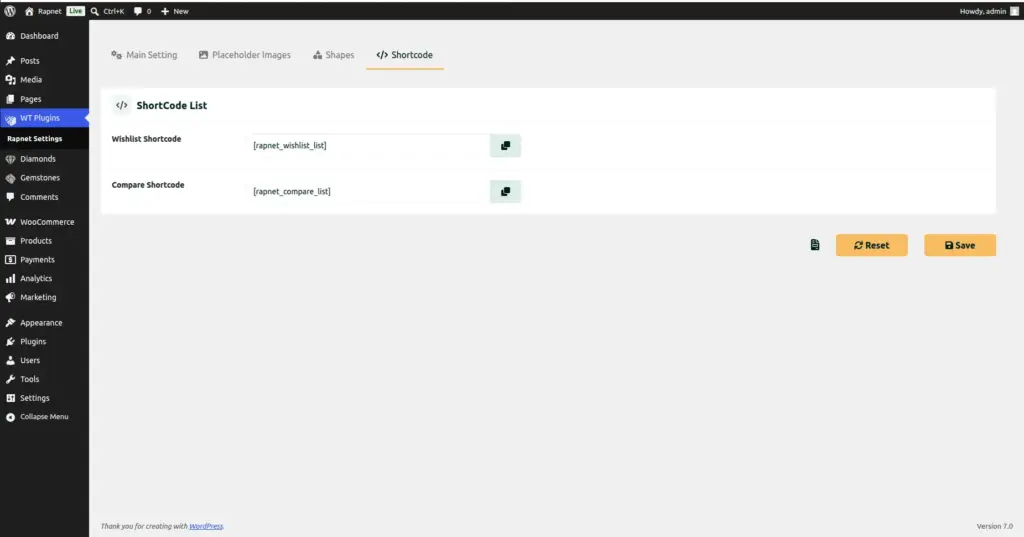
Go to WT Plugins → Rapnet Settings → Shortcode tab. You’ll see two read-only fields showing the exact shortcode text to copy.
2. Create or choose a Wishlist page
In WordPress, go to Pages → Add New (or edit an existing page), give it a title like “My Wishlist”.
3. Paste the Wishlist shortcode
Paste [rapnet_wishlist_list] into the page content, then publish. Any logged-in or guest shopper visiting this page will see their own saved wishlist.
4. Create or choose a Compare page
Repeat the same process on another page, titled something like “Compare Diamonds”.
5. Paste the Compare shortcode
Paste [rapnet_compare_list] into that page’s content and publish.
6. Link both pages from your menu
Add both pages to your site’s navigation menu so shoppers can easily find their saved and compared diamonds.
Fields Table
| Field Name | Description | Example |
|---|---|---|
[rapnet_wishlist_list] |
Shortcode that displays the current visitor’s saved wishlist of diamonds. |
Placed on a page titled “My Wishlist” |
[rapnet_compare_list] |
Shortcode that displays the current visitor’s diamond comparison list (up to 3 stones). |
Placed on a page titled “Compare Diamonds” |
Field Explanations
Both shortcodes are self-contained – you don’t configure anything else about them; simply paste the exact text shown on the Shortcode settings tab onto any page, and it will always show the current visitor’s own saved list.
The Wishlist works for guests as well as logged-in customers, using a cookie to remember guest selections – so even shoppers who haven’t created an account can save stones to revisit later.
The Compare list is capped at three diamonds at a time, keeping the side-by-side view easy to read; shoppers need to remove one before adding a fourth.
Tips
- Add both the Wishlist and Compare pages to your main site menu so they’re easy for repeat shoppers to find.
- Mention the Wishlist feature in marketing emails – it’s a great way to bring undecided shoppers back to your store.
- If you also use the YITH WooCommerce Wishlist plugin, RapNet For WooCommerce detects and works alongside it automatically.
Common Mistakes
- Forgetting to publish the pages after pasting the shortcodes, leaving customers with no way to view their saved lists.
- Typing the shortcode manually instead of copying it from the Shortcode settings tab, risking a typo that stops it from working.
- Expecting the Compare list to hold more than three diamonds – it is capped at three by design.
Image