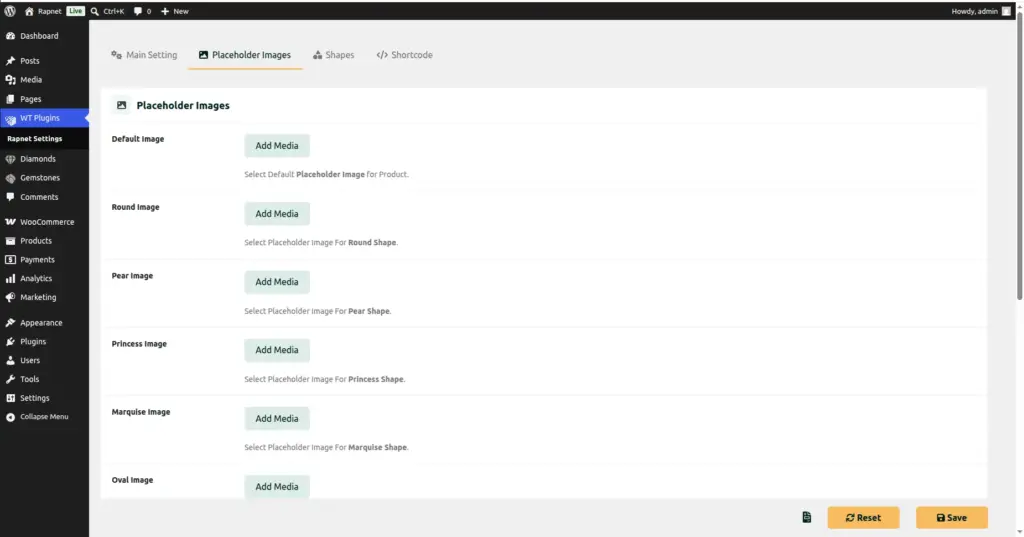
Upload placeholder photos and shape icon graphics so every diamond looks presentable, even before you have real photography for every stone.
Overview
Not every diamond in your inventory will have its own professional photo right away. This chapter shows you how to set up fallback images so your shop always looks complete and professional, plus how to customize the small shape icons used throughout the site.
How It Works
The plugin keeps two separate image galleries in its settings: Placeholder Images, one per diamond shape, shown automatically whenever a diamond record has no photo of its own; and Shapes, a set of small icon graphics used to visually represent each shape option (for example, in filter menus). Both are set up the same way – upload one image per shape.
Step-by-Step Guide
1. Open the settings screen
Go to WT Plugins → Rapnet Settings.
2. Go to the Placeholder Images tab
Click the Placeholder Images tab along the top of the settings screen.
3. Upload an image for each shape
For each shape listed (Default, Round, Pear, Princess, Marquise, Oval, Radiant, Emerald, Heart, Cushion, Asscher), click its upload field and choose an image file. The Default image is used as a last resort if a shape-specific one isn’t set.
4. Save the Placeholder Images tab
Click Save Changes at the bottom of the tab.
5. Go to the Shapes tab
Click the Shapes tab along the top of the settings screen.
6. Upload an icon for each shape
Upload a small icon graphic for each shape, following the same one-per-shape layout as the Placeholder Images tab.
7. Save the Shapes tab
Click Save Changes. Your new icons appear immediately wherever shape options are shown to shoppers.
Fields Table
| Field Name | Description | Example |
|---|---|---|
Default |
The fallback photo used when a diamond has no photo and no shape-specific placeholder is set. |
default-diamond.jpg |
Round / Pear / Princess / Marquise / Oval / Radiant / Emerald / Heart / Cushion / Asscher |
One placeholder photo per specific diamond shape. |
round-placeholder.jpg |
Shape Icon (per shape) |
A small icon graphic representing a shape, used in filters and selection menus. |
round-icon.svg |
Field Explanations
Placeholder Images are full-size photos – they stand in for a real product photo whenever a diamond record doesn’t have one. Setting a specific image per shape (rather than relying only on Default) makes stones look more accurate even without individual photography.
The Default placeholder is your safety net – always set this one first, since it covers any shape you haven’t uploaded a specific placeholder for.
Shape icons (from the Shapes tab) are smaller graphics, typically simple outlines, used to help shoppers visually recognize a shape option in filter menus – separate from the full-size Placeholder Images used on product listings.
Tips
- Always upload a Default placeholder first – it’s the fallback for every shape you haven’t customized yet.
- Use consistent image dimensions across all placeholder photos so your shop grid looks tidy.
- Simple, clean line-art works best for Shape icons since they’re often shown quite small.
- Replace placeholders with real photography over time as you photograph individual stones.
Common Mistakes
- Never setting a Default placeholder, leaving some diamonds with no image at all if a shape-specific one is missing.
- Uploading very large, unoptimized image files, which can slow down your shop page for visitors.
- Mixing up the Placeholder Images tab and the Shapes tab – one is for full product photos, the other for small filter icons.
Image