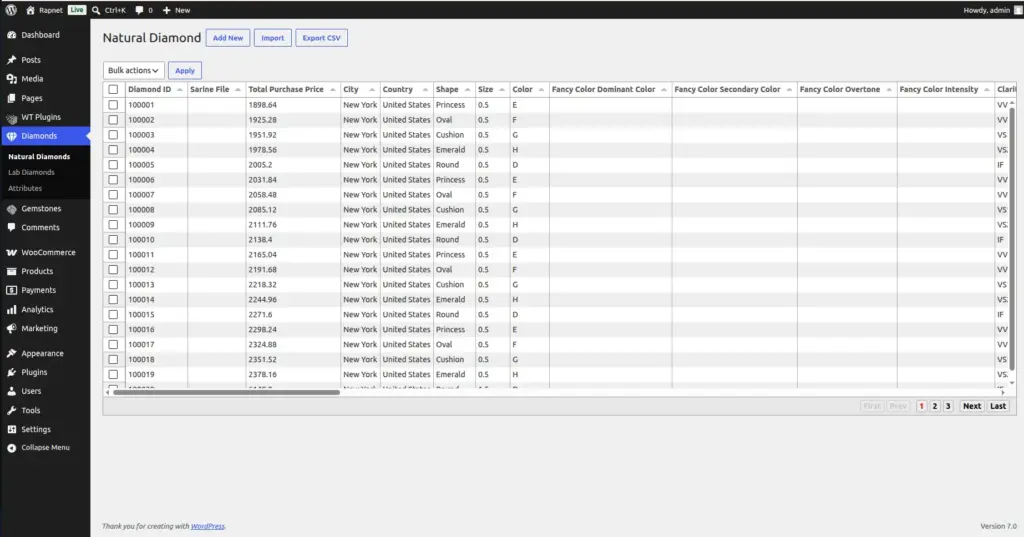
Add, edit, and remove Natural and Lab-Grown diamonds from your own store inventory – the stones you manage yourself, separate from live RapNet listings.
Overview
Alongside (or instead of) live RapNet listings, you can keep your own list of diamonds in the store – both Natural Diamonds and Lab-Grown Diamonds are managed the same way, just from two separate menu screens.
How It Works
Each diamond you add is stored as one row in your store’s own diamond list – completely separate from RapNet’s live marketplace. If you have not connected a RapNet API Key and Secret (see Connecting Your RapNet Account), these are the diamonds your shoppers will see and buy. Even if you have connected RapNet, this local list still acts as a safety net that the shop falls back to automatically if RapNet is temporarily unreachable.
Step-by-Step Guide
1. Open the diamond list
In your WordPress admin, go to Diamonds → Natural Diamonds (or Diamonds → Lab Diamonds for lab-grown stock).
2. Click Add New
Click the Add New button above the list to open a blank diamond form.
3. Fill in the diamond's details
Enter the stone’s Shape, Size (carat), Color, Clarity, Cut, Lab, Price, and any other details you track. Fields you leave blank will use sensible defaults (for example, Shape defaults to Round, Color to D, Clarity to IF, and Lab to GIA).
4. Save the diamond
Click Save. The stone appears instantly at the top of your list and, once saved, becomes visible on your shop’s front end (subject to your Active Columns and display settings from Designing Your Shop Page).
5. Edit an existing diamond
Click on any row in the list to open it for editing, make your changes, and save again.
6. Remove a diamond you've sold or withdrawn
Use the delete option next to a row to remove it from your inventory. This does not affect past orders – a diamond’s full details stay attached to any order it was already sold on.
Fields Table
| Field Name | Description | Example |
|---|---|---|
Shape |
The cut shape of the diamond. |
Round, Princess, Oval |
Size |
The diamond’s weight, in carats. |
1.25 |
Color |
The diamond’s color grade. |
D (colorless) to Z |
Clarity |
How free the diamond is from internal/external flaws. |
IF, VS1, SI2 |
Cut |
The quality of the diamond’s cut/proportions. |
Excellent, Very Good |
Lab |
The grading laboratory that certified the stone. |
GIA, IGI |
Price |
The diamond’s base price before your markup is applied. |
8500 |
Field Explanations
These fields are the same ones your Active Columns setting (Designing Your Shop Page) can show to shoppers, and the same ones customers use to filter and compare stones on the shop’s search page (How Customers Search & Browse) – so keeping them accurate directly improves the shopping experience.
Price here is always the base price. Your Commission/markup setting from Selling Price & Markup is applied on top automatically wherever the price is shown to a shopper – you never need to add the markup yourself when entering a diamond.
Natural Diamonds and Lab Diamonds use identical fields and an identical Add/Edit screen – the only difference is which list (and which shop filter) the stone appears under, so choose the correct menu when adding a stone.
Tips
- Double-check Price before saving – your markup rule (Selling Price & Markup) is added on top automatically, so this should always be your true base cost.
- Use consistent values for Shape, Color, Clarity, etc. (matching your Attributes list from Shape, Color & Clarity Options) so shop search filters work correctly.
- For large batches of stones, use CSV Import (Import & Export (CSV)) instead of adding them one by one.
- Remove sold or withdrawn stones promptly so customers don’t try to buy something no longer available.
Common Mistakes
- Adding a Natural Diamond under the Lab Diamonds menu (or vice-versa) – always confirm which screen you’re on before clicking Add New.
- Entering the markup into the Price field – Price should be the base cost only; markup is applied automatically.
- Using inconsistent spelling for Shape/Color/Clarity (e.g. “round” vs “Round”), which can prevent a stone from matching shop search filters correctly.
- Deleting a diamond that’s part of an active, unfulfilled order – check open orders before removing stock a customer may already be waiting on.
Image