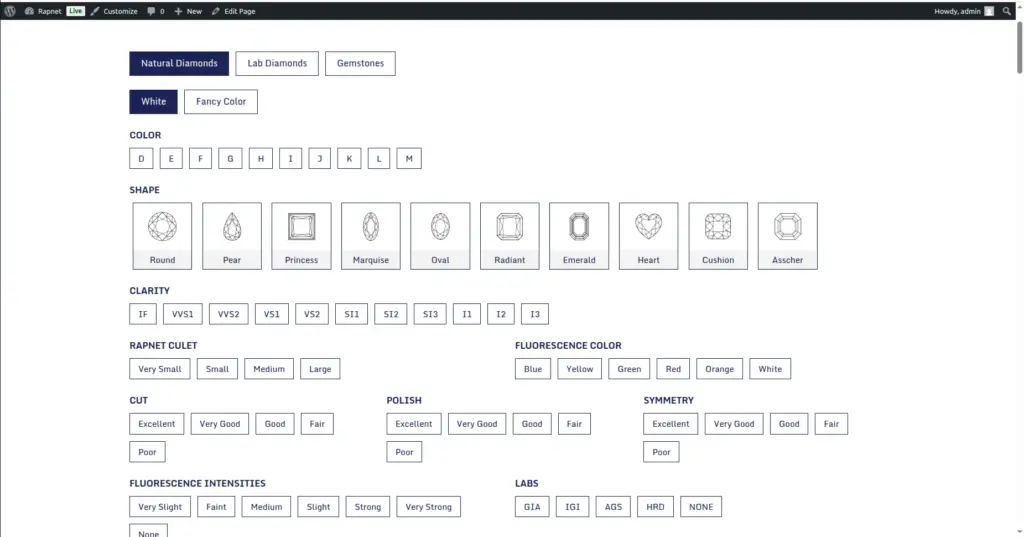
Understand the search and filter tools your shoppers use to find the exact diamond they want, so you can set up your inventory and attributes to support it well.
Overview
Your RapNet Shop page includes a rich filter form that lets shoppers narrow down your inventory by dozens of diamond characteristics at once – from Shape and Carat to precise measurements. This chapter explains what shoppers see and how it connects back to the data you manage in earlier chapters.
How It Works
When a shopper adjusts a filter and searches, the plugin looks at whether a RapNet API connection is active (Connecting Your RapNet Account). If it is, the search is sent live to RapNet’s marketplace. If not – or if RapNet doesn’t respond – the same search runs instantly against your own local diamond and gemstone inventory instead. Either way, the shopper gets the same familiar search experience without needing to know which source their results came from.
Step-by-Step Guide
1. Shopper opens the RapNet Shop page
This is the page you configured in Designing Your Shop Page.
2. Shopper sets their filters
They can filter by Shape, Size (carat range), Color range, Fancy Color, Clarity range, Cut, Polish, Symmetry, Fluorescence, Lab, Price range, Girdle, Depth %, Table %, Measurements, and Culet – as many or as few as they like.
3. Shopper sorts the results
They can choose a Sort By field (like Price or Carat) and a sort direction (ascending or descending).
4. Shopper submits the search
Results update on the same page without a full page reload, showing matching diamonds using the columns and layout you set in Designing Your Shop Page.
5. Shopper narrows further or resets
They can adjust filters again to narrow results, or click Reset to start over.
Fields Table
| Field Name | Description | Example |
|---|---|---|
Shape |
Filters to one or more diamond shapes. |
Round, Oval |
Size (Carat) |
Filters to a minimum/maximum carat weight range. |
1.00 – 2.00 |
Color / Clarity / Cut |
Filters to a range of grades for each characteristic. |
Color D–H |
Price |
Filters to a minimum/maximum total price range. |
$5,000 – $15,000 |
Lab |
Filters to diamonds certified by a specific grading lab. |
GIA |
Sort By / Sort Direction |
Controls the order results are displayed in. |
Price, Low to High |
Field Explanations
Every filter shoppers see maps directly back to a field you fill in when adding or importing a diamond (Diamond Inventory, 6, and 8) – the more complete and consistent your data, the more useful these filters are for shoppers trying to narrow down their search.
Range filters (Size, Color, Clarity, Price, Depth %, Table %) let a shopper search “between” two values rather than one exact match – for example, “Color D to H” returns every diamond whose color falls anywhere in that range.
Lab filtering relies on the Lab value you enter per diamond (e.g. GIA, IGI) – keep this consistent so shoppers who trust a specific lab can filter to only see those stones.
Tips
- Keep every diamond’s Shape, Color, Clarity, and Cut filled in accurately – incomplete data means a stone may not appear when a shopper filters for it.
- Use consistent Lab names (e.g. always “GIA”, never a mix of “GIA” and “gia”) so the Lab filter works reliably.
- Encourage shoppers to try Quick View (Designing Your Shop Page) after filtering, so they can compare several results without losing their search.
Common Mistakes
- Leaving key fields blank on many diamonds, making them invisible to shoppers using common filters like Color or Clarity range.
- Assuming search always uses RapNet’s live data – remember it automatically falls back to your local inventory whenever RapNet isn’t connected or reachable.
- Using inconsistent spelling for Shape, Lab, or other filterable fields, which splits what should be one filter option into several inconsistent ones.
Image