Add or update hundreds of diamonds and gemstones at once using a CSV spreadsheet file, and download your full inventory any time you need a backup or report.
Overview
Adding stones one at a time is fine for small updates, but if you have a large batch of new stock, the CSV Import wizard lets you upload it all from a single spreadsheet file. The matching Export tool lets you download your current inventory the same way, any time.
How It Works
Import happens in four guided steps: you upload a CSV file, tell the plugin which spreadsheet column matches which stored detail (like Shape or Price), the plugin processes the file in batches of 100 rows at a time so large files don’t time out, and finally shows you a summary. Any row that uses a Shape, Color, or other value not present in your Attributes list (Shape, Color & Clarity Options) is automatically set aside in a separate downloadable report instead of being imported with bad data. The same Import screen handles Natural Diamonds, Lab Diamonds, and Gemstones – you just choose which one you’re working with at the top of the wizard.
Step-by-Step Guide
1. Open the Import wizard
Go to Diamonds → Natural Diamonds (or Lab Diamonds, or Gemstones) and click the Import button above the list.
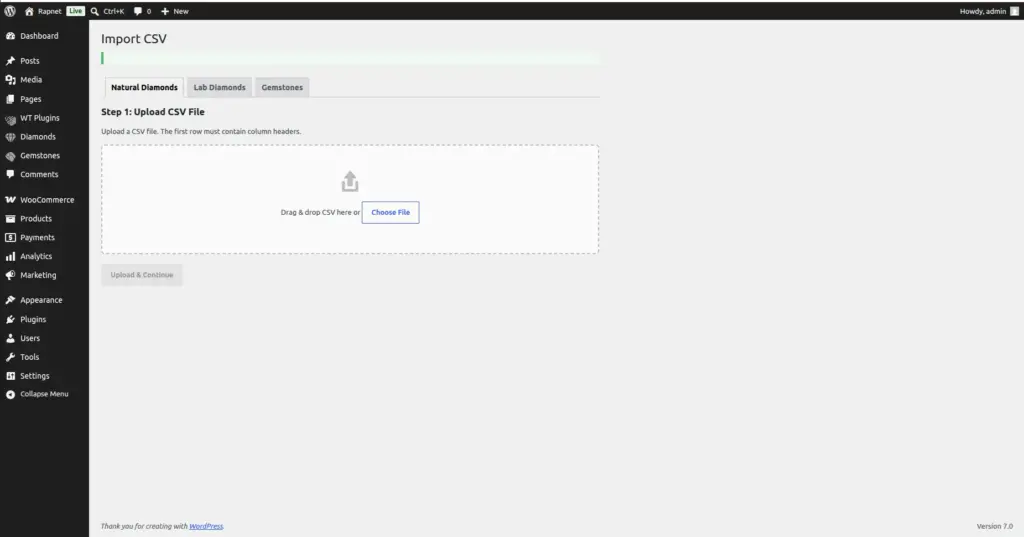
2. Choose the correct inventory tab
At the top of the Import screen, confirm you’re on the right tab – Natural Diamonds, Lab Diamonds, or Gemstones – since this determines which table your data goes into.
3. Upload your CSV file
Drag your spreadsheet file onto the upload area, or click to browse and select it. The first row of your file must be column headers.
4. Map your columns
For each detail the plugin expects (Shape, Size, Color, Price, and so on), choose which column in your CSV file matches it. Leave anything you don’t have data for unmapped – it will simply be skipped.
5. Start the import
Click to begin. The plugin processes your file in batches, showing a progress indicator until every row has been handled.
6. Review the results
When it finishes, you’ll see a success message, or – if any rows used values not in your Attributes list – a link to download a report of the rejected rows so you can fix and re-import them.
7. Export your inventory
To download your current stock list at any time, go back to the same list screen (Natural Diamonds, Lab Diamonds, or Gemstones) and click Export CSV next to the Import button.
Fields Table
| Field Name | Description | Example |
|---|---|---|
CSV File |
The spreadsheet file you upload, saved in CSV format with headers in the first row. |
new-stock-march.csv |
Diamond Type |
Which inventory the import/export applies to: Natural Diamonds, Lab Diamonds, or Gemstones. |
Natural Diamonds |
Column Mapping |
Pairs each database detail (Shape, Price, etc.) with the matching column in your CSV file. |
“Shape” → CSV column “Cut Shape” |
Rejected Rows Report |
A downloadable CSV of rows that could not be imported because they used an unrecognized value. |
rejected-rows-2026-07-02.csv |
Field Explanations
Your CSV File can come from almost any spreadsheet program (Excel, Google Sheets, etc.) as long as you save or export it in the plain .csv format, with column headings in the very first row.
Diamond Type matters because Natural Diamonds, Lab Diamonds, and Gemstones are stored completely separately – importing into the wrong tab will place your stock in the wrong inventory list.
Column Mapping is what makes the wizard flexible: your spreadsheet doesn’t need to use the plugin’s exact column names, since you manually tell it, for example, that your own “Cut Shape” column should be read as “Shape”.
The Rejected Rows Report only appears when needed. It exists specifically so bad data (like a Shape value that isn’t one of your approved Attribute terms) doesn’t quietly corrupt your shop filters – instead you get a clear list to review, fix, and re-upload. This report file is automatically deleted about an hour after it’s generated, so download it promptly.
Tips
- Set up your Attributes (Shape, Color & Clarity Options) with every Shape/Color/Clarity value you plan to import before running your first import.
- Always double check the Diamond Type tab before uploading – importing Lab Diamonds into the Natural Diamonds tab will misplace your stock.
- Download the Rejected Rows Report immediately if one appears – it is automatically deleted after about an hour.
- Use Export CSV regularly as a simple backup of your current inventory.
Common Mistakes
- Uploading a CSV without headers in the first row – the wizard needs headers to build the column-mapping step.
- Leaving Price or a required column unmapped, which causes those rows to import with missing data.
- Importing into the wrong Diamond Type tab, mixing up Natural, Lab, and Gemstone inventories.
- Forgetting to download the Rejected Rows Report before it is automatically deleted about an hour later.
- Using Shape/Color/Clarity values that don’t exist in your Attributes list, causing otherwise-good rows to be rejected.
Image