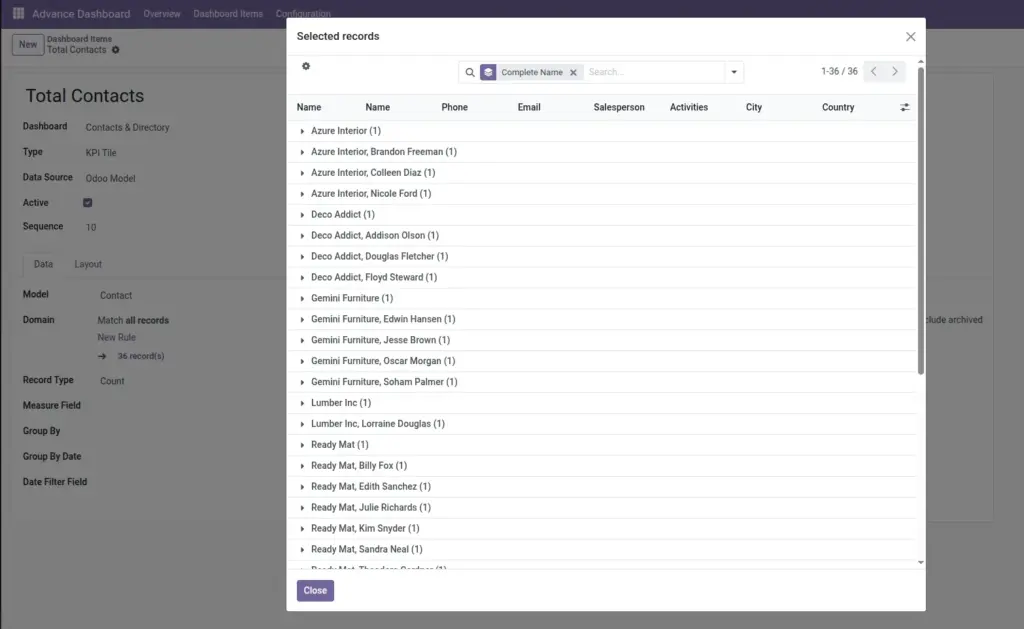
Click any chart or KPI number to see the actual Odoo records behind it.
Overview
Drill-down lets you click a widget on a live dashboard and jump straight to the list of Odoo records that make up that number or chart segment. For example, if a KPI tile shows 42 open sales orders, clicking it opens the Sales Orders list filtered to exactly those 42 orders.
This is one of the most powerful features for everyday users – you go from a high-level summary to the detailed records in one click, without building a separate report.
How It Works
When a widget uses an Odoo Model as its data source (not Custom SQL), the system knows which records were counted or summed. Clicking the widget sends you to the standard Odoo list view for that record type, with filters applied automatically – including the dashboard’s current date period and any rules set on the widget.
KPI tiles at the top of the dashboard and chart widgets both support drill-down. List View widgets already show records on the dashboard, so they do not use drill-down the same way – you see the data directly in the table.
Important: Drill-down only works for widgets connected to an Odoo Model. Widgets built with Custom SQL cannot drill down because they pull data from a custom query, not a standard record list.
Step-by-Step Guide
Open a Dashboard
- Go to Advance Dashboard → Overview, select a dashboard, and click Open Dashboard.
Set Your Date Period
- Use the date filter at the top (e.g., This Month). Drill-down respects whatever period is currently selected.
Find a Clickable Widget
- KPI tiles and charts linked to an Odoo Model show a pointer cursor when you hover over them. A small “view records” hint may appear on KPI cards.
Click the Widget
- Click the KPI number or chart segment you want to explore. Odoo opens the related record list in the same browser tab.
Review the Filtered Records
- The list shows only the records that match the widget’s settings and the active date filter. You can open any record to see full details.
Return to the Dashboard
- Use your browser back button or the Advance Dashboard menu to return to the dashboard view.
Use the Chart Menu (Alternative)
- On chart widgets, you can also use the View Records button in the widget’s top-right menu instead of clicking the chart itself.
Drill-Down Reference
| Item | Description | Example |
|---|---|---|
Clickable KPI Tile |
A number card you can click to see matching records |
“125 Orders” → opens filtered Sales Orders list |
Clickable Chart |
A chart segment or bar you can click to drill down |
Bar for “John” → opens John’s sales orders |
View Records Button |
Menu option on chart widgets to open the record list |
Three-dot or menu icon on a bar chart widget |
Date Filter Applied |
Drill-down uses the same period as the dashboard |
This Month filter → only June orders shown |
Widget Domain Rules |
Extra filters set on the widget are kept during drill-down |
Widget filtered to “Confirmed” → list shows confirmed only |
Custom SQL Widget |
Does not support drill-down |
SQL-based chart – click shows a warning message |
List View Widget |
Shows records directly on the dashboard |
No drill-down needed – data is already in the table |
Edit Mode |
Drill-down is disabled while rearranging widgets |
Exit edit mode first, then click to drill down |
Field Explanations
Clickable KPI Tile
Large number cards at the top of many dashboards. When the data comes from an Odoo Model, clicking the tile opens the underlying records. The cursor changes to a pointer when drill-down is available.
Clickable Chart
Bar, line, pie, and similar charts built from an Odoo Model support drill-down. Click a bar or segment to see the records that make up that slice of the chart.
View Records Button
An alternative way to drill down from chart widgets. Found in the widget header menu – useful if you prefer a button over clicking the chart area.
Date Filter Applied
Drill-down always uses the date period currently selected on the dashboard. If you switch from This Month to Last 30 Days and drill down, you will see different records.
Widget Domain Rules
If a widget was configured with extra filters (for example, only “Done” stage orders), those filters carry over to the record list when you drill down.
Custom SQL Widget
Widgets using Custom SQL cannot drill down because the data does not map to a single Odoo record list. Clicking shows a message: “Drill-down is not available for this widget.”
List View Widget
These widgets already display rows of data on the dashboard. There is no separate drill-down – the table itself is the detail view.
Edit Mode
When you are dragging and resizing widgets (edit mode), clicks are used for layout changes, not drill-down. Save your layout and exit edit mode to use drill-down again.
Tips
- Use drill-down in meetings to answer “which orders make up this number?” without leaving the dashboard flow.
- Check the date filter before drilling down – the record list always matches the period shown on the dashboard.
- If a widget is not clickable, confirm it uses Odoo Model as the data source, not Custom SQL.
- From the drilled-down list, you can export to Excel or open individual records – standard Odoo list features all work.
- KPI tiles at the top of Executive and Sales layout templates are especially useful for quick drill-down.
Common Mistakes
- Clicking a SQL widget – Custom SQL widgets cannot drill down. Switch the widget to Odoo Model or accept that SQL widgets are view-only summaries.
- Trying to drill down in Edit Mode – Exit edit mode first. While rearranging widgets, clicks move tiles instead of opening records.
- Expecting drill-down on List View widgets – Lists already show records. Use the rows directly instead of clicking for drill-down.
- Wrong date period – If the list looks empty, check the dashboard date filter. You may be viewing a period with no matching records.
- No access to underlying records – Drill-down opens Odoo lists you must have permission to view. If you see an access error, ask your administrator.
Image