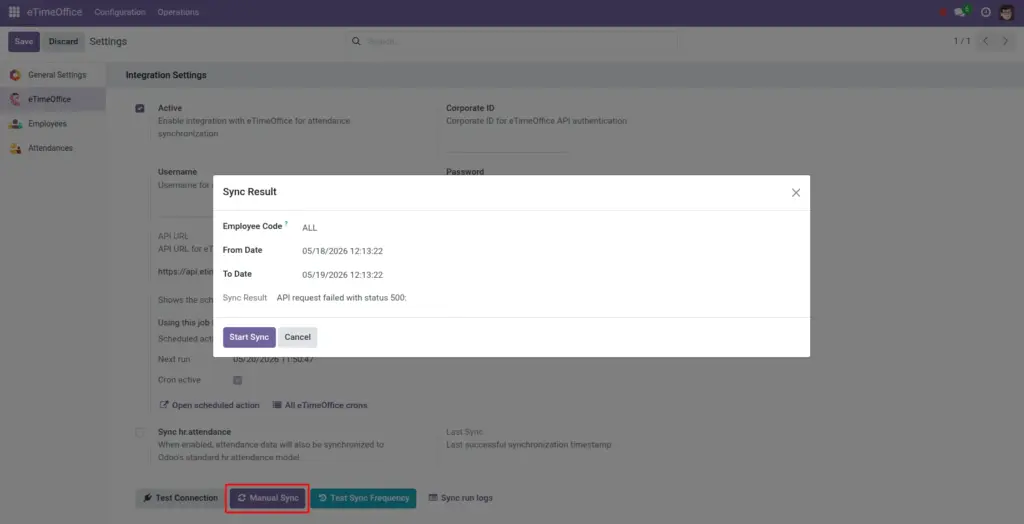
Use the Manual Sync window when you need a backfill or a one-person fix.
Overview
From eTimeOffice settings, click Manual Sync. A small wizard opens where you choose a start datetime, end datetime, and either ALL or a specific Employee Code. When you press Start Sync, Odoo calls the same API used by the scheduler but limited to your chosen window.
How it works
Dates you pick are converted to the day/month/year format eTimeOffice expects. Each returned day creates or updates the person’s daily row with first clock-in and last clock-out (ignoring placeholder times like --:--). When finished, the wizard shows a short summary and the same run appears in Sync Logs with source “Manual wizard.”
Step-by-step guide
- Go to eTimeOffice → Configuration → Settings.
- Click Manual Sync.
- Leave Employee Code as
ALLunless you intentionally want only one badge number. - Set From Date and To Date to cover the missing days (keep the range as short as practical).
- Click Start Sync and wait for the result text at the bottom.
Fields table
| Field name | Description | Example |
|---|---|---|
Employee Code |
|
|
From Date |
Start of the range (inclusive). |
First missing Monday 00:00 |
To Date |
End of the range (inclusive). |
Today end of day |
Sync Result |
Read-only text after the run-counts processed rows and errors. |
Processed: 48 … |
Field explanations
Employee Code
Match the code from eTimeOffice reports, not the Odoo employee ID.
From Date
The first calendar moment included in the pull. Start slightly before the first missing punch if you are unsure of midnight boundaries.
To Date
The last moment included. It must be the same as or after From Date. Very wide windows slow the run and can time out.
Sync Result
After you click Start Sync, this read-only box shows how many rows were processed and any errors. If the integration was disabled, it tells you to enable it first.
Tip: After a public holiday, run one manual sync for just that week before you chase “missing” punches-often the device already sent them.
Common mistakes
- Typing the Odoo employee’s internal ID into Employee Code-the API only understands eTimeOffice’s code.
- Choosing a To Date before From Date, which returns empty or confusing results.
Image