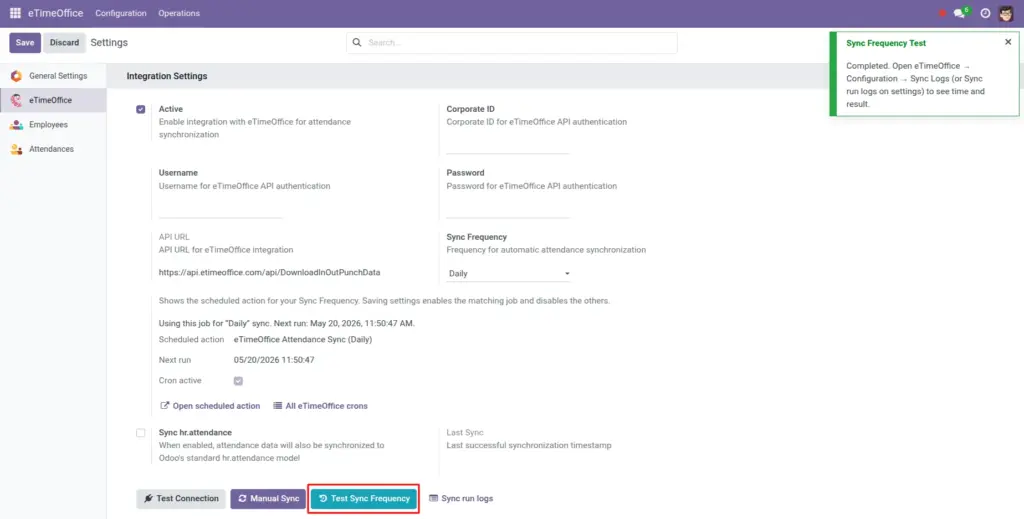
Choose how often Odoo should fetch new punches and how to read the scheduler status.
Overview
The module ships with four background jobs: hourly, daily, weekly, and monthly. Only one stays active at a time-Zthe one that matches your Sync Frequency choice. Saving settings turns the matching job on and turns the other three off so they never fight each other.
How it works
When the job fires, Odoo looks at Last Sync, builds a date range (with a small safety buffer), downloads daily in/out rows from eTimeOffice, and updates users and attendance. Each run also writes a line to Sync Logs so you can audit success or failure.
Step-by-step guide
- Open eTimeOffice → Configuration → Settings.
- Set Sync Frequency to Every Hour, Daily, Weekly, or Monthly according to how fresh your data must be.
- Click Save so the correct scheduled action activates.
- Read the Scheduled sync text block-it tells you the job name, whether it is active, and the next run time.
- Optional: click Test Sync Frequency to trigger the same logic immediately and then open sync logs to verify.
Fields table
| Field name | Description | Example |
|---|---|---|
Sync Frequency |
Selects which repeating job Odoo enables. |
Daily |
Scheduled sync (status text) |
Human-readable summary of the matching job. |
Next run: Fri 2:00 AM |
Scheduled action |
Internal name of the cron job (read only). |
eTimeOffice Attendance Sync (Daily) |
Next run |
Date and time Odoo plans to execute that job. |
Tomorrow 02:00 |
Cron active |
Shows whether the job’s switch is on inside the technical scheduler. |
True |
Test Sync Frequency |
Runs the sync routine once now, tagged as a test in logs. |
Click after changing firewalls |
Field explanations
Sync Frequency
Pick hourly only if your organisation truly needs near-live data; more calls mean more load on both servers.
Scheduled sync (status text)
The long message that explains, in words, whether the right job is running and when it will wake up next. Read it before you open any technical menus.
Scheduled action
The internal job title Odoo registered for this frequency (for example “eTimeOffice Attendance Sync (Daily)”). It should match the interval you chose.
Next run
The exact date and time the scheduler plans to fire. If it stays empty or very old, saving settings again or asking IT to check Scheduled Actions usually fixes it.
Cron active
Whether that job’s switch is on inside Odoo’s scheduler. False here means automatic pulls will not happen until something is turned back on.
Test Sync Frequency
Useful after maintenance; it performs a real sync cycle, not a fake ping, and writes a line to Sync Logs tagged as a test.
Tip: For most offices, Daily overnight sync plus occasional manual catch-up gives the best balance of freshness and simplicity.
Common mistakes
- Changing frequency but forgetting Save, so the old cron stays active.
- Turning integration Active off and not noticing that the status text then says automatic sync is disabled.
Image