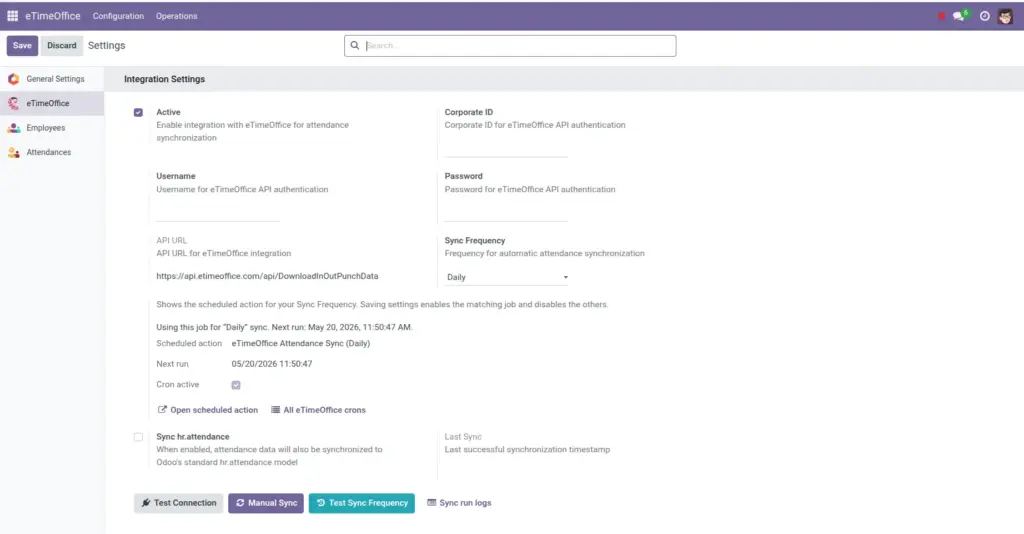
Where to type the details eTimeOffice gave you, and what each box means.
Overview
Open Settings inside the eTimeOffice area of Odoo (menu: eTimeOffice → Configuration → Settings). The form is the same style as other Odoo apps: a block titled Integration Settings holds everything needed for the cloud handshake.
How it works
Odoo stores your Corporate ID, username, and password as system parameters. Whenever a scheduled job or manual sync runs, it builds a secure “Basic” login string exactly the way eTimeOffice’s API expects and sends it with every request. The address line (API URL) is preset to the official download endpoint; it is read-only so nobody accidentally breaks the path.
Step-by-step guide
- Go to eTimeOffice → Configuration → Settings.
- Enable Active only when you are ready for live syncing.
- Enter Corporate ID, Username, and Password exactly as provided by eTimeOffice support.
- Confirm the API URL matches what your vendor documented (it should already show the standard value).
- Pick Sync Frequency (explained in the next chapter) and click Save.
Fields table
| Field name | Description | Example |
|---|---|---|
Active |
Turns the whole integration on or off. |
Enabled once credentials are verified. |
Corporate ID |
Your company identifier in eTimeOffice. |
ACME2024 |
Username |
API user name supplied by eTimeOffice. |
api.reader |
Password |
Secret paired with the username; stored like other Odoo passwords. |
(hidden when typed) |
API URL |
Web address Odoo calls to download in/out punch data; shown read-only. |
https://api.etimeoffice.com/api/DownloadInOutPunchData |
Sync Frequency |
How often the matching scheduled job should run. |
Daily |
Sync hr.attendance |
Optional second copy into Odoo’s built-in attendance model. |
On if payroll uses standard attendance. |
Last Sync |
Timestamp of the last successful update (read only). |
Today 06:12 |
Scheduled sync block |
Shows which background job is tied to your frequency and when it runs next. |
“Next run: …” |
Field explanations
Active
Off means automatic runs stop immediately and manual sync tells you the link is disabled. Use this during credential rotation.
Corporate ID
Your company’s identifier with eTimeOffice; it must match exactly what the vendor issued. A stray space or wrong letter looks like “connection failed” even when Odoo is healthy.
Username
The API user name eTimeOffice expects on every request. It is often not the same as a person’s normal website login; treat it as a service account.
Password
The secret paired with that API user. When you change it in eTimeOffice, update this box the same day so overnight sync does not fail.
API URL
You normally never change it; your vendor would tell you if they moved endpoints.
Sync Frequency
Chooses which of the four pre-installed background tasks stays enabled after you save.
Sync hr.attendance
When enabled, successful daily rows also update Odoo’s standard check-in/out screen for linked employees.
Last Sync
Helps you confirm that last night’s job really finished.
Scheduled sync block
Plain-language status plus, for technical staff, quick links to the underlying scheduled action.
Tip: After changing passwords in eTimeOffice, update Odoo the same minute and press Test Connection so the next automatic run does not fail silently.
Common mistakes
- Copy-pasting an extra space after the Corporate ID-always trim accidental spaces.
- Leaving Active off and wondering why no new rows appear.
Image