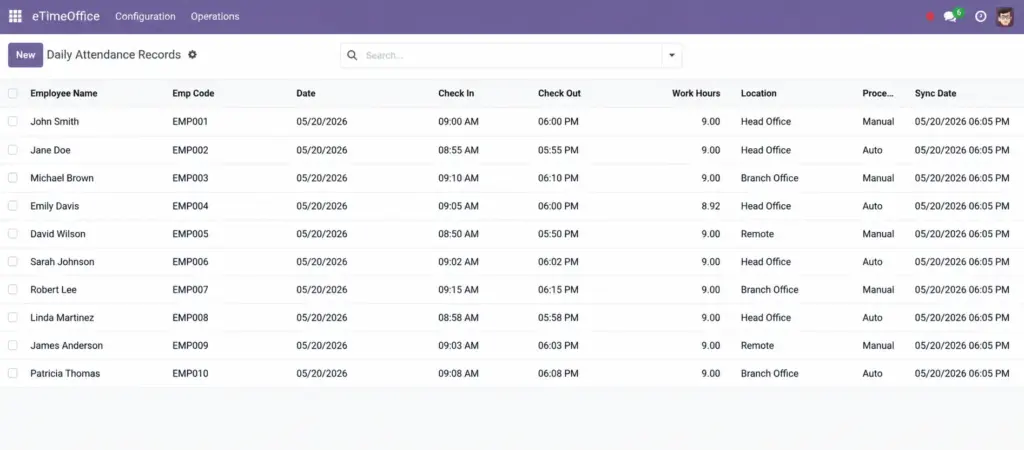
Understand each column on the Attendance Records screen and the built-in filters.
Overview
eTimeOffice → Operations → Attendance Records lists one row per linked person per calendar day. Check-in and check-out come from the first and last meaningful punches of that day. Total work hours calculate automatically when both times exist.
How it works
Behind the scenes Odoo stores the true calendar date plus a friendly display date. Search filters let you limit to today, this week, people who only half-punched, or rows already marked processed. Administrators can open a record and press Mark as Processed after payroll review.
Step-by-step guide
- Open Attendance Records.
- Use the search bar or quick filters such as Today or Present.
- Click a row to inspect punch detail text and raw payload if needed for an audit.
- Group by Date when you want a day-by-day fold-up view.
Fields table
| Field name | Description | Example |
|---|---|---|
Employee Name |
Linked Odoo employee (blank if not linked yet). |
Jamie Lee |
Emp Code |
eTimeOffice employee code copied for quick reading. |
1042 |
Date |
Display version (month/day/year style). |
01/15/2026 |
Attendance Date |
Actual stored calendar date on the detailed form. |
2026-01-15 |
Check In / Check Out |
First in and last out timestamps for the day. |
09:05 / 17:40 |
Total Work Time (Hours) |
Elapsed hours between in and out. |
8.58 |
Location |
Remark or location text from the daily payload when provided. |
Main gate |
Punch Type Data |
Human-readable trail of IN/OUT events applied to the row. |
IN at …; OUT at … |
Processed |
Checkbox showing whether HR marked the row reviewed. |
Yes |
Sync Date |
When Odoo last touched this row during a sync. |
Today 06:12 |
Raw API Data |
Exact JSON-like snippet for support. |
(text) |
eTimeOffice User |
Source profile driving the punches. |
Jamie Lee (eTimeOffice) |
Field explanations
Employee Name
The linked Odoo worker for this row; blank means nobody is linked yet even though the device user exists.
Emp Code
The badge or payroll code repeated for quick scanning in the list view without opening the user form.
Date
A human-friendly display of the day (often month/day/year) so managers recognise the row at a glance.
Attendance Date
The actual calendar date stored in the database; use it when payroll rules care about the “official” day boundary.
Check In / Check Out
The first meaningful arrival and last meaningful departure Odoo stored for that calendar day.
Total Work Time (Hours)
The hours between check-in and check-out; shows zero if either punch is missing or if clock-out is earlier than clock-in due to bad data.
Location
Remark or gate name from the daily payload when eTimeOffice supplied one; empty simply means nothing was sent.
Punch Type Data
A short text trail of which IN/OUT updates built the row; helpful when investigating duplicate or partial punches.
Processed
A local checkbox for HR to mark “we reviewed this row”; it does not send anything back to eTimeOffice.
Sync Date
When Odoo last wrote to this row during a sync; old timestamps can mean the day has not been refreshed since a long time ago.
Raw API Data
The exact payload fragment for auditors or support; most day-to-day readers can skip it.
eTimeOffice User
The source profile that owns this punch stream; open it when you need to fix linking at the user level.
Tip: Use the Partial filter to find people who forgot to clock out-those rows often need human follow-up.
Common mistakes
- Assuming zero hours means the person was absent-sometimes it means only one punch arrived.
- Comparing list “Date” to payroll cut-offs without checking timezone context; when in doubt, use the detailed form timestamps.
Image