
What this app does
Plain-language picture of how your time clock talks to Odoo.

Bring clock-in and clock-out times from your eTimeOffice system straight into Odoo. This guide is written for people who use Odoo every day-not for programmers.

By Akash Soni May 20, 2026
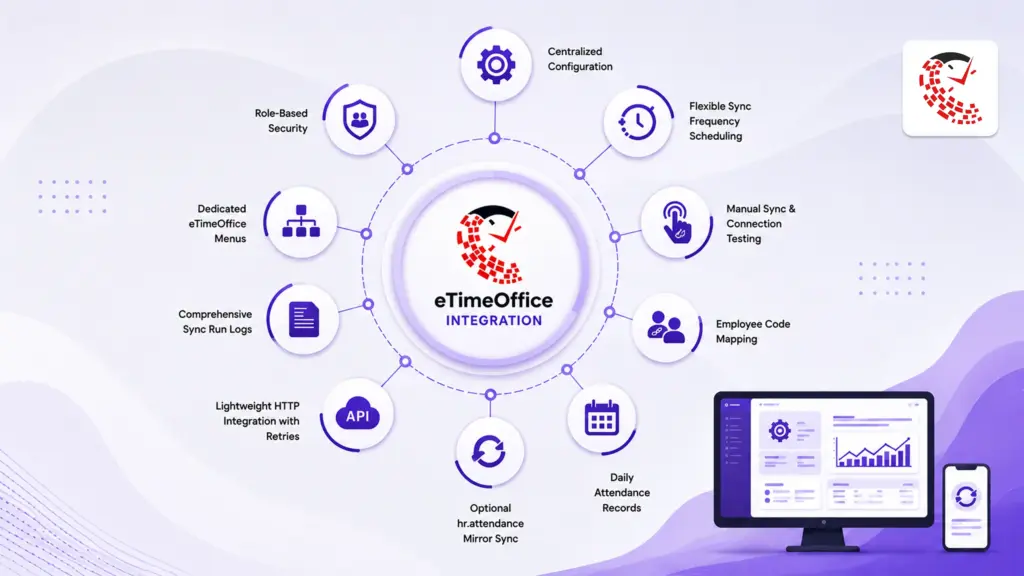
Plain-language picture of how your time clock talks to Odoo.
Download, place the add-on, restart Odoo, update apps, install, and assign access-written for newcomers.
Install checklist, security groups, and two ways to open the same settings.
Corporate ID, username, password, and turning the link on or off.
Who may know credentials, rotation when people leave, and what not to email.
Check that Odoo can reach eTimeOffice before you rely on it.
Sync frequency, scheduled jobs, last sync time, and “test sync frequency.”
If the status text warns about jobs: Technical → Scheduled Actions, search eTimeOffice.
Use the manual sync window for a custom range or one employee code.
eTimeOffice users list, link wizard, and fields on the employee form.
Read check-in, check-out, hours, and filters in the attendance list.
Wall clock vs Odoo display: time zones and when to call IT.
When to turn on mirroring into the standard HR attendance screen.
Administrator vs everyday user, menus, and “My attendance.”
Sync run logs, common issues, and what each status means.

Odoo calls eTimeOffice on a rhythm you choose-every hour, day, week, or month-so new clock-ins flow in without someone clicking each morning.

Open a simple wizard, set from and to dates, and pull either everyone (ALL) or one employee code after holidays or fixes.

Check that Corporate ID, username, and password work before go-live, and fire a one-off “test sync frequency” run when IT changes firewalls or upgrades.

Maintain an eTimeOffice user list, use “Link to employee,” and see the same code on the HR employee form so every punch lands on the right person.

One row per person per day with first in, last out, total hours, filters, and optional “processed” marking for payroll review.

When enabled, the same times also update Odoo’s built-in HR attendance screen so teams that already rely on it keep one familiar place.

Every scheduled run, manual pull, or test from settings can leave a line with source, success or error, duration, and how many rows were touched.

HR admins manage settings and data; everyday staff get read-only My Attendance for their own profile once you grant the right access group.

Corporate ID, API user, password, live switch, API address, sync frequency, last sync time, and scheduler status-all in Odoo’s settings screen you already know.