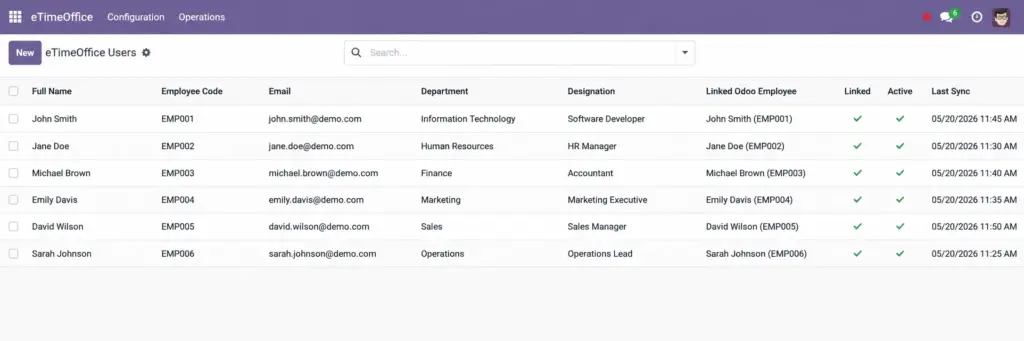
Link each eTimeOffice badge user to the correct Odoo employee profile.
Overview
Every time data arrives, Odoo creates or refreshes a row in eTimeOffice → Operations → Users. That row holds the name, email, department, and the Employee Code from the device. Until you link that row to an Odoo employee, attendance still imports-but optional features such as copying into standard HR attendance need the link.
How it works
Open a user and click Link to Employee. A wizard asks you to pick exactly one Odoo employee who is not already tied to another eTimeOffice code. When you confirm, both sides remember the relationship: the user record stores the employee, and the employee form shows the eTimeOffice code and linked user. Unlink Employee removes only the pairing, not historical punches.
Administrators can also type the eTimeOffice Employee Code directly on the employee’s HR settings tab, or reset the link with Reset eTimeOffice Link (admin only) if someone was matched incorrectly.
Step-by-step guide
- Go to eTimeOffice → Operations → Users.
- Open a person who shows Linked as false.
- Click Link to Employee, search for the real staff member, and click Link.
- Alternatively, open Employees, find the person, scroll to the eTimeOffice group on the HR settings page, and enter their device code.
- Use View Attendance Records on the employee once counts show data.
Fields table
| Field name | Description | Example |
|---|---|---|
Full Name |
On the eTimeOffice user form: name received from eTimeOffice. |
Jamie Lee |
Employee code |
Unique badge or payroll code from the device (eTimeOffice user). |
1042 |
Optional contact copied from eTimeOffice. |
||
Department |
Department text from eTimeOffice. |
Warehouse |
Designation |
Job title text from eTimeOffice. |
Team Lead |
Linked Odoo Employee |
Which HR profile receives this person’s punches. |
Jamie Lee (employee) |
Linked |
In the user list: quick yes/no for pairing status. |
True |
Active |
Whether this eTimeOffice profile is treated as live. |
Enabled |
Last Sync |
When this profile was last refreshed from incoming data. |
Today 06:05 |
Raw API Data |
Technical snapshot for support tickets (user form). |
(long text) |
eTimeOffice Employee Code |
On the employee form: same as device code; editable by authorised HR. |
1042 |
Linked eTimeOffice User |
On the employee form: read-only pointer back to the user row. |
Jamie Lee (eTimeOffice) |
Attendance Records |
On the employee form: count of daily rows tied to this employee. |
22 |
Field explanations
Full Name
The worker’s name as eTimeOffice last sent it; useful when searching before you know their numeric code.
Employee Code
The glue between hardware and HR; it must match what eTimeOffice exports so punches attach to the right profile.
Optional contact text from eTimeOffice; Odoo does not mail it automatically, but it helps you recognise the right person.
Department
Free-text department from eTimeOffice; compare with your HR org chart when you are unsure which badge belongs to which team.
Designation
Job title text from eTimeOffice; another hint when two people share a similar name.
Linked Odoo Employee
The single Odoo HR record that receives this person’s punches and optional standard attendance mirror.
Linked
A quick yes/no in the list so you can filter mentally for “still needs linking” during go-live week.
Active
Marks whether this eTimeOffice profile is treated as current; inactive rows are rare but help when someone left the company yet history remains.
Last Sync
When this user row was last refreshed from incoming data; stale dates can mean the person has not punched recently or sync skipped them.
Raw API Data
A technical snapshot for support tickets; end users can ignore it unless asked to copy it for the help desk.
eTimeOffice Employee Code
On the employee form, the same device code stored for payroll-side searches; editing it is for authorised HR only.
Linked eTimeOffice User
Read-only pointer from the employee back to the eTimeOffice user card so you can open both sides quickly.
Attendance Records
A simple count of how many daily rows exist for this employee after linking; zero means either no sync yet or no punches in range.
Tip: The link wizard tries to suggest an employee with a similar first name-always eyeball the suggestion before saving.
Common mistakes
- Linking two different device codes to the same employee-the wizard blocks the second attempt, but manual edits can confuse; reset first.
- Leaving everyone unlinked and then enabling standard attendance sync-Odoo has nowhere to write those hours.
Image