Overview
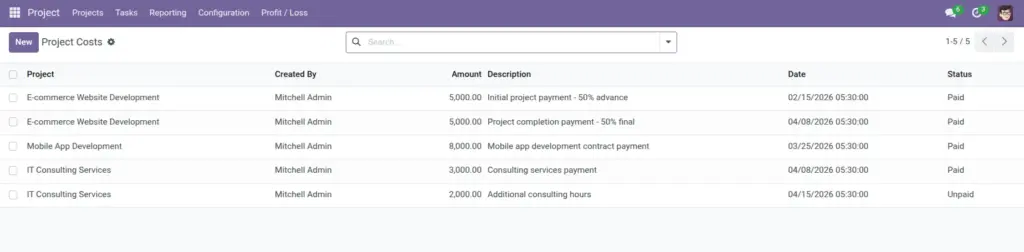
This page shows you how to record client payments for a project. In this module, client payments are entered as Client Costs (think: “money coming in for this project”).
Each line represents one real payment event—advance, milestone, or final payment—and it must be linked to the correct project. Only lines marked Paid are counted as revenue in Profit/Loss.
Real-life example: you enter “50% advance” today as Unpaid, then switch it to Paid once finance confirms the bank receipt. This keeps Profit/Loss honest and avoids “paper profit”.
How it works
- Where to find it: Projects → Profit / Loss → Client Costs, or inside a Project in the Client Cost tab.
- Paid vs Unpaid: “Paid” lines increase revenue totals; “Unpaid” lines are kept for tracking but do not increase Profit/Loss revenue yet.
- Why this matters: it keeps Profit/Loss realistic—only money you actually received is counted.
Step-by-step guide
Open Client Costs
Go to Projects → Profit / Loss → Client Costs. (You can also open a Project and use the Client Cost tab.)
Add a new payment line
Add a new row. Select the Project, enter the Amount, and write a clear Description like “50% advance” or “Milestone 2 payment”.
Set the payment status
Choose Unpaid if it’s expected but not received yet. Switch to Paid when the money is received.
Check the project totals
Open the project and confirm the revenue total reflects the paid payments.
Fields table
| Field Name | Description | Example |
|---|---|---|
Project |
Which project the payment belongs to. |
“E-commerce Website Development” |
Amount |
The value of the payment. |
5,000.00 |
Description |
A short note describing what the payment is for. |
“Initial payment — 50% advance” |
Date |
When the payment was recorded. |
“Apr 6, 2026” |
Payment status |
Marks whether the payment has been received. |
Unpaid → Paid after bank receipt |
Created by |
Shows who added the line. |
“A. Smith” |
Field name explanations
Project
Always pick the correct project. If you choose the wrong one, the wrong project will show the revenue.
Amount
Use one line per real payment. If the client pays in parts, create separate lines for each part.
Description
Write it so anyone can understand it later. Good descriptions make reviews much faster.
Date
Helps finance match the payment with bank statements and timing.
Payment status
Controls whether the payment is counted as revenue. Only “Paid” increases Profit/Loss revenue.
Created by
Useful when you need to confirm details (“Was this the final payment or a milestone?”).
Tips
- Use one line per payment: it’s easier to audit than combining multiple payments into one entry.
- Update Paid status quickly: a project can look unprofitable simply because a received payment is still marked Unpaid.
- Be specific in descriptions: add milestone names or “advance/final” so anyone can understand it.
Common mistakes
- Leaving received payments as Unpaid: Profit/Loss won’t reflect the true revenue until you mark it Paid.
- Linking to the wrong project: it distorts profit numbers for multiple projects.
- Vague descriptions: “Payment” is unclear; “Milestone 2 payment” is clear.
Image