Overview
This page explains the employee time cost part of Profit/Loss. It answers: “Where does employee cost come from?” and “Why did Profit/Loss change even though no expense was added?”
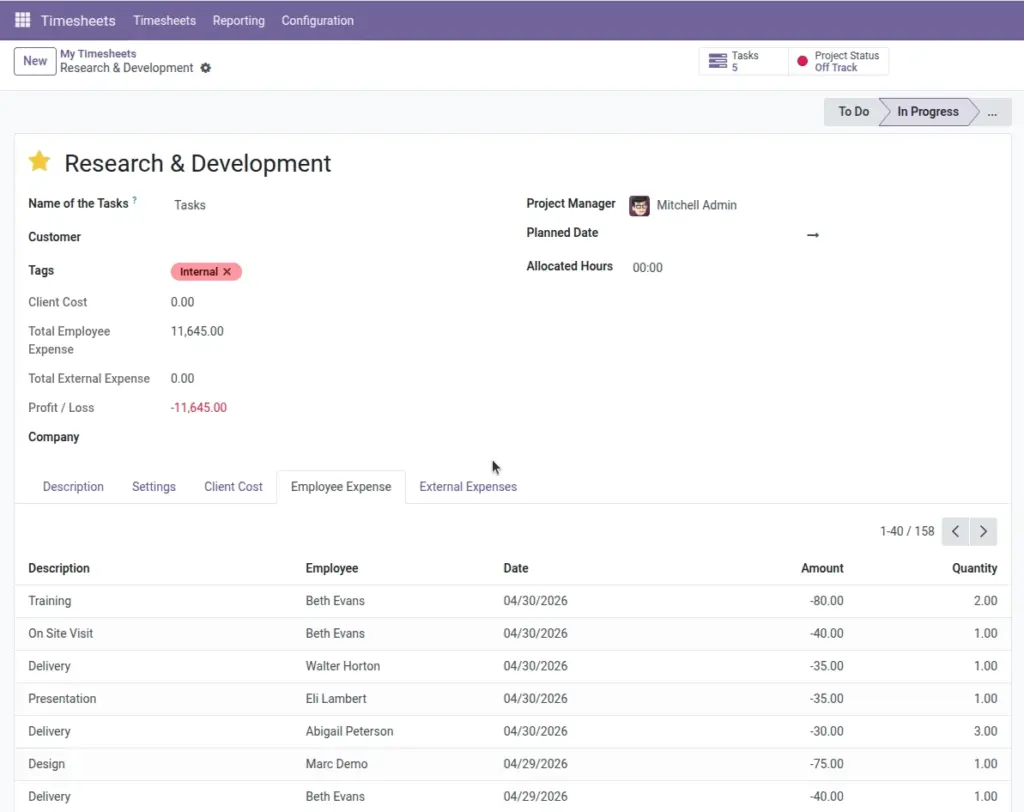
The module connects timesheet entries to a project and uses the resulting cost amount as part of the Profit/Loss calculation. Inside the project, you can review the time-related lines under Employee Expense (often read-only).
Real-life example: a project looks profitable mid-week, then drops on Friday when the team submits their timesheets. The Profit/Loss is doing its job—it’s reflecting the real cost of time spent.
How it works
- Where it comes from: timesheets posted against the project.
- What it represents: the cost of employee time, not the client price.
- Why it matters: a project can be “paid” but still lose money if too much time is spent.
Step-by-step guide
Open the project
Go to Projects and open the project you want to review.
Open the Employee Expense tab
In the project tabs, open Employee Expense to see the list of time-related lines.
Review the entries
Check the work description, employee, date, hours, and the cost amount. If something looks wrong, the fix usually starts in the timesheet.
Compare to client payments
If time cost is rising faster than paid client payments, you may need to adjust scope, pricing, or staffing.
Fields table
| Field Name | Description | Example |
|---|---|---|
Work description |
What the employee worked on (from the timesheet entry). |
“Backend Development — Website” |
Employee |
Who logged the time. |
“A. Smith” |
Date |
When the work happened. |
“Apr 4, 2026” |
Cost amount |
The cost value used in profit/loss. |
1,050.00 |
Hours |
How many hours were logged. |
35.0 hours |
Field name explanations
Work description
Helps you understand what drove the cost. Clear descriptions make it easier to explain time spent later.
Employee
Shows who worked on the project. Useful when you need to balance workload or review staffing cost.
Date
Makes it easy to spot cost spikes (for example, a heavy QA week or urgent bug-fix period).
Cost amount
This is the number that reduces profit. If it looks wrong, check whether timesheets were posted correctly.
Hours
A reality check. If hours are missing, profit might look better than it truly is.
Tips
- Encourage daily timesheets: waiting until the end of the week often leads to missing or incorrect entries.
- Use meaningful descriptions: “Dev work” is not helpful; “Checkout bug fixes” is.
- Watch for scope creep: rising hours without matching paid payments is an early warning.
Common mistakes
- Logging time to the wrong project: it makes one project look too expensive and another look too cheap.
- Missing timesheets: profit/loss can look “great” simply because time was not recorded.
- Trying to edit from this tab: this list may be read-only; fixes are usually made in the timesheet entry itself.
Image