Overview
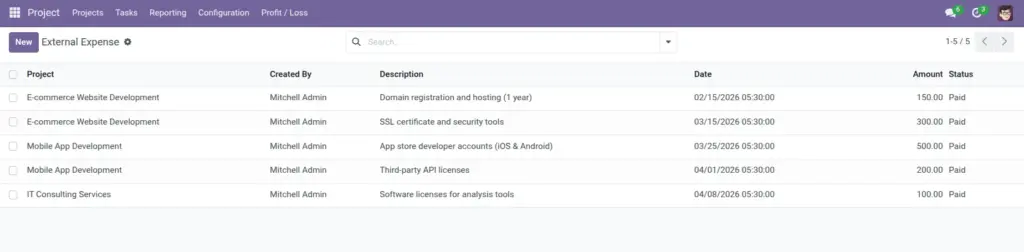
This page shows you how to record external expenses for a project—costs that are not employee time. Examples include hosting, software licenses, vendor services, travel, and any project-related purchases.
External Expenses are simple lines linked to a project. They reduce profit because they represent money you spent to deliver the work. The most important part is linking the expense to the right project and writing a clear description.
Real-life example: you buy an SSL certificate for a website project. Adding it as an External Expense keeps the project’s Profit/Loss realistic and prevents “mystery losses” later.
How it works
- Where to find it: Projects → Profit / Loss → External Expense, or inside a Project under External Expenses.
- One line = one real expense: a license, a vendor invoice, a domain renewal, and so on.
- Status helps follow-up: Paid/Unpaid makes it easy to see what is still pending.
Step-by-step guide
Open External Expense
Go to Projects → Profit / Loss → External Expense. You can also add lines from inside the Project’s External Expenses tab.
Add the expense line
Select the Project, enter the Amount, add a clear Description, and set the Date.
Set Paid/Unpaid
Use Unpaid for expected invoices and switch to Paid after payment is completed.
Review project totals
Open the project and confirm the external expense total matches your entries.
Fields table
| Field Name | Description | Example |
|---|---|---|
Project |
The project that benefited from this expense. |
“Mobile App Development” |
Description |
What the expense was for (keep it understandable). |
“Third-party API licenses” |
Date |
When the expense happened or was recorded. |
“Apr 6, 2026” |
Amount |
The expense value. |
200.00 |
Payment status |
Tracks whether the expense is paid. |
Unpaid until vendor invoice is paid |
Created by |
Who added the expense line. |
“J. Patel” |
Field name explanations
Project
Choose carefully. A wrong project link can make one project look unprofitable and another look too good.
Description
Write it so a manager can understand it without asking you. This helps approvals and audits.
Date
Helps with month-end reviews and matching bills to project phases.
Amount
If one invoice covers multiple projects, split it into separate lines so each project stays accurate.
Payment status
Helps you follow up. A long list of Unpaid items often means money is still expected to go out.
Created by
Shows who to ask if the expense needs a receipt or more detail.
Tips
- Log expenses as they happen: profit/loss is most useful when it’s timely.
- Split shared invoices: if one vendor bill covers two projects, create two lines.
- Use consistent wording: “Hosting”, “License”, “Vendor”, “Travel” makes searching easier.
Common mistakes
- Not linking to a project: the totals won’t be meaningful without the correct project.
- Unclear descriptions: “Tools” is vague; “Security scanning tool — 1 month” is clear.
- Never updating status: keep Paid/Unpaid accurate so follow-ups are easier.
Image