Overview
This page shows you where to look for Profit/Loss inside Odoo Projects, so you can find the number quickly whether you’re scanning many projects or investigating one project in detail.
Profit/Loss can appear on your project screens in different ways (depending on your role). Administrators usually see the Profit/Loss number in more places, while Users may only see the entry tabs.
Real-life example: during a weekly meeting you don’t want to open 20 projects one by one. You scan the project list/kanban first, then open only the projects that look risky.
How it works
- Project list (table view): Profit/Loss can appear as a column next to the customer.
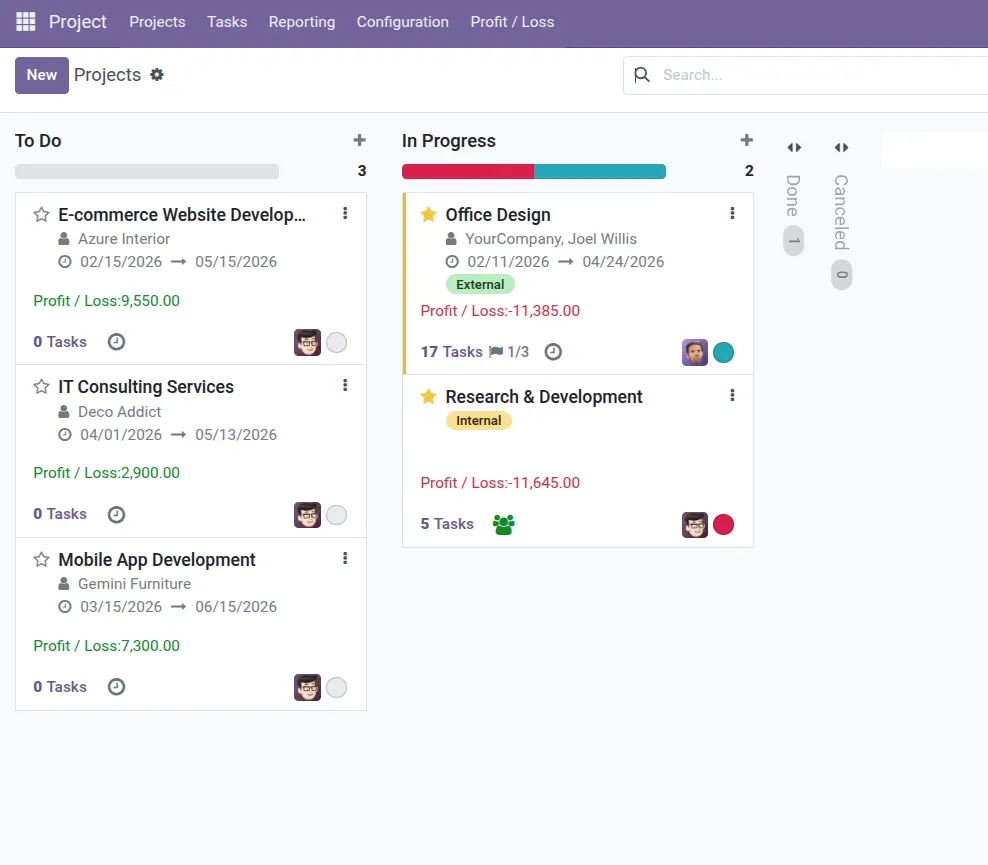
- Project kanban (cards): a small Profit/Loss label can appear on each project card.
- Project form: totals (including Profit/Loss) appear on the project itself, along with detail tabs.
- Role matters: if you don’t see Profit/Loss, you may not have the Administrator role.
Step-by-step guide
Check the Project list
Go to Projects. If you’re an Administrator, look for a Profit/Loss column in the list view.
Switch to kanban (cards)
Switch to the kanban view. Look for a small Profit/Loss line on each project card.
Open the project for details
Open the project to see detail tabs: Client Cost, Employee Expense, and External Expenses.
If Profit/Loss is hidden
If you can’t see the Profit/Loss number, ask your admin whether you have the Profit / Loss → Administrator role.
Fields table
| Field Name | Description | Example |
|---|---|---|
Profit/Loss column (Project list) |
Shows profit/loss directly in the project list for quick scanning. |
Sort mentally: which projects are negative today? |
Profit/Loss label (Kanban card) |
Shows profit/loss on each project card (often colored by positive/negative). |
A red value signals a project to review. |
Profit/Loss total (Project form) |
The detailed total you can investigate using the project tabs. |
Open tabs to see payments, time cost, and expenses. |
Field name explanations
Profit/Loss column (Project list)
Best for quick checks. It helps you decide which project to open next—especially during a weekly review.
Profit/Loss label (Kanban card)
Helpful for visual scanning. Negative projects stand out fast when you’re managing many projects.
Profit/Loss total (Project form)
The “investigation view”. Use the tabs to understand what’s driving the number.
Tips
- Use the list for triage: scan the list first, then open only the projects that need attention.
- Use the project tabs for proof: when someone asks “why?”, the tabs show the supporting lines.
- Keep data up to date: Profit/Loss is only as useful as the payments, timesheets, and expenses behind it.
Common mistakes
- Thinking Profit/Loss is missing: it may be hidden due to role permissions.
- Reacting to one screen only: always open the project to confirm details before making decisions.
- Ignoring Unpaid items: unpaid client payments can make profit look lower than expected.
Image