Overview
Reminders and notifications ensure that important follow-ups are completed on time and no critical ticket update is missed. This is especially useful when teams handle many open tickets at once and need reliable prompts for next actions. A strong reminder process improves consistency, accountability, and customer trust.
How It Works
Users can create reminders manually from ticket screens, or the system can generate reminders automatically based on time, status, or SLA conditions. At the scheduled time, alerts are sent through configured channels such as email and in-app activities. This helps agents stay organized, act before deadlines, and maintain smooth communication with customers and team members.
Step-by-Step Guide
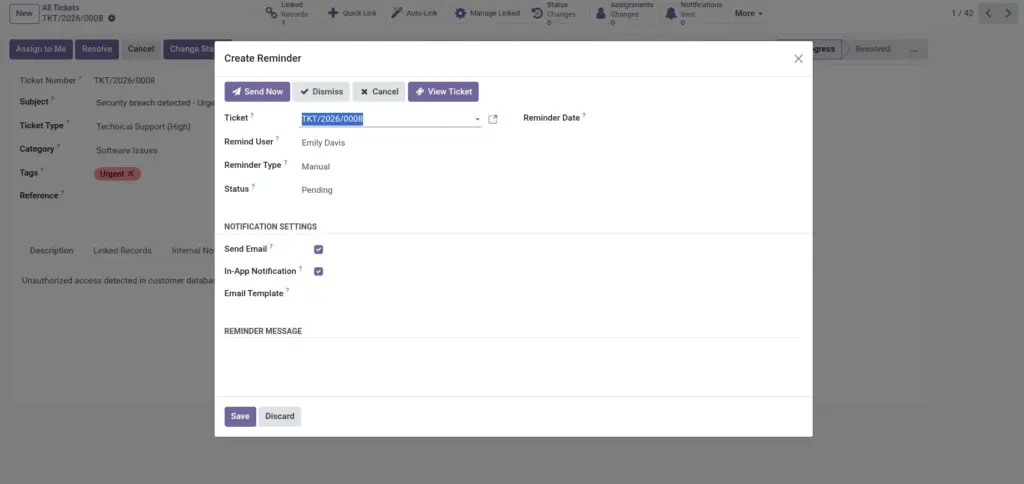
- Open a ticket and click Create Reminder.
- Set remind user, date, and message.
- Choose email and/or in-app notification options.
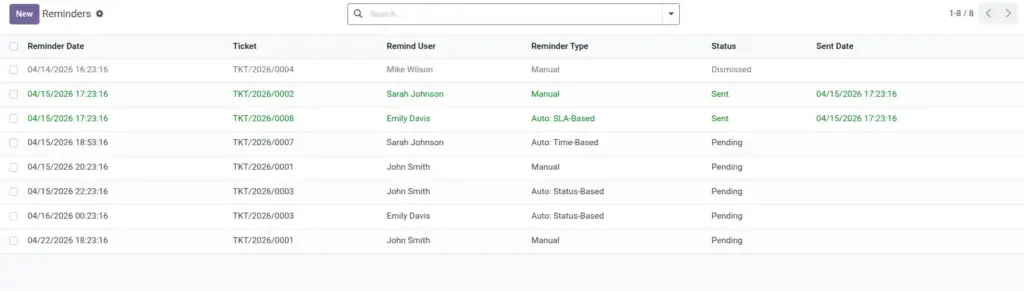
- Save and track status from Reminders menu.
- Dismiss or cancel reminders that are no longer needed.
Fields Table
| Field Name | Description | Example |
|---|---|---|
Ticket |
Ticket linked to this reminder. |
TIC/2026/0045 |
Remind User |
Person who should receive reminder. |
Support Agent – Rahul |
Reminder Date |
When reminder should trigger. |
16-Apr-2026 09:00 |
Reminder Message |
Follow-up note for the user. |
Call customer with update. |
Status |
Current reminder stage. |
Pending |
Send Email |
Whether email notification is sent. |
Yes |
Fields Explanation
Ticket
Connects reminder to a real case.
Remind User
Makes ownership clear.
Reminder Date
Controls exact follow-up time.
Reminder Message
Tells user what action is needed.
Status
Shows if reminder is pending, sent, or dismissed.
Send Email
Adds external alert so reminders are not missed.
Tips
- Use short action-based messages.
- Set reminders before SLA risk periods.
- Use recurring reminders for long-running cases.
Common Mistakes
- Setting reminder date after SLA deadline.
- Creating reminders without clear action text.
- Leaving old pending reminders unmanaged.
Image