
Setup POS Quicknote (For New Users)
This page explains exactly how to install and start using the POS Quicknote module in Odoo. Follow each step in order. The guide is written for first-time users with no technical background.

This module adds a “Special Instructions” area in the self-order cart. Customers can tap ready-made note buttons (like “No onions” or “Extra spicy”), choose dietary tags, and write custom instructions. You can prepare and manage these note templates from Odoo so ordering becomes faster and more accurate.

By Akash Soni May 18, 2026
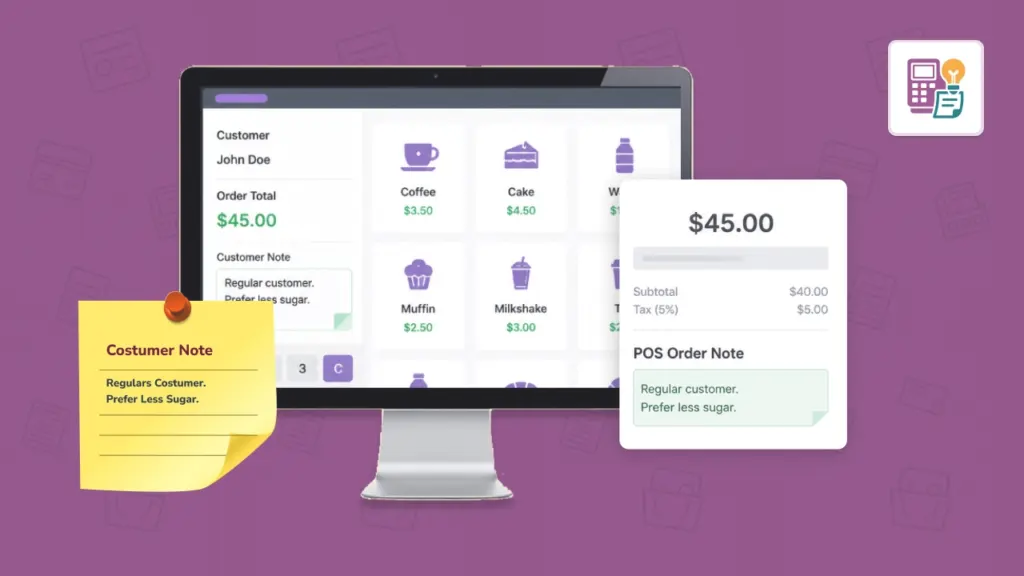
This page explains exactly how to install and start using the POS Quicknote module in Odoo. Follow each step in order. The guide is written for first-time users with no technical background.
Build one-tap note buttons for common requests so customers can place accurate orders faster.
Make food safety and dietary preferences clear by adding easy-to-see tags in the cart.
Identify and resolve common issues when quick notes or dietary tags do not appear as expected.
Display the right note options for the right products by linking templates to POS product categories.
Quick, practical answers for daily operations when working with POS Quick Notes.
Use practical standards so customer instructions stay clear, fast to select, and easy for kitchen teams to follow.
Understand what customers see while adding special instructions on each cart item.
Maintain a clean, useful template library so customers always see the most helpful note options.

Customers can add common requests with one tap instead of typing from scratch.

Important food choices such as vegetarian or nut allergy are easier to mark clearly.

Show certain notes only for relevant product categories to keep the cart clean.

The note area has a limit and a live counter to keep instructions short and readable.

Arrange templates in the best order so customers see the most common options first.

Turn templates off when needed and reactivate later without losing previous setup work.