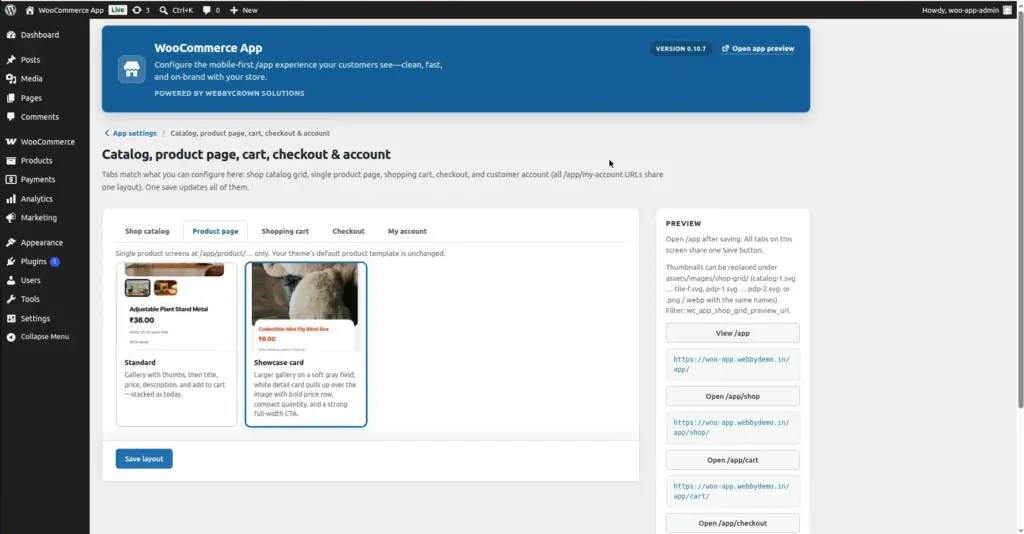
When a customer taps a product in the shop grid, they land on the Product Detail Page (PDP). This chapter explains how product pages look and behave inside the app shell.
Overview
Each product in your WooCommerce store has its own page inside the app. The URL format is /app/product/product-name. The product page shows everything a customer needs to make a buying decision – image, price, description, variations, and the Add to Cart button.
yoursite.com/app/product/[product-slug]
Product Image Gallery
The product page shows the main product image at the top, with additional gallery images below (if the product has multiple photos). Customers can tap to zoom in or swipe to view other images.
Best practice: Upload at least 3 high-quality product photos per product. Mobile shoppers rely heavily on images since they cannot touch the product – better photos lead to higher conversion rates.
What Appears on a Product Page
| Element | What the Customer Sees | Where You Set It |
|---|---|---|
Product Name |
Large title at the top of the page |
Product title in WooCommerce |
Price |
Regular price (and sale price if on sale) |
Product → General tab in WooCommerce |
Main Image |
Large featured image at top |
Product Image in WooCommerce |
Gallery Images |
Additional photos below main image |
Product Gallery in WooCommerce |
Short Description |
Brief text shown above Add to Cart |
Short Description field in WooCommerce |
Variations |
Dropdowns for size, color, etc. (if variable product) |
Product Attributes & Variations in WooCommerce |
Quantity Selector |
Number input to choose how many to buy |
Automatic – from WooCommerce |
Add to Cart Button |
Button to add product to cart |
Automatic – from WooCommerce |
Full Description |
Detailed product description below the button |
Product Description tab in WooCommerce |
Related Products |
Other products shown at the bottom |
Automatic – from WooCommerce related products |
Variable Products (Products with Options)
A Variable Product is a product that comes in different options – like a T-shirt available in Small, Medium, and Large, or a phone case in different colors. Inside the app, customers select their options from dropdown menus before adding to cart.
1. Customer taps the product
They land on the product page and see dropdowns for each variation option (e.g. “Size”, “Color”).
2. Customer selects their options
They choose their preferred size, color, or other attributes from each dropdown menu.
3. Price and stock update automatically
If different variations have different prices or stock levels, these update on screen automatically as the customer makes their selections.
4. Customer taps Add to Cart
With options selected, they tap Add to Cart and the specific variation is added to their cart.
Tips for Great Product Pages
- Always fill in the Short Description field – it appears prominently above the Add to Cart button and is the most-read text on a product page.
- Upload your main product image in square format (1:1 ratio) – it looks best on mobile screens.
- For variable products, use clear, short option names – “S / M / L / XL” is much better than “Small Size / Medium Size / Large Size / Extra Large Size” on a phone screen.
- Set a sale price using the “Sale Price” field in WooCommerce – the app clearly shows both the original and sale price, which motivates customers to buy.
Common Mistakes
- No product image. Products without images look unprofessional in the grid and on the product page. Always upload at least one good quality image.
- Very long product names. Long names get cut off on mobile cards. Keep product names under 60 characters for the best display.
Image