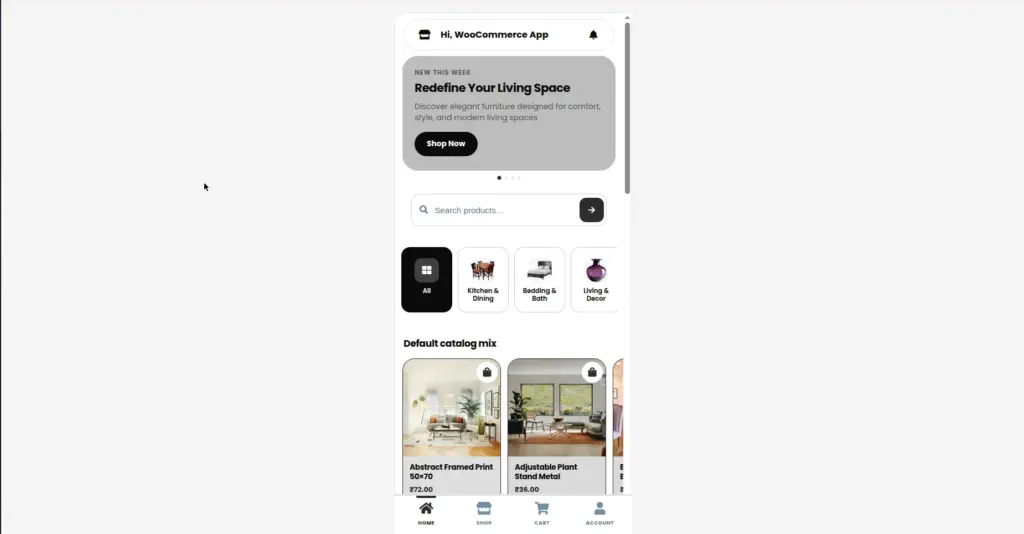
The Home Hub is the first screen your customers see when they open yoursite.com/app. It works like an app’s main menu – showing your store’s pages and quick shortcuts to shop, cart, checkout, and account.
Overview
When a customer visits /app, they land on the Home Hub. This is a clean, mobile-friendly page that acts as the main navigation point for your entire mobile store. It automatically shows:
- All published WordPress Pages on your site (like “About Us”, “Contact”, “FAQ”)
- WooCommerce shortcuts – direct links to Shop, Cart, Checkout, and My Account
- Any custom sections you configure in the Home Layout Editor
yoursite.com/app
How It Works
The Home Hub is automatic – you do not need to manually add pages to it. As soon as you publish a new WordPress page, it appears in the hub. Here is what happens behind the scenes:
1. Plugin scans your WordPress pages
Every time the hub loads, the plugin looks at all “published” pages on your WordPress site and lists them as tappable links.
2. WooCommerce shortcuts are added automatically
The plugin always adds shortcuts to Shop, Cart, Checkout, and My Account – these appear even if you do not have specific pages for them, because they use WooCommerce’s built-in screens.
3. Each link opens inside the app shell
When a customer taps a link, it opens inside the same /app shell – the URL changes to /app/page-name but the header and style stay consistent, giving a real app feeling.
What Appears in the Home Hub
| Item | URL in /app | Where It Comes From |
|---|---|---|
Shop |
/app/shop |
WooCommerce built-in shop page – shows product grid |
Cart |
/app/cart |
WooCommerce cart – shows items the customer added |
Checkout |
/app/checkout |
WooCommerce checkout form – for placing orders |
My Account |
/app/my-account |
WooCommerce account – login, orders, addresses |
Search |
/app/search |
Product and page search results |
Your Pages |
/app/[page-slug] |
All published WordPress pages (About, Contact, FAQ, etc.) |
Customizing the Home Hub
You can customize exactly what appears on the Home Hub and in what order using the Home Layout Editor. This is covered fully in Home Layout Editor. From there you can:
- Add sections like banners, category grids, product lists, or custom HTML
- Reorder sections by dragging them up or down
- Show or hide individual sections
- Set a custom title for each section
Tips
- Keep your key WordPress pages (About, Contact, FAQs) published so they appear automatically in the hub without any extra setup.
- If you have a page you do NOT want to show in the app, set it to “Draft” or “Private” in WordPress – it will disappear from the hub automatically.
- Use the Home Layout Editor to feature your most important sections at the top of the hub for maximum visibility.
- Share
yoursite.com/appwith your customers as a shortcut to their shopping app – they can even add it to their phone home screen.
Common Mistakes
- Publishing draft pages accidentally. Any page set to “Published” appears in the hub automatically. Double-check your page status before publishing.
- Expecting the hub to show blog posts. The hub only shows WordPress Pages (not Posts). Blog posts are a different content type and do not appear automatically.
Image