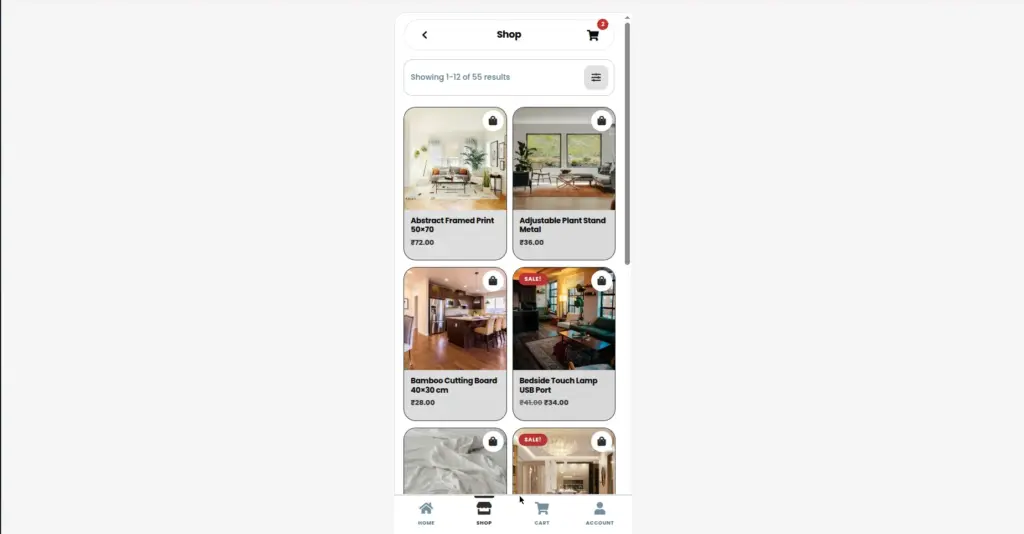
Learn how customers browse and discover your products inside the mobile app store – including the product grid, category browsing, search, and infinite scroll.
Overview
The Shop screen at /app/shop is your mobile product catalogue. It shows all your WooCommerce products in a clean grid layout optimized for phone screens. Customers can scroll through products, browse by category, and search – all without leaving the app shell.
yoursite.com/app/shop
Infinite Scroll – How It Works
The shop uses Infinite Scroll – as a customer scrolls to the bottom of the product list, the next batch of products loads automatically. There are no “Next Page” buttons to click. This creates a smooth, social-media-style browsing experience that keeps customers engaged.
Why Infinite Scroll? Research shows mobile users are much more likely to keep scrolling than to tap a pagination button. Infinite Scroll increases the number of products customers see – which can directly increase sales.
1. Customer opens /app/shop
The first set of products loads immediately – typically the same number as your WooCommerce “products per page” setting.
2. Customer scrolls down
As they approach the bottom of the page, the app quietly fetches the next batch of products in the background.
3. More products appear automatically
New products appear at the bottom of the list seamlessly – no page reload, no button click. The scroll continues until all products have been shown.
Search
Customers can search for products and pages using the search screen at /app/search. The search also uses infinite scroll – if there are many results, they load as the customer scrolls.
yoursite.com/app/search
| Feature | How It Works |
|---|---|
Search Products |
Finds products by name, description, or SKU |
Search Pages |
Also finds WordPress pages matching the search term |
Results Layout |
Same product grid style as the shop page |
Infinite Scroll |
Search results also load more as the customer scrolls |
Category Browsing
Customers can browse products by category. Category pages open inside the app shell at /app/shop/?product_cat=[category-slug]. If you have set up category images (see Custom Shop Hooks), those images appear to make browsing more visual and engaging.
Shop Screen Features
| Feature | Description | Can Be Customized? |
|---|---|---|
Product Grid |
Products shown in a 2-column or 1-column grid |
Yes – see Shop Grid Layout Shop Grid Layout |
Product Image |
Main product thumbnail displayed on each card |
Yes – image size configurable |
Product Name |
Product title shown below the image |
No (standard WooCommerce) |
Product Price |
Price (and sale price if applicable) shown on card |
No (standard WooCommerce) |
Infinite Scroll |
Auto-loads more products on scroll |
Yes – can disable in settings |
Sort & Filter |
Standard WooCommerce sorting options |
Depends on your WooCommerce setup |
Tips
- Make sure every product has a clear, high-quality image – this is what customers see first in the grid.
- Keep product names short and descriptive so they fit cleanly on the mobile product card.
- Use product categories to help customers navigate – a well-organized category structure makes browsing much easier on mobile.
- Add category images (Custom Shop Hooks) to make the category browsing experience more visual and appealing.
Image