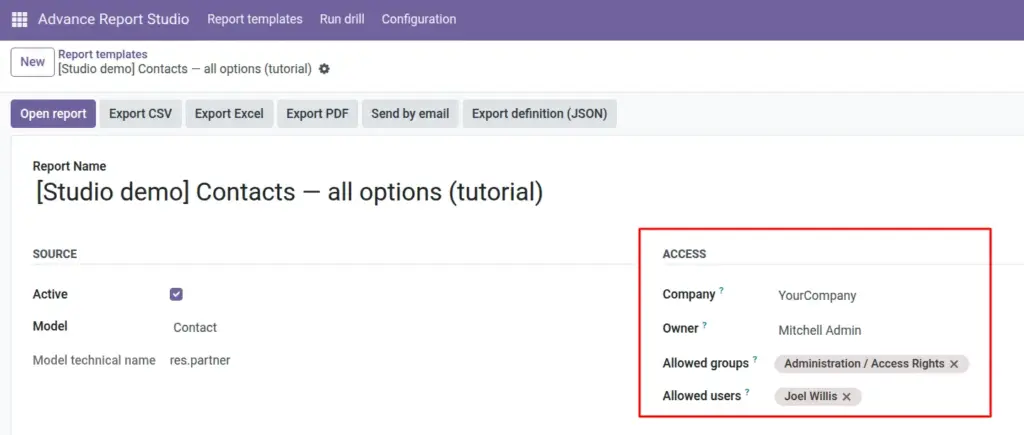
Control template visibility with company scope, security groups, named users-and understand how this interacts with Odoo record rules.
Overview
By default, any user with Advance Report User access can see all active templates in the catalog (subject to template-level restrictions below). Managers configure optional limits on each template under the Access group.
Restricting a template does not bypass Odoo security on the underlying data-users still only see records allowed by their normal model access and record rules when the report opens.
How it works
Template visibility (catalog)
- If Allowed groups and Allowed users are both empty → any Advance Report user may see the template row.
- If either is set → user must belong to at least one listed group OR be listed as an allowed user.
Company
Company on the template scopes the definition in multi-company setups. Leave empty to share across companies (still subject to user’s company access and record rules on data).
Owner
Owner is informational and powers the My templates search filter-it does not alone hide templates from others unless combined with allowed groups/users.
Editing vs running
Only Managers edit template definitions. Users with visibility may still run Open data and exports if they see the template row.
Step-by-step
- Open template form → Access group.
- For a finance-only report: set Allowed groups to Accounting / Billing groups.
- Optionally add Allowed users for contractors without those groups.
- Include your own manager group or user so you retain access after save.
- Set Company if the report is legal-entity specific.
- Save; log in as a test user in/out of allowed groups to confirm visibility.
- Use search filter Restricts by group/user to audit locked-down templates.
Access fields reference
| Field | Description | Example |
|---|---|---|
Company |
Template tied to one company; empty = shared. |
My Company EU |
Owner |
Primary author (filtering aid). |
BI lead user |
Allowed groups |
Security groups that may see template. |
Sales / Manager |
Allowed users |
Named users (OR with groups). |
External auditor login |
Field explanations
Each block matches one row in the table above, in the same order.
Company
On the template Access group: optional company link for multi-company scoping of the definition. Does not replace per-user record rules on the underlying data, but helps organize templates per legal entity.
Owner
Optional primary author (res.users). Powers “My templates” filters and documentation; visibility to the template row is controlled separately by allowed groups/users.
Allowed groups
Many2many to res.groups. If set together with or instead of allowed users, a user must belong to at least one listed group or be an allowed user to see this template in the catalog. JSON export stores these as external XML IDs for portability.
Allowed users
Many2many to res.users with no_create in the UI-named individuals who may see the template even if they are not in the allowed groups (OR logic with groups). JSON export stores logins; after import, verify mappings on the target database.
Tips
- Tip: Leave groups and users empty for company-wide operational reports everyone should run.
- Tip: Owner field helps housekeeping-not a substitute for allowed groups when confidentiality matters.
- Tip: Align template restrictions with who may already read the underlying model data.
Common mistakes
- Common mistake: Restricting access but omitting your own group-you lose the template from your list.
- Common mistake: Assuming template hiding blocks data-users with template access still obey record rules on open.
- Common mistake: Emailing reports to addresses outside allowed users-email is separate; protect recipient lists manually.
Image