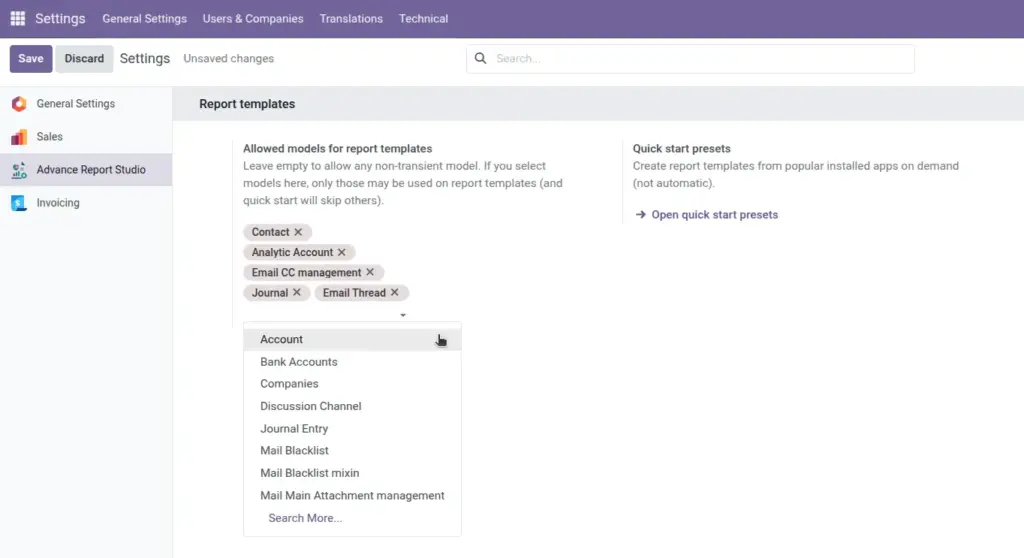
Govern which Odoo models may be used on report templates, open Quick start presets, and align demos with your rollout policy.
Overview
Studio configuration (advance.report.config) is the global policy record for Advance Report Studio. Administrators set Allowed models to control which data types managers can pick when creating or saving templates.
This is separate from per-template Allowed groups/users (who sees a report) and from Odoo’s standard model access rights (what data rows a user can read).
How it works
- Allowed models empty → any non-transient model may be used on templates (maximum flexibility).
- Allowed models populated → saving a template whose model is not in the list raises a validation error pointing to Studio configuration.
Quick start presets and [Studio demo] creation also respect the whitelist-demos for blocked models are skipped or fail with a clear message when you try to materialize them.
Access configuration via:
- Settings → Advance Report Studio (General Settings block)
- Advance Report Studio → Configuration → Studio configuration (app menu)
Settings may include a shortcut to Open quick start presets for faster rollout work.
Step-by-step
- Log in as administrator or Settings user.
- Open Settings and locate the Advance Report Studio section.
- Review current Allowed models list (empty = all models).
- For phased rollout: add only approved models (e.g. Contact, Sales Order, Invoice, Task).
- Save settings.
- Ask a Manager to create a test template on an allowed model-confirm save succeeds.
- Attempt a disallowed model-confirm Odoo shows validation error with link to configuration.
- Review existing templates that use models you removed from whitelist-they may fail on next edit until model is re-allowed or template is changed.
Configuration fields
| Field | Description | Example policy |
|---|---|---|
Allowed models |
Whitelist of ir.model records. |
Contact, sale.order, account.move |
Empty whitelist |
All non-transient models permitted. |
Default for pilots |
Studio configuration menu |
Same singleton config in app. |
Manager maintenance |
Field explanations
Each block matches one row in the table above, in the same order.
Allowed models
Many2many on singleton advance.report.config listing ir.model records managers may choose when creating or saving templates. Non-empty list enforces validation: saving a template on a model outside this list raises an error pointing to Studio configuration.
Empty whitelist
When Allowed models has no lines, every non-transient model is permitted-maximum flexibility for pilots and consultants. Quick start presets and [Studio demo] templates still require the related Odoo app to be installed for their model.
Studio configuration menu
Same settings record exposed under Advance Report Studio → Configuration → Studio configuration for managers, in addition to Settings → Advance Report Studio for administrators. Demos and catalog creation skip models not in the whitelist when the whitelist is non-empty; JSON import may create templates that then fail on edit until the model is allowed.
Tips
- Tip: Whitelist only models your report designers actually need-shorter model dropdowns reduce mistakes.
- Tip: Document allowed models in your internal wiki alongside this guide.
- Tip: Before tightening whitelist, export JSON backups of templates on models you will remove.
Common mistakes
- Common mistake: Blocking a model still used by live templates-edit fails until model is re-added.
- Common mistake: Expecting whitelist to hide template rows from users-that is template allowed groups/users, not global config.
- Common mistake: Forgetting Sales on whitelist while trying to deploy Sales quick start presets.
Image