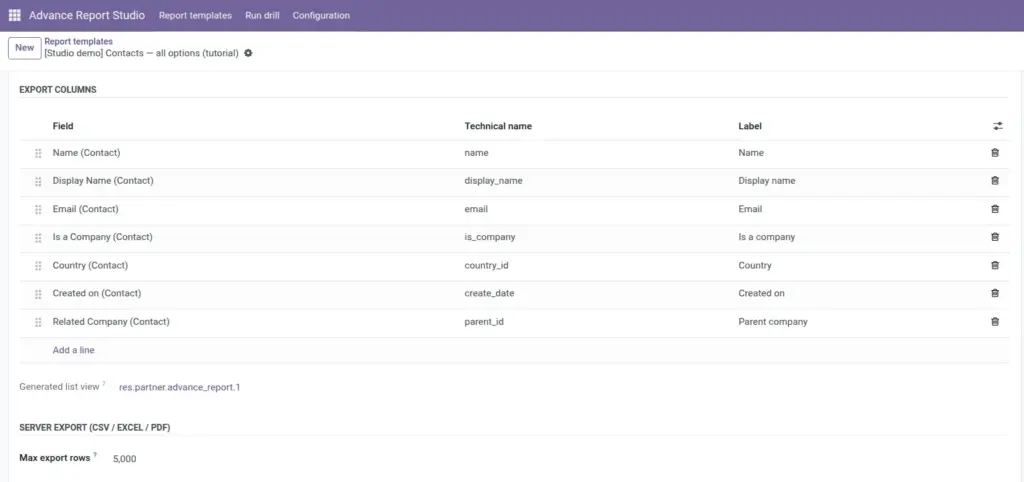
Define which fields appear in the list view and in CSV, Excel, and PDF downloads-with row limits and friendly column labels.
Overview
Export columns are ordered lines on the template: each line picks a field on the template model and an optional Label for headers. When column lines exist, they drive three outputs:
- The list view when you open the report (auto-generated primary list view).
- CSV and Excel downloads from the list or form.
- PDF tabular export (company header, report title, record count, then table).
If no column lines are set, you may use the fallback Export columns (comma-separated) field or default to id and display name.
How it works
On save, the module builds or updates an ir.ui.view of type list linked as Generated list view (visible to system group). Runtime export reads the same column order and labels, queries records matching the domain, and stops at Max export rows (1-100000, default 10000).
Server requirements
- CSV – always available.
- Excel (.xlsx) – requires Python library xlsxwriter on the Odoo server.
- PDF – uses QWeb report; needs working wkhtmltopdf like other Odoo PDFs.
Scheduled and manual emails attach the format selected under Email report (PDF, Excel, or CSV) using the same column set.
Step-by-step
- Open the template form → Export columns section.
- Click Add a line; choose Field (domain-limited to template model).
- Enter optional Label (e.g. “Order total” instead of technical header).
- Drag sequence handles to reorder columns.
- Set Max export rows under Server export (e.g. 5000 for operations, 10000 default).
- Save; open report and confirm list columns match.
- From form header or list row: Export CSV / Excel / PDF and verify file contents.
Fields reference
| Field | Description | Example |
|---|---|---|
Export columns (lines) |
Field + label + sequence. |
partner_id → Customer |
Field / field_name |
Technical field on model. |
amount_total |
Label |
Column header in list and files. |
Total (incl. tax) |
Sequence |
Column order (handle drag). |
10, 20, 30… |
Max export rows |
Cap per download/email export. |
10000 |
Export columns (fallback) |
Comma-separated names if no lines. |
name, email, phone |
Generated list view |
Technical synced view (system). |
Auto-maintained |
Field explanations
Each block matches one row in the table above, in the same order.
Export columns (lines)
One2many advance.report.template.column rows: each line is one column in the generated list view and in CSV, Excel, and PDF exports. When at least one line exists, it fully replaces the legacy comma-separated fallback field in the UI.
Field / field_name
Each column line points to an ir.model.fields record on the template model; field_name is the technical name written into the generated list view XML (e.g. partner_id). Many2one values export as display names in files when applicable.
Label
Optional string on a column line, mapped to the list view field’s string attribute-friendly header in the UI and in export files (e.g. “Customer” instead of “Partner”).
Sequence
Integer order per column line; the tree uses handle widgets so you can drag rows. Lower sequence appears first (left) in list and export column order.
Max export rows
Required integer (1-100000, default 10000) on the template under Server export. Hard cap on how many matching records are serialized per CSV, XLSX, PDF, or email attachment for that template.
Export columns (fallback)
Char field with comma-separated technical field names, shown only when there are no export column lines. Used for quick CSV-style exports; if empty and no lines, runtime falls back to id and the record display name.
Generated list view
Read-only many2one to ir.ui.view (system group): the primary list/tree view the module creates or updates whenever column lines change. Do not edit manually-adjust column lines on the template instead.
Tips
- Tip: Friendly labels help finance and executives use exports without knowing Odoo field names.
- Tip: Narrow the domain before raising max rows-faster exports and clearer accountability.
- Tip: Copy column sets from [Studio demo] templates via JSON export/import.
- Tip: Many2one columns usually export as display names (e.g. customer name), not raw IDs.
- Tip: PDF is a flat table of your export columns-not a copy of pivot layout.
Common mistakes
- Common mistake: Adding the same field twice-creates duplicate columns in files.
- Common mistake: Expecting computed/non-stored fields to always export-prefer stored fields for heavy exports.
- Common mistake: Excel fails on server-install xlsxwriter in the Odoo Python environment.
Image