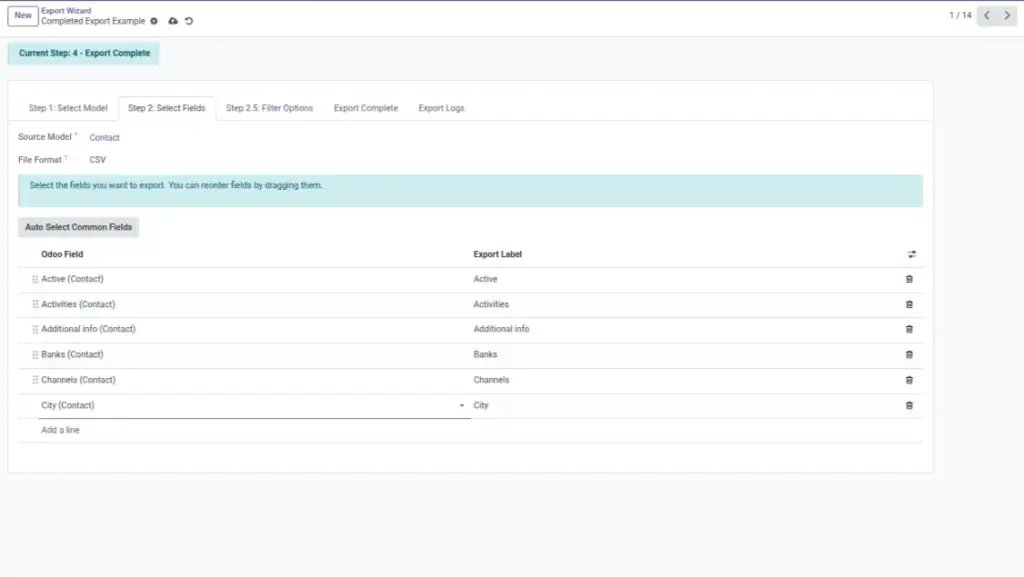
Pick your source app and the exact columns you want. No clutter, only useful data.
Overview
This step is where you decide what information your export will contain. First, you choose the Source Model (the Odoo area you’re exporting from). Then, you choose the fields (columns) that should appear in the file.
Choosing the right fields makes the export easy to read and useful for your audience. You can also include related fields (information linked to a record), like “Invoice → Customer → Email”, so you don’t need a second export to get key details.
Example: Sales wants a file with Order Number, Customer Name, Salesperson, Order Date, and Total — not every technical field in Odoo.
How It Works
- Click Source Model and pick the app (model).
- Open Field Selector to browse or search fields.
- Add fields; reorder them to control column sequence.
- Include related fields (like Customer → Country) when needed.
Step-by-Step Guide
- In the wizard, set Source Model (e.g., Res Partner for customers).
- Click Select Fields → search by keyword (e.g., “email”).
- Tick the fields you need and click Add.
- Drag to reorder columns. The first field becomes column A.
- For related info, pick relational fields (have an arrow) like Country → Name.
- Save the configuration to reuse it later.
Fields Table
| Field Name | Description | Example |
|---|---|---|
Source Model |
Which app/table to export. |
Res Partner (Customers) |
Field Selector |
Browse and add columns to export. |
Name, Email, Phone, Country |
Related Fields |
Pull info from linked records. |
Invoice → Customer → Country |
Order |
Control the column order in the file. |
Name first, then Email |
Field Explanations
Source Model
The business area: Customers, Products, Invoices, etc.
Field Selector
Only pick columns that your audience needs.
Related Fields
Useful for names instead of technical IDs.
Order
Improves readability for spreadsheets and BI tools.
Tips
- Prefer readable fields (Customer Name) over internal IDs.
- Group related columns: customer info together, then amounts.
- Save different configurations for different stakeholders.
Common Mistakes
- Choosing the wrong model (e.g., picking Payments instead of Invoices).
- Exporting technical fields that people don’t understand.
- Adding too many columns — makes the file hard to use.
Image