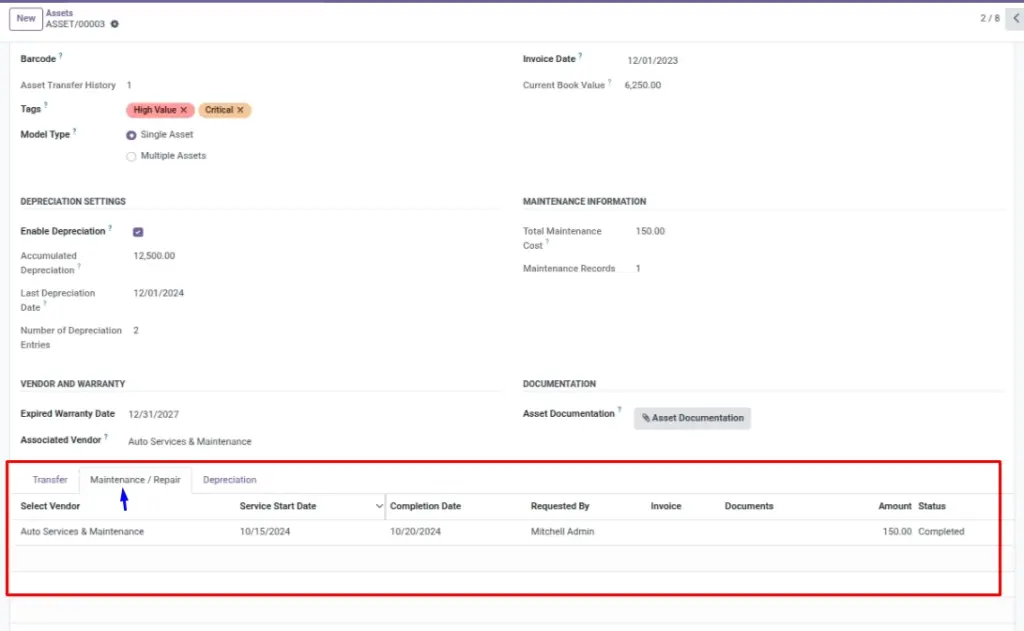
Maintenance records are your proof that service happened — who serviced it, when it started, when it finished, how much it cost, and the attached quote/invoice file.
Overview
Go to Asset → Maintenance / Repair. Each row is one service event for one asset. You can also see maintenance entries from inside the asset form (Maintenance / Repair tab).
How it works
- Status can be Pending, In Progress, or Completed.
- Service Start Date and Completion Date create a clear timeline.
- Amount rolls up into the asset’s Total Maintenance Cost.
- Documents store service proofs (quotes, invoices, reports).
Why this matters: maintenance history helps budgeting, warranty claims, and deciding when to replace assets.
Step-by-step guide
Create a maintenance record
Go to Asset → Maintenance / Repair and click New.
Select the asset and vendor
Choose the asset and pick the service vendor (example: “Auto Services & Maintenance”).
Add dates and status
Set the service start date. Update status as the work progresses. When complete, add completion date.
Attach the document and cost
Upload the quote/invoice file and fill the amount. Link the invoice if your process requires it.
Fields table
| Field Name | Description | Example |
|---|---|---|
Asset Reference |
The item being serviced. |
|
Select Vendor |
Who performed the service/repair. |
Auto Services & Maintenance |
Service Start Date |
When the asset was sent for service. |
2025‑02‑01 |
Completion Date |
When service finished. |
2025‑02‑03 |
Requested By |
Who created the request. |
Facilities Admin |
Status |
Pending / In Progress / Completed. |
In Progress |
Amount |
Service cost for this event (adds to total maintenance cost). |
150.00 |
Invoice |
Optional invoice link (if you track invoices in Odoo). |
INV/2025/0012 |
Documents |
Upload proof like quote, invoice, or service report. |
|
Field explanation
| Field Name | Explanation |
|---|---|
Asset Reference |
Which item is being serviced; ties the event to the correct asset. |
Select Vendor |
Service provider performing the work; keeps vendor-by-vendor cost history clear. |
Service Start Date |
When the item left for service; useful for turnaround tracking. |
Completion Date |
When the work finished; confirms the asset should be back (or ready soon). |
Requested By |
User who created the request; helps trace approvals and follow-ups. |
Status |
Pending / In Progress / Completed; keep it current to inform availability. |
Amount |
Final billed amount (or company-approved estimate) for this service event. |
Invoice |
Optional link to the accounting invoice (if managed in Odoo Accounting). |
Documents |
Attach quotes/invoices; use clear names like “Laptop Repair Quote – Jan 2025.pdf”. |
Tips
- Create one record per service event so the timeline stays clear.
- Use vendors consistently so reporting “by vendor” is accurate.
- Attach the invoice so audits don’t require hunting in emails.
Common mistakes
- Missing documents: you lose evidence for warranty claims.
- No completion date: it becomes unclear if the asset is back and usable.
- Mixing multiple service events into one line: costs and dates become confusing.
Image placeholder