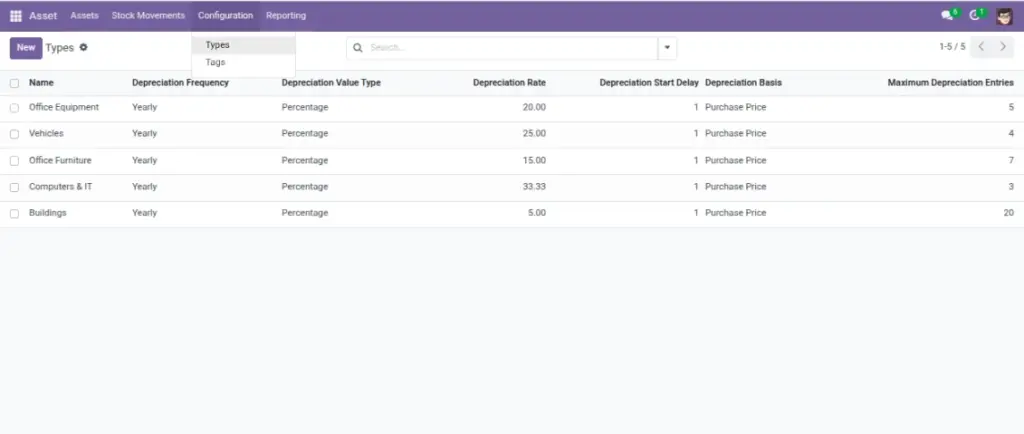
Depreciation helps you track how an asset’s value decreases over time. This module can automatically create depreciation entries based on the asset type rules you set (monthly, yearly, or by days).
Overview
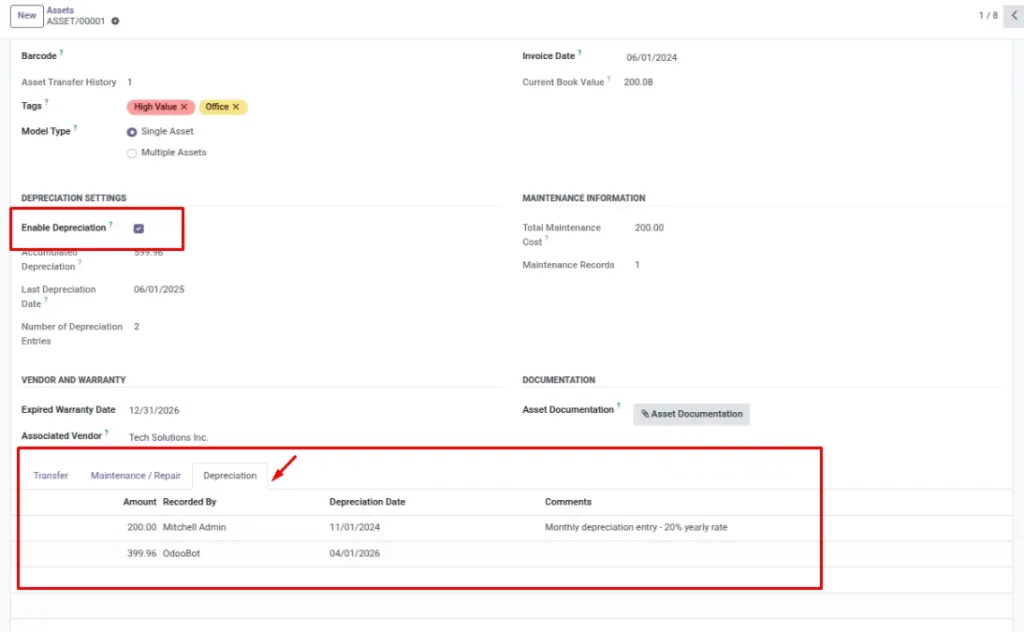
Depreciation entries are visible in two places:
- Asset → Depreciation (all entries)
- Inside an asset record (Depreciation tab)
On the asset itself, you can see totals like Accumulated Depreciation and Current Book Value.
How it works
- You turn on depreciation per asset using Enable Depreciation.
- The asset type defines frequency and calculation method.
- The system creates entries automatically on a schedule (for example, daily checks).
- Each entry has an amount, a date, and who recorded it.
Why this matters: book value supports better budgeting, replacement planning, and reporting.
Step-by-step guide
Confirm the asset type has correct rules
Go to Asset → Configuration → Types and review frequency, rate, and limits.
Turn on depreciation for the asset
Go to Asset → Assets, open the asset, and enable Enable Depreciation.
Make sure purchase info is present
Fill Invoice Date and Purchase Price so the system can calculate on time.
Review entries
Go to Asset → Depreciation to review the generated entries. Use filters and groupings for summaries.
Fields table
| Field Name | Description | Example |
|---|---|---|
Enable Depreciation |
Turns depreciation on for this asset. |
Checked |
Accumulated Depreciation |
Total depreciation amount recorded so far. |
650.00 |
Last Depreciation Date |
Most recent depreciation date recorded on the asset. |
2025‑03‑01 |
Current Book Value |
Purchase price after depreciation adjustments (read‑only). |
550.00 |
Depreciation Date (entry) |
Date recorded for the entry. |
2025‑03‑01 |
Amount (entry) |
Depreciation value for that entry. |
50.00 |
Recorded By |
User who created the entry. |
Finance Admin |
Comments |
Optional notes for clarity. |
“Monthly depreciation” |
Field explanation
| Field Name | Explanation |
|---|---|
Enable Depreciation |
Turn this on for assets that should generate depreciation entries automatically. |
Current Book Value |
Purchase price minus depreciation so far; key for reports and replacements. |
Accumulated Depreciation |
Total value written down; grows as more entries are recorded. |
Last Depreciation Date |
Most recent date depreciation was applied (helps confirm schedule health). |
Depreciation Date (entry) |
Date applied for a single depreciation entry. |
Amount (entry) |
Value reduced in that specific entry (fixed or percentage based on type rules). |
Recorded By |
User who created the entry (auto or manual); useful for traceability. |
Comments |
Optional notes to clarify a special calculation or manual adjustment. |
Tips
- Set types first: if the type rules are wrong, all assets under that type will follow them.
- Keep invoice date accurate: it affects when depreciation starts.
- Use comments if a manual adjustment is needed (company policy).
Common mistakes
- Depreciation enabled but invoice date missing: entries may not generate as expected.
- Wrong type rules: frequency/rate problems lead to confusing totals.
- Assuming depreciation is the same as accounting posting: this guide focuses on tracking value inside the app.
Image placeholder