Print clean labels for one asset or many assets at once. You can choose a label sheet layout (like 2×7 or 4×12), or use a custom rows/columns grid. Labels can show a barcode and the asset’s price.
Overview
Labels are usually used for quick identification: when someone scans a barcode sticker, they can match it to the asset record. If an asset does not have a barcode filled in, the system can still print a code using the asset reference.
How it works
- From the asset list, you can print labels for multiple selected assets at once.
- You choose a Format (sheet size / grid), and a Quantity per asset.
- The system generates a PDF ready to print.
Why this matters: clear labeling reduces loss, speeds audits, and makes check‑in / check‑out smoother.
Step-by-step guide
Option A: Print labels for several assets (recommended)
Go to Asset → Assets.
Select the assets you want, then choose Print Labels.
Option B: Print label from inside one asset
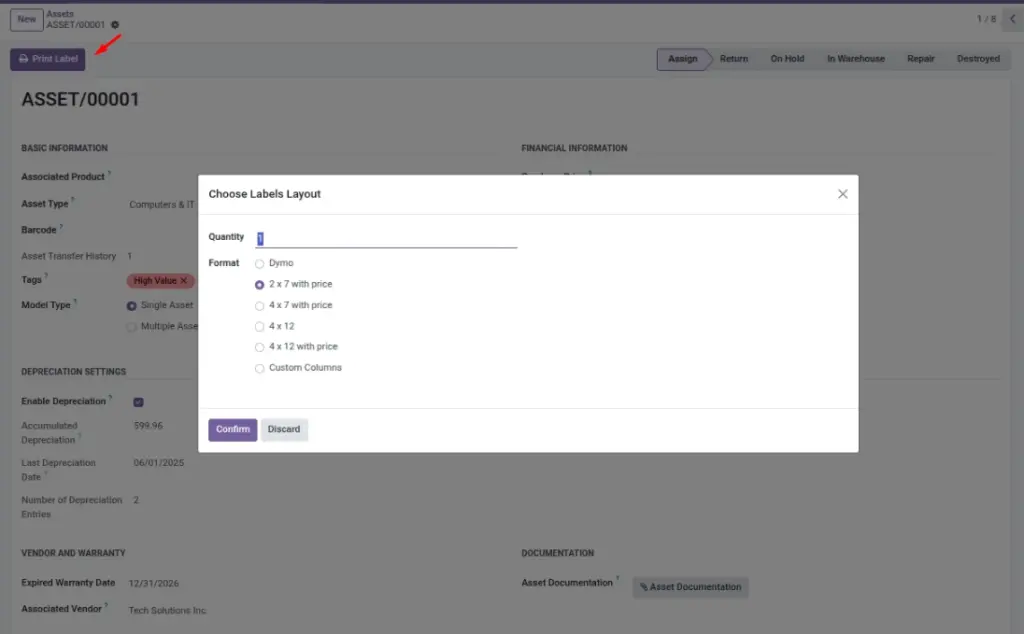
Open the asset and click Print Label.
Choose layout and quantity
In the popup, choose Format and enter Quantity.
If you choose Custom Columns, you can set the number of columns and rows per page.
Download and print
Click Confirm to generate the PDF. Print using your label sheet or label printer setup.
Fields table
| Field Name | Description | Example |
|---|---|---|
Quantity |
How many labels to print per selected asset. |
2 (two stickers per laptop) |
Format |
Label sheet layout (grid) or printer type. |
2 × 7 with price |
Number of Columns |
Custom: columns per page. |
3 |
Number of Rows |
Custom: rows per page. |
8 |
Show Price |
Whether to display purchase price on the label (custom layout option). |
On |
Field explanation
| Field Name | Explanation |
|---|---|
Quantity |
Labels per asset; use 1 for standard, higher if you need spares (e.g., charger, dock). |
Format |
Pick the sheet/grid or printer type that matches your stationery (e.g., 2×7, 4×12, Dymo). |
Number of Columns |
Custom layout only — how many columns per page for your custom template. |
Number of Rows |
Custom layout only — how many rows per page for your custom template. |
Show Price |
Toggle price on labels (consider company policy before displaying cost on devices). |
Tips
- Fill Barcode when possible: it makes scanning consistent if you use a hardware barcode scanner.
- Print a test page first to confirm alignment on your label sheet.
- Use the same format across the company so labels look consistent.
Common mistakes
- Quantity set to 0: the system blocks this (must be positive).
- Wrong sheet format: labels print but do not align with the sticker sheet.
- Printing too few: remember accessories may need their own sticker.
Image placeholder