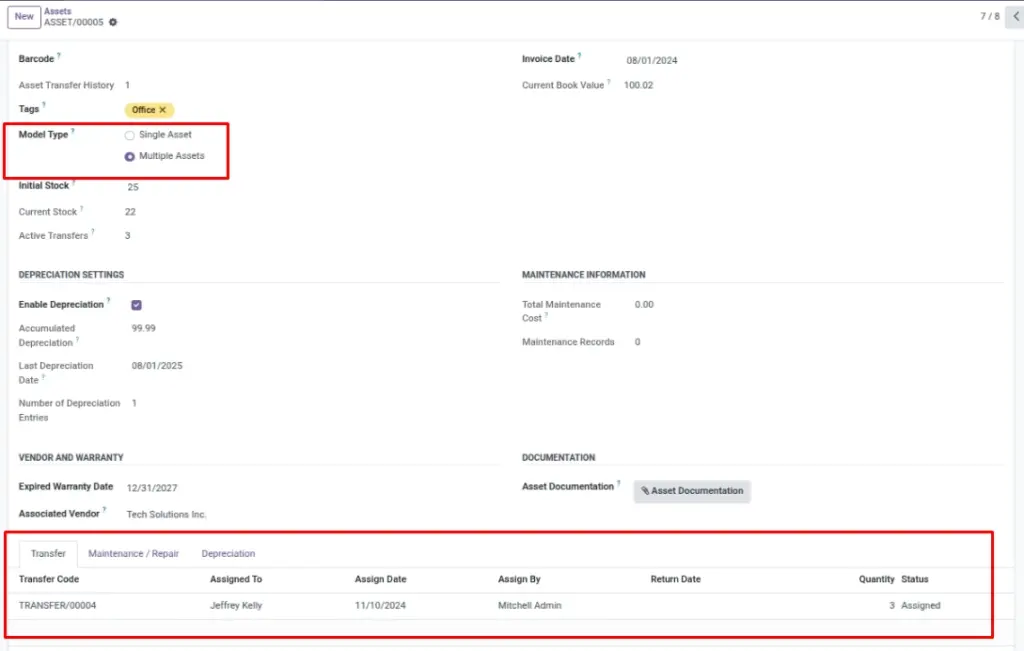
Use “Multiple Assets” when you track quantities (chairs, monitors, printers). The app calculates Current Stock automatically based on active assignments, and it blocks over‑assignment.
Overview
“Multiple Assets” behaves like a simple stock counter inside the asset record. You set Initial Stock, then transfers reduce available stock while items are assigned.
How it works
- Initial Stock is your starting quantity.
- Active Transfers is how many units are currently assigned (status “Assigned”).
- Current Stock is calculated as:
Initial Stock − Active Transfers. - If you try to assign more than Current Stock, the system shows an error and stops the assignment.
Why this matters: it prevents double‑issuing equipment and keeps your stock movements report trustworthy.
Step-by-step guide
Create a “Multiple Assets” record
Go to Asset → Assets → Create.
Set Model Type to Multiple Assets and enter Initial Stock.
Assign quantities using Transfers
Go to Asset → Transfer and assign a quantity (example: 5 chairs).
While the transfer status is Assigned, those units are considered “out”.
Return items to restore availability
Update the transfer with a Return Date and set status to Returned.
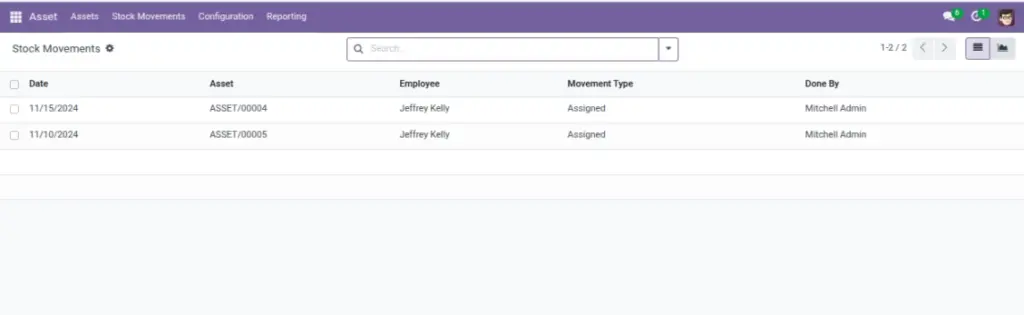
Use Stock Movements for history
Go to Asset → Stock Movements to review assigned/returned activity over time.
Fields table
| Field Name | Description | Example |
|---|---|---|
Model Type |
Switches the asset into quantity/stock mode. |
Multiple Assets |
Initial Stock |
Starting quantity you have in your company. |
50 chairs |
Active Transfers |
Total units currently assigned out (Assigned status transfers). |
12 |
Current Stock |
Units still available to assign. |
38 |
Out of Stock (filter) |
Quick way to find items where current stock is zero or less. |
Monitors: 0 available |
Field explanation
| Field Name | Explanation |
|---|---|
Model Type |
Switch to “Multiple Assets” to enable quantity tracking and stock checks. |
Out of Stock (filter) |
Quick filter that shows items at zero (or below) availability to trigger action. |
Current Stock |
Calculated automatically; do not edit directly. |
Active Transfers |
Sum of quantities currently assigned; returned items are excluded. |
Initial Stock |
Adjust only for real stock changes (new purchase or approved correction). |
Tips
- Use one record per item type (e.g., “Monitor 24-inch”) rather than one record per unit.
- Standardize transfer quantities (e.g., “1 monitor per employee”) to reduce mistakes.
- Review “Out of Stock” weekly to avoid last‑minute shortages.
Common mistakes
- Setting Initial Stock too low/high: it affects whether assignments are blocked.
- Not returning transfers: current stock stays low even if items are physically back.
- Trying to “fix stock” by editing transfers: instead, follow your company process (return entries, or stock correction policy).
Image placeholder