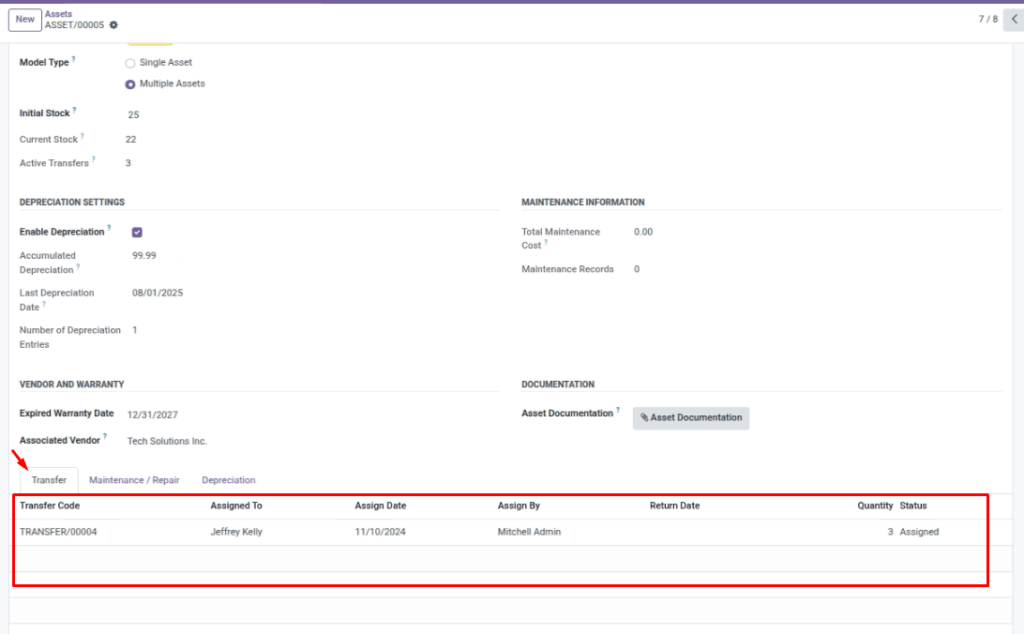
Transfers are your “who has what” log. Each transfer entry records the employee, dates, and status. For stock‑managed assets (Multiple Assets), transfers also reduce and restore available stock.
Overview
Go to Asset → Transfer to see all assignments and returns. You can also open an asset and use the Transfer tab to see its history.
How it works
- Status = Assigned means the asset is currently with the employee.
- Status = Returned means it came back (add a return date).
- Quantity matters for Multiple Assets (example: assign 5 chairs).
- The app creates a unique transfer code like
TRANSFER/00003.
Why this matters: transfers drive “Current Stock” for Multiple Assets, and they power the Stock Movements report.
Step-by-step guide
Create an assignment
Go to Asset → Transfer and click New.
Fill Asset Reference, Assigned To, Assign Date, set Status to Assigned.
(If needed) set quantity
If the asset is a stock‑managed item (Multiple Assets), set Quantity. Example: assign 3 monitors to a new office area.
Record the return
When the item comes back, open the transfer entry, set Return Date, and change Status to Returned.
Use “Under Maintenance” when the item is in service
If the item is sent for repair, set Status to Under Maintenance and create a maintenance record in the Maintenance menu.
Fields table
| Field Name | Description | Example |
|---|---|---|
Transfer Code |
Automatic ID for the transfer entry. |
|
Asset Reference |
The asset being assigned or returned. |
|
Assigned To |
The employee who receives the asset. |
Alex Johnson |
Assign Date |
When the employee received the asset. |
2025‑01‑10 |
Assign By |
Who recorded the assignment. |
IT Admin |
Return Date |
When the asset was returned (fill when applicable). |
2025‑03‑15 |
Quantity |
How many units were assigned (for Multiple Assets). |
5 chairs |
Status |
Assigned, Returned, or Under Maintenance. |
Assigned |
Field explanation
| Field Name | Explanation |
|---|---|
Transfer Code |
Auto-generated identifier for the transfer line (useful for references and audits). |
Asset Reference |
The item being handed over or returned (links the movement to the asset record). |
Assigned To |
Employee who receives the asset; establishes responsibility and traceability. |
Assign Date |
Date the asset was handed over; used in stock movements history and reporting. |
Assign By |
User who recorded the assignment; helps when you need extra context later. |
Quantity |
Relevant only for “Multiple Assets”; for Single assets this is always 1. |
Return Date |
Required to mark an item as back in; without it, the asset stays “out”. |
Status |
Use “Under Maintenance” if it’s with a vendor and log details in Maintenance. |
Tips
- Keep dates accurate so the history is reliable for audits.
- Use one transfer per handover (don’t reuse old transfer lines for new assignments).
- For multiple items, double-check stock before confirming a large quantity.
Common mistakes
- Quantity = 0: the system blocks this (quantity must be greater than zero).
- Assigning more than available: for Multiple Assets, the system blocks over‑assignment.
- Forgetting to set Returned: stock and “who has it” becomes inaccurate.
Image placeholder