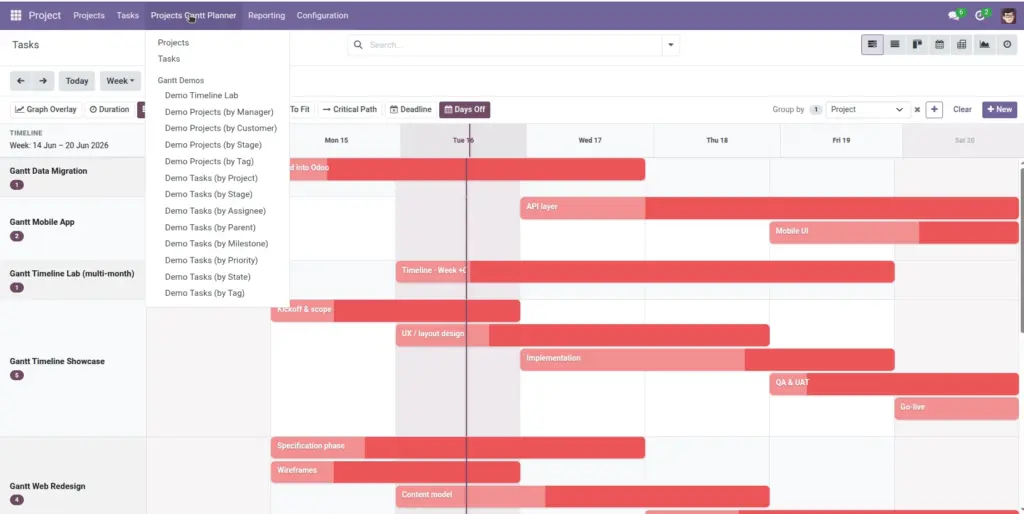
Every path to the timeline – menus, view switchers, and project shortcuts.
Overview
There are several ways to open the Gantt chart depending on what you want to see: all tasks, tasks for one project, tasks grouped by project, or projects themselves as timeline bars. This chapter lists every entry point so you always know where to click.
How It Works
The app registers a new view type called Gantt. It appears in the view switcher (icon bar at the top right of list screens) and as dedicated menu items under Project.
Main menu locations:
- Project → Projects Gantt Planner → Tasks – All tasks on one timeline (default grouping by project)
- Project → Projects Gantt Planner → Projects – Projects shown as bars on the timeline
- Project → Projects Gantt Planner → By Project – Tasks grouped under each project row (same as Tasks with group-by project)
- Project → Projects Gantt Planner (under task management) – Shortcut to Tasks view from the standard Project area
From a project form: Open any project and use the Tasks stat button (shows task count) to jump to that project’s Gantt. You can also open the project on the Projects Gantt from related actions.
Step-by-Step Guide
- All tasks timeline: Click Project → Projects Gantt Planner → Tasks. You see every task with planned dates, grouped by project by default.
- One project’s tasks: Open the project form → click the Tasks button in the top button box → the Gantt opens filtered to that project only.
- Projects as bars: Click Project → Projects Gantt Planner → Projects to see each project as one bar spanning its date range.
- Grouped by project: Click By Project under the Gantt Planner menu – ideal when comparing workloads across projects.
- From any task list: Open Project → Tasks, then click the Gantt icon in the view switcher to change the current list to timeline view.
Fields Table
| Field Name | Description | Example |
|---|---|---|
View Mode: Gantt |
Displays records as timeline bars instead of a list or kanban |
Gantt icon selected in toolbar |
Display in Project |
Whether a task appears in its project’s task list and Gantt |
Checked (visible) |
Project |
Which project the task belongs to – used for filtering and grouping |
Website Redesign |
Tasks on Gantt (project) |
Count of tasks shown on the project form stat button |
12 tasks |
Search: Has Planned Dates |
Filter to tasks that have both start and end on the Gantt |
Filter enabled |
Field Explanations
View Mode: Gantt
The timeline layout. Switch to it from List, Kanban, or Calendar using the icons at the top of the screen. Your filters and groupings carry over when you switch.
Display in Project
Some sub-tasks can be hidden from the main project view. Only tasks marked to display in the project appear on that project’s Gantt and in the task count button.
Project
Links the task to a project. Essential for the “By Project” view and for opening a filtered Gantt from a project form.
Tasks on Gantt (project)
A number on the project form showing how many tasks are available for Gantt planning. The stat button is hidden when the count is zero.
Search: Has Planned Dates
A quick filter in the search panel. Turn it on to hide tasks that haven’t been scheduled yet and reduce clutter on the chart.
Tips
- Bookmark Projects Gantt Planner → Tasks if you use the timeline daily – it’s the fastest way to see your full schedule.
- When the chart says “No items in this period,” click Zoom To Fit or Today – your tasks may simply be outside the visible date range.
Common Mistakes
- Opening Projects Gantt when you meant task detail The Projects menu shows project-level bars, not individual task bars. Use Tasks or By Project for day-to-day task planning.
- Forgetting to filter by project From the main Tasks Gantt, use the search bar to pick one project if the screen feels crowded.
Image