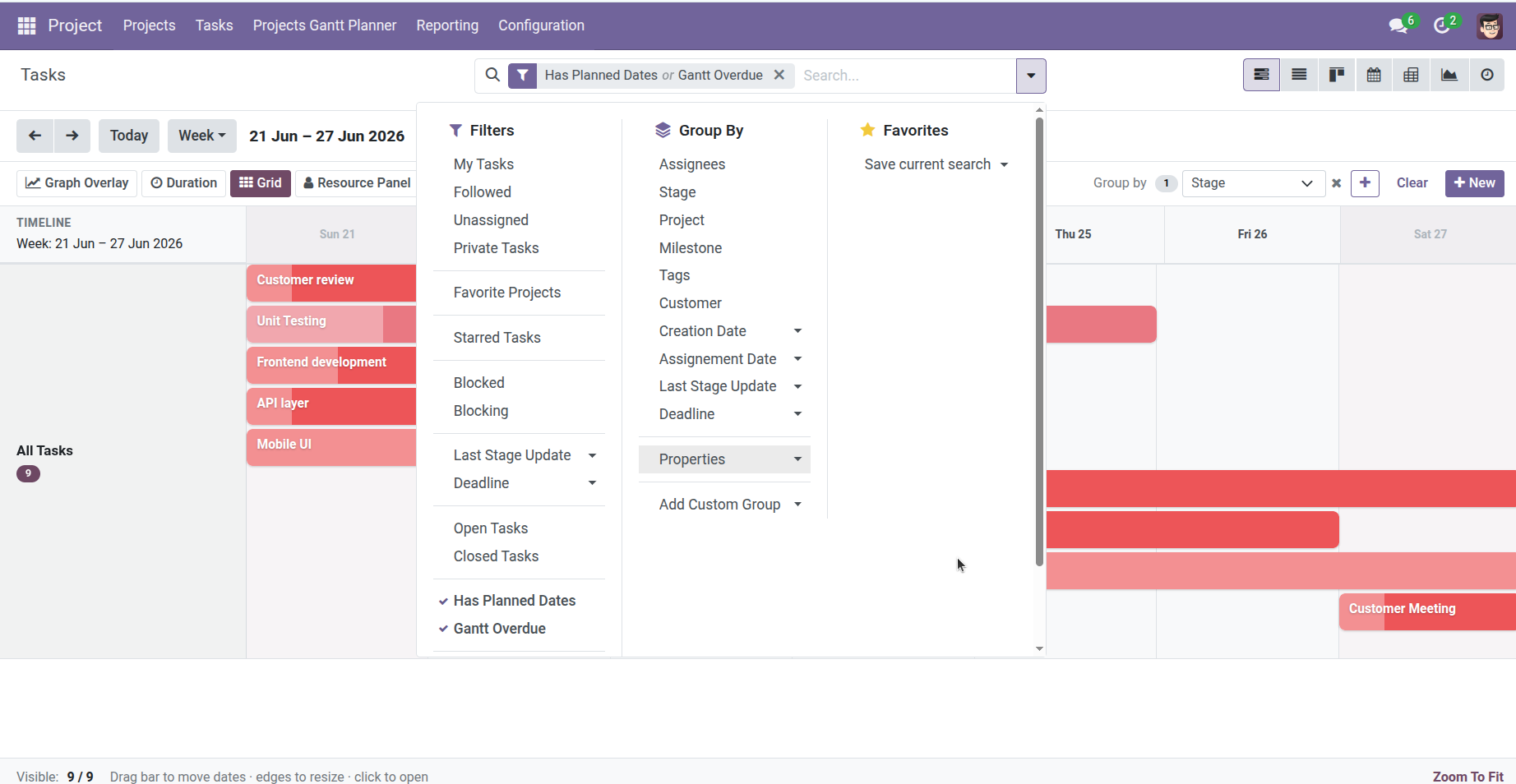
Find the right tasks quickly – search, filter, group, and save favorite views.
Overview
A busy Gantt chart can show dozens or hundreds of task bars. The search bar at the top helps you narrow the view to exactly what you need – one project, one assignee, overdue work only, or tasks that still need planned dates.
Filters work the same way as in other Odoo Project screens. When you apply a filter, the Gantt chart updates immediately and only shows matching tasks.
How It Works
The Gantt view includes a standard Odoo search panel with three tools:
- Filters – Pre-built rules you can turn on with one click (including two special Gantt filters)
- Group By – Organize rows (also available in the toolbar with up to 3 levels)
- Favorites – Save your current search, filters, and grouping for quick reuse later
Gantt-specific filters added by this module:
- Has Planned Dates – Shows only tasks that have both a Planned Start and Planned End (ready to appear on the timeline)
- Gantt Overdue – Shows only tasks whose planned end date has passed and that are not yet Done or Cancelled
You can also use all standard Project filters – by project, assignee, stage, tags, milestone, priority, and more. Type in the search box to find tasks by name.
Tip: Filters combine with the toolbar Group by panel and with zoom navigation. For example, filter to one project, group by assignee, and switch to week view for a team planning session.
Step-by-Step Guide
Find tasks that are ready for the Gantt
- Open Project → Projects Gantt Planner → Tasks.
- Click the search icon or the search bar area to expand filters (if collapsed).
- Click Filters and enable Has Planned Dates.
- Only tasks with both start and end dates remain on the chart – no empty or invisible rows.
Find overdue work
- From the same Gantt screen, open Filters.
- Enable Gantt Overdue.
- Review the remaining bars – these tasks slipped past their planned end date.
- Drag bars to reschedule, or open each task and mark it Done when complete.
- Remove the filter when finished to see the full schedule again.
Filter by project, person, tag, or milestone
- In the search bar, type a project name or click Filters.
- Choose Project, Assignees, Tags, or Milestone from the standard Project filters.
- Select the value you want – for example, project Website Redesign or tag Frontend.
- The Gantt refreshes to show only matching tasks.
- Optionally add a Group by rule (e.g., Group by Stage) from the search panel or the toolbar.
Save a favorite view
- Set up the filters and grouping you use often – for example: Project = Office Move, Group by Assignee.
- Open the search panel and click Favorites (star icon).
- Click Save current search and give it a clear name, such as Office Move – by person.
- Next time, open Favorites and click your saved entry – the Gantt loads with the same filters instantly.
Fields Table
| Field Name | Description | Example |
|---|---|---|
Has Planned Dates (filter) |
Shows tasks with both Planned Start and Planned End set |
Filter enabled |
Gantt Overdue (filter) |
Shows tasks past planned end that are still open |
Filter enabled |
Search box |
Text search on task name and related fields |
“Homepage design” |
Project (filter) |
Limit the Gantt to one or more projects |
CRM Rollout |
Assignees (filter) |
Show tasks assigned to specific people |
Jane Doe |
Tags (filter) |
Filter by task labels |
Frontend |
Milestone (filter) |
Filter tasks linked to a project milestone |
Phase 1 Launch |
Stage (filter) |
Filter by workflow stage |
In Progress |
Favorites |
Saved combination of filters and grouping |
My weekly plan |
Display in Project |
Main Gantt hides tasks not shown in the project view |
Checked |
Field Explanations
Has Planned Dates (filter)
Use this when the chart feels cluttered or empty. It separates tasks that are fully scheduled from those still missing dates. Great for weekly planning cleanup.
Gantt Overdue (filter)
Surfaces slipped work automatically. Pairs well with the Deadline toolbar button when you review what needs rescheduling.
Search box
Quick lookup by task title. Helpful when you know the name but not which week it sits in.
Project (filter)
The most common filter for project managers. Reduces the timeline to a single initiative.
Assignees (filter)
See one person’s workload on the Gantt. Combine with week view for 1-on-1 check-ins.
Tags (filter)
Tasks can have multiple tags (e.g., Backend, Urgent). Filter by tag to focus on a work stream across projects.
Milestone (filter)
Milestones are major checkpoints in a project. Filter to see all tasks contributing to one milestone release.
Stage (filter)
Limits tasks to a kanban column such as New, In Progress, or Done.
Favorites
Your personal shortcuts. Saves time when you open the same filtered Gantt every Monday morning.
Display in Project
The main Tasks Gantt only includes tasks marked to display in the project. Some sub-tasks may be hidden – see Planning Sub-Tasks.
Tips
- Start each week with Gantt Overdue, then switch to Has Planned Dates to plan the week ahead.
- Save a Favorite per project you manage – one click beats rebuilding filters every time.
- Filters affect the Resource Panel too – filter to one project before checking team workload.
Common Mistakes
- Thinking tasks disappeared after filtering Clear all filters (× on each filter chip) or reload the view. Active filters stay on until you remove them.
- Using Gantt Overdue for done tasks Completed and cancelled tasks never appear in this filter – if something is missing, check its status.
- Confusing search filters with toolbar Group by Filters hide tasks; Group by reorganizes rows. You can use both together.
- Forgetting favorites are per user Saved searches belong to your login. Share filter names with teammates so they can recreate them.
Image