
Setup Project Gantt Planner
Full installation guide - download, upload, install, permissions, and verify the menu.

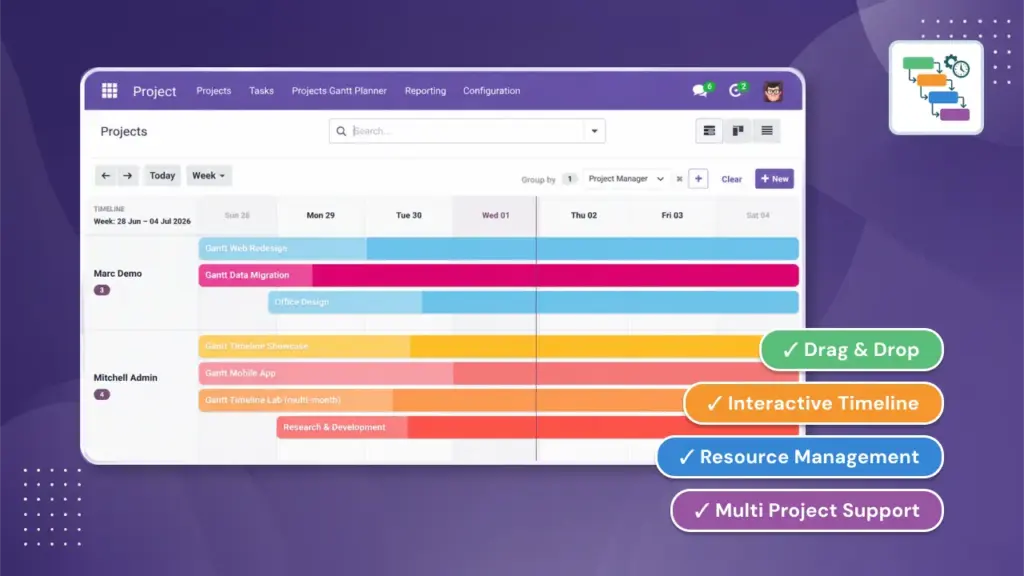
Projects Gantt Planner turns your tasks into an interactive calendar chart. Drag work to new dates, see dependencies, track progress, and keep your team on schedule – all without technical setup.

By Akash Soni June 16, 2026
Full installation guide - download, upload, install, permissions, and verify the menu.
Install the app, find your menus, and see your first Gantt chart in minutes.
All the ways to open the timeline - from the main menu, a project, or a single task.
How Planned Start and Planned End work, and how dates are filled in automatically.
Reschedule work by dragging bars or stretching their edges on the timeline.
Move forward and backward in time, jump to today, and pick the right zoom level.
Stack up to three grouping levels to see tasks by project, person, stage, and more.
Set up "blocked by" relationships and read dependency arrows on the chart.
Break parent tasks into sub-tasks and schedule each one on the timeline.
Use Has Planned Dates, Gantt Overdue, tags, milestones, and saved favorites.
Graph overlay, grid lines, resource panel, critical path, and other visual helpers.
Understand bar fill, deadline markers, overdue highlighting, and filters.
Use the "By Project" view to see all tasks grouped under each project.

Move task bars on the timeline to change when work happens. Resize bars to adjust how long a task takes.

See arrows between tasks that must finish before others can start. Spot the critical path at a glance.

Switch between day, week, month, and more. Jump to today or zoom to fit all scheduled work.

Organize tasks by project, assignee, stage, or up to three custom grouping levels.

Colored bars show how far along each task is, based on its current status.

Choose default zoom, bar colors, weekend shading, and whether to show dependency arrows.