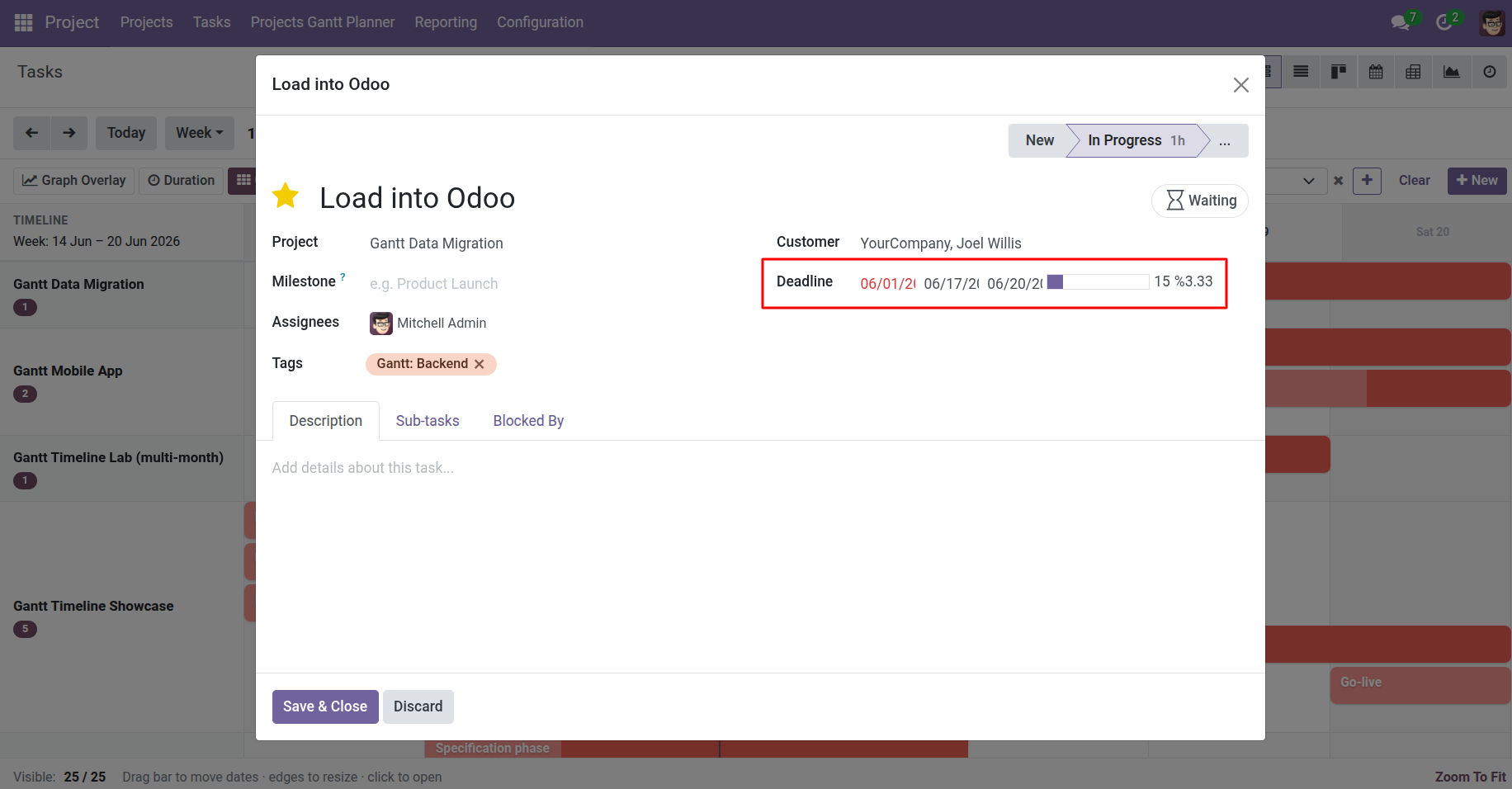
Read bar fill, deadline markers, overdue highlighting, and search filters.
Overview
The Gantt doesn’t just show when work happens – it shows how far along it is, whether due dates are at risk, and which tasks have slipped past their planned end. This helps you prioritize without opening every task form.
How It Works
Progress fill: Each bar has a darker inner fill based on Gantt Progress (%), which comes from the task’s status:
- Waiting / default – about 10-15%
- In Progress – 25%
- Changes Requested – 40%
- Approved – 60%
- Done – 100%
- Cancelled – 0%
Overdue: A task is overdue on the Gantt when its planned end is in the past and it is not Done or Cancelled. Overdue bars may use distinct styling so they stand out.
Deadlines: Turn on the Deadline toolbar button to show markers at each task’s deadline date – compare the marker to the bar end.
Filter: Use search filter Gantt Overdue to list only slipped tasks.
Step-by-Step Guide
- Open the Tasks Gantt and scan bars – darker fill means more complete.
- Update task status on the form (e.g., move to In Progress) and refresh – progress fill updates automatically.
- Click Deadline on the toolbar to show due-date markers.
- Look for overdue styling on bars whose planned end has passed.
- Open the search panel → enable filter Gantt Overdue for a focused recovery list.
- Reschedule or complete overdue tasks, then clear the filter.
Fields Table
| Field Name | Description | Example |
|---|---|---|
Gantt Progress (%) |
Visual completion on the bar from task status |
25% (In Progress) |
State / Status |
Task workflow state that drives progress % |
In Progress |
Deadline |
Official due date; shown as marker when enabled |
20 Jun 2025 |
Planned End |
Used with today’s date to detect overdue |
10 Jun 2025 (past) |
Overdue on Gantt |
Yes when planned end passed and task still open |
Yes |
Priority |
Can affect bar color when color mode is Priority |
High |
Field Explanations
Gantt Progress (%)
Automatic percentage inside the bar. You don’t edit it directly – change the task status instead.
State / Status
The kanban stage of work (In Progress, Done, etc.). This is the source of truth for progress display.
Deadline
When the task is due for the business. May differ from planned end if the schedule slipped.
Planned End
When work was scheduled to finish. Compared to now for overdue detection.
Overdue on Gantt
Computed flag for filtering and styling. Done and cancelled tasks are never overdue.
Priority
High-priority tasks may appear in a different bar color when your admin sets color mode to Priority.
Tips
- Run the Gantt Overdue filter at the start of each week and reschedule or reassign those tasks first.
- Progress is status-based, not timesheet-based – for hour-level tracking, still use Odoo timesheets alongside the Gantt.
Common Mistakes
- Expecting 50% because half the hours are logged Progress reflects status, not logged time.
- Overdue but actually done Mark the task Done – overdue clears automatically.
- Confusing deadline marker with planned end The bar end is the plan; the marker is the commitment – they should align but can differ.
Image